Viewing Host Inventory
The Host Inventory tab displays the total number of hosts with weak kex algorithms, weak ciphers, and weak mac algorithms and host discovery status. Click the number hyperlink to get the details of the host with weak kex algorithms/weak ciphers/weak mac algorithms. This inventory helps you monitor the progress of the host discovery for host management, identify the compliance gaps, and prioritize the remediation actions.
To view the details of the host inventory:
- Go to
 (Menu) icon > SSH+
> Inventory > Host Inventory.The Host Inventory page is displayed.
(Menu) icon > SSH+
> Inventory > Host Inventory.The Host Inventory page is displayed.Table 1. Field description for Host Inventory section Field Description Device name Displays the unique name provided for the device. FQDN/IP address Displays the FQDN/IP address of the host. Host name Displays the name of the host. Host Permission Displays the count of infra access groups for which access control list (ACL) permissions are enabled for the hosts. Hosts with R (Read) and RW (Read-Write) permissions are only displayed. Clicking the hyperlink opens up a pop-up window displaying the infra access group and the related permissions as shown: 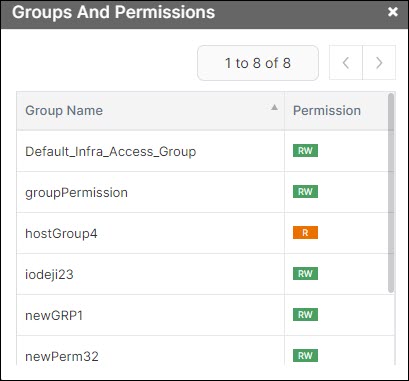 For example, if a host has
ACL permissions enabled in eight of the infra access
groups, then the count is shown as 8. In this example,
the host has six RW and two R permissions enabled in
different infra access groups, it is shown as
For example, if a host has
ACL permissions enabled in eight of the infra access
groups, then the count is shown as 8. In this example,
the host has six RW and two R permissions enabled in
different infra access groups, it is shown as  . This will be the case if a
host has only one RW and six R permissions as RW
outweighs R permission.
. This will be the case if a
host has only one RW and six R permissions as RW
outweighs R permission.Group Displays the host compliance group associated with the host. Allowed Principals Displays the count of users who have access to a particular host (certificate-based access type) based on the access provided by the administrator using Access Control. Clicking the count hyperlink opens the Host Level Access Settings window where administrator can remove host access by selecting the users. Click the confirmation message and provide a comment, which is displayed in the audit logs. Host Status Displays the status of the host as: - Managed: When SSH Host Key
and/or Cert Provisioning and UserCA trust
operations are completed, it displays
 , else it displays
  . If the host status
displays as managed with a warning symbol, it may
be because the you did not check the 'sudo' option
during discovery or host addition.Note: To resolve this, modify the host in the SSH+ host inventory to include 'sudo.' If this issue is not resolved, the access request functionality may not work successfully.
. If the host status
displays as managed with a warning symbol, it may
be because the you did not check the 'sudo' option
during discovery or host addition.Note: To resolve this, modify the host in the SSH+ host inventory to include 'sudo.' If this issue is not resolved, the access request functionality may not work successfully. - In-Progress: Status when host addition/discovery is in progress.
- Failed: Status when host communication failed.
- Unresolved: Status when the device is not reachable.
Clicking the hyperlink displays the device status.
Jump Server Client Displays the devices acting as a jump server. client. Client device allows the users to connect to other devices in the infra access group. Access Type Displays key or certificate. User Displays the name of the user onboarding the device. Port Displays the port number that is communicating with the host. Vendor Displays the operating system vendor associated with the host. Last sync time Displays the last sync date and time with the host. Instance Id Displays the ID automatically generated by AWS when you launch a new EC2 instance. Note: This is applicable only for EC2 instances discovered by adding the AWS cloud account. - Managed: When SSH Host Key
and/or Cert Provisioning and UserCA trust
operations are completed, it displays