Perform a Revocation Check
To perform a revocation check:
-
Click
 Menu>> CERT+ >> Certificate Inventory
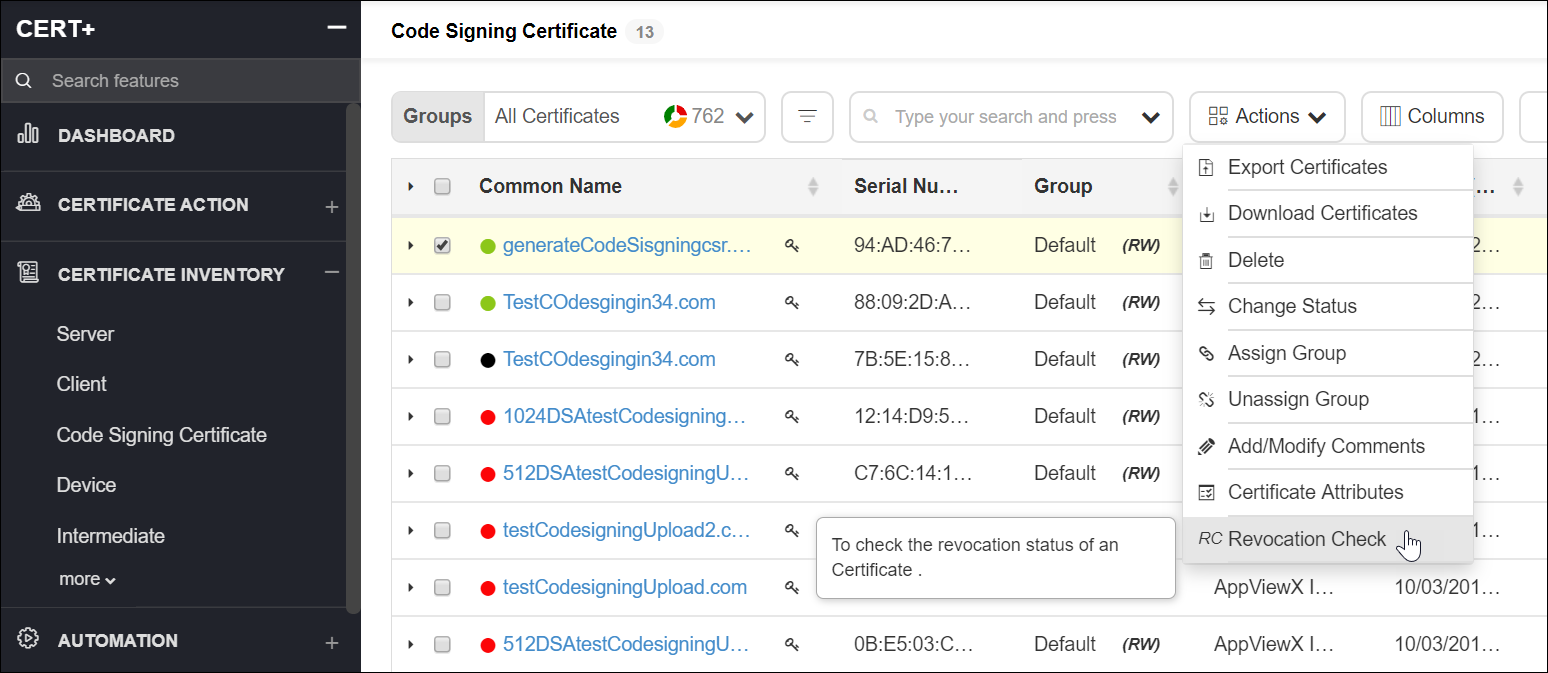
- Under Certificate Inventory, click Server, Client, Device , or Code Signing depending on the type of certificate(s) you want to check the revocation.
- On the Certificate Dashboard, click List on the top-right.
- On the certificate list view, select the certificate(s) for which you want to check the revocation.
- Click Actions and select the Revocation Check option from the dropdown.
-
On the Revocation Check pop up window, click OK.
The status of the revoked certificate is displayed on the Valid for column.