Create a Certificate
-
Click
 and select Inventory >
Certificate.
and select Inventory >
Certificate.
- On the Certificate list view page, click Server, Client or Code Signing depending on the type of certificate you want to create.
-
On the top of the page, click
 .
.
- On the Create New Certificate form, assign a group to the certificate.
- Under the CA Details section, in the Certificate Authority field, select a CA for the certificate.
-
Other fields and options under the certificate authority section vary depending
on the CA you chose. Fields with a red asterisk (*) are mandatory.
- For all the CA types except Amazon, you have an option to generate the CSR using AppViewX, Upload CSR, HSM, or Endpoint. Fields displayed will vary for each CSR generation method.
- For Microsoft Enterprise, Microsoft Standalone and Entrust CA(s), provide the Subject alternative name for certificates by selecting Directory name, DNS, Email, IP address, Registered ID, URL, and Other names.
- While creating certificates, the user can attach supporting documents by uploading it in the Attachment section.
-
Click Add to generate the certificate.
The certificate holistic view with the newly created CSR appears.
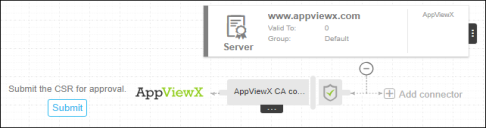
- Click Submit.
-
On the Submit pop up window, enter relevant comments and click
Yes.
A request ID and work order ID are generated automatically and the work order status In Progress (Approval level 1) is displayed beside the connector on the topological view.
- Click Approve to approve the work order.
-
On the Approve pop up window:
- Turn On or Off the Manual Implementation.
- Select the Implementation Time.
- Enter comments to approve the CSR and click Yes.
The work order status displayed beside the connector updates to In Progress (CSR submission). - Click Implement to submit the request to the CA.
-
On the Implement popup window:
- Turn On or Off the Manual Implementation.
- Select the Implementation Time.
- Enter comments to implement the request and click Yes.
The work order status displayed beside the connector updates to In Progress (Awaiting certificate retrieval). -
To update the topology, on the top of the screen, click
 .
After the CA is generated, the status updates to Completed. You can perform a wide range of actions on the certificate by hovering over
.
After the CA is generated, the status updates to Completed. You can perform a wide range of actions on the certificate by hovering over and selecting one of the options in the
dropdown.
and selecting one of the options in the
dropdown.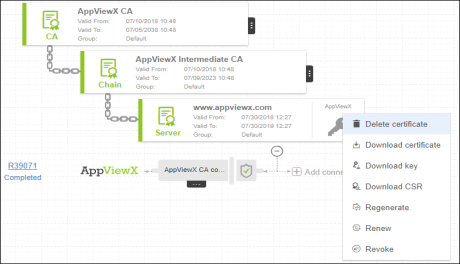
-
To return to the certificate list view and view the new certificate, click
Certificate on the top left.
Note: After CSR is requested, to view details in the certificate holistic page, hover over the CA connector icon and click View