Compare Configurations of Custom Environments
- You can only compare a maximum of two environments at a time.
- This feature is applicable only for F5 device objects.
Note: To add data to the table, you must download the sample file, fill in all the required
environment details and the corresponding objects, and then import it.
-
Click
 and select Inventory > Backup & Restore.
The Backup & Restore screen opens.
and select Inventory > Backup & Restore.
The Backup & Restore screen opens. - Click the Compare tab.
- In the Compare Type field, select the Environment radio button.
-
Click
 beside View
Parameters section to expand it.
The Current Parameters table is displayed.Note: In the table, you can export, import, or delete parameters; download the sample using the buttons on the top-left corner. You can also right-click inside the table to delete a row; select, delete, or unselect a column.
beside View
Parameters section to expand it.
The Current Parameters table is displayed.Note: In the table, you can export, import, or delete parameters; download the sample using the buttons on the top-left corner. You can also right-click inside the table to delete a row; select, delete, or unselect a column.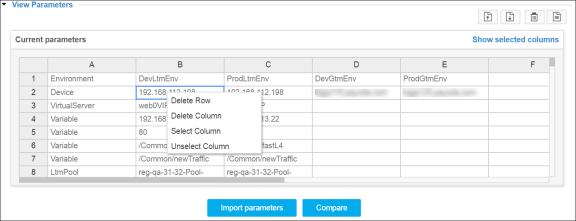
- Click Import Parameters.
- Click Compare to compare the source and destination environments.
-
Select the environment names, device names, and object names to be compared from the
respective dropdown lists in source and destination environments.
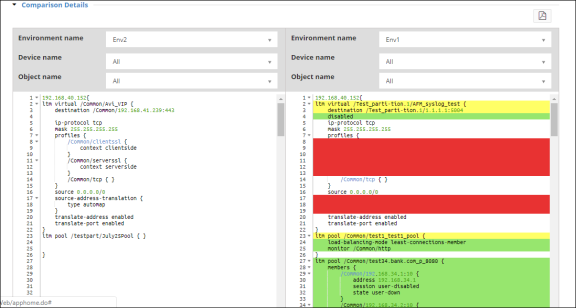
A line-by-line comparison will be displayed below each environment with the following color coding:
- Green - Denotes the new additions
- Yellow - Denotes the modifications
- Red - Denotes the deletions
 Note: If required, you can click
 to download the comparison report to your computer.