Create a Certificate Group
-
Click
 and select
Inventory > Groups&Policies.
and select
Inventory > Groups&Policies.
- Under Groups & Policies, click Groups.
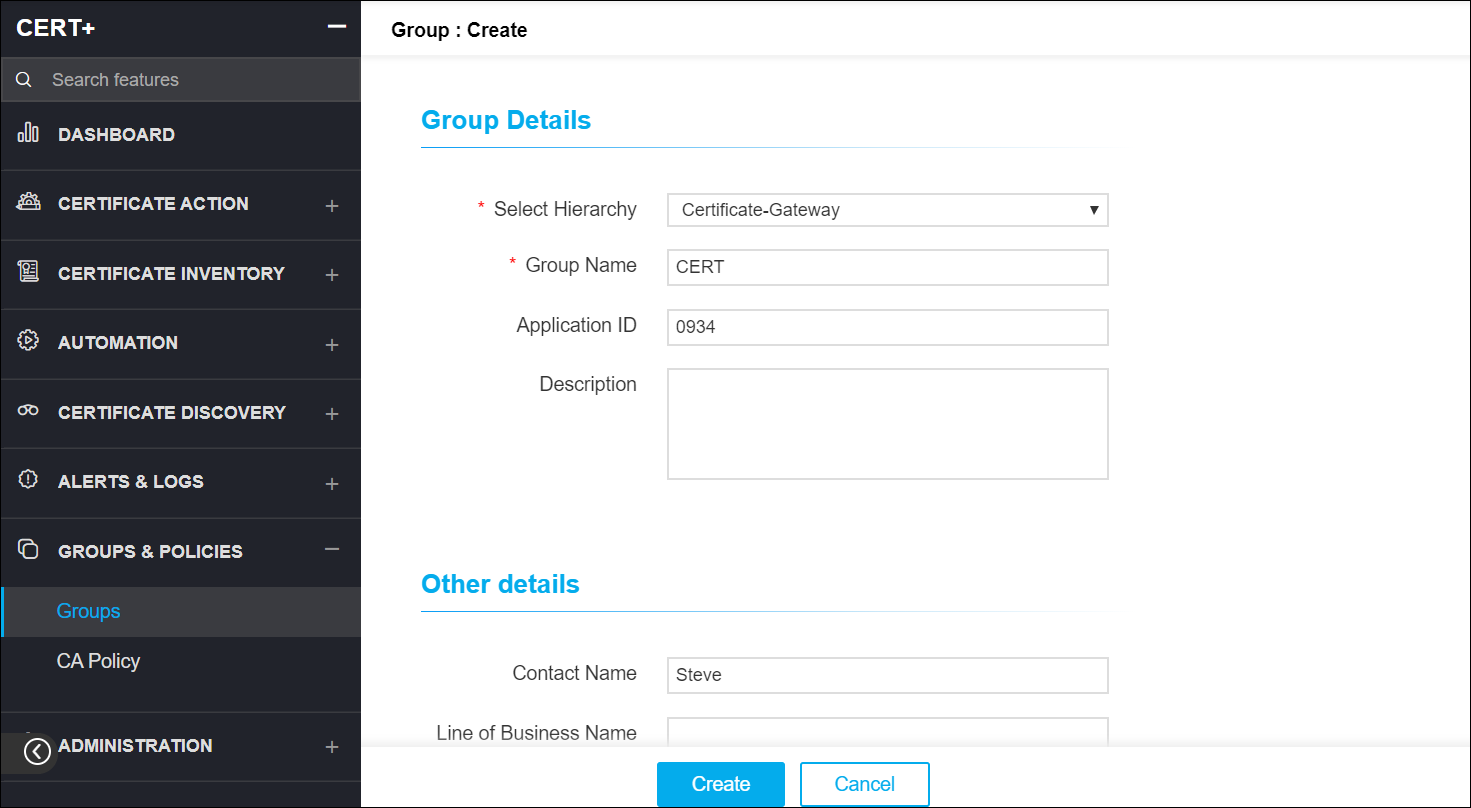
- On the Groups list view page, click + Create on the top-right.
- On the create details page, under the Group Details section, select a hierarchy.
- Enter a name for the new group.
- Enter the ID of the application the certificate group is to be associated with.
- (Recommended) Enter a description of the certificate group to help users identify it.
-
Under Other Details section, provide any or all of the following details about
the certificate group:
- Contact name
- LOB name - Line-of-business (LOB) manager responsible for reviewing access privileges for all users
- Contact's email address
- Environment name
- Contact's phone number
- Inventory number
- Cost center/Hierarchy under which the certificate group appears
-
Click Create to add the certificate group to the system.
 Note: You can also create a certificate group for Server, Client, and Device certificates by clicking
 from the respective tabs under Certificate
inventory.
from the respective tabs under Certificate
inventory.