Create a Request
To create a request:
-
Click
 and select
Provisioning > Request.
The Request screen opens.
and select
Provisioning > Request.
The Request screen opens. -
Click
 on the top-right.
- On the Create screen that opens, select the name of the template you want to use.
-
Add values in all of the required fields, which are designated by a
 beside their names.
-
Click Add to append a request scenario to the selected template.
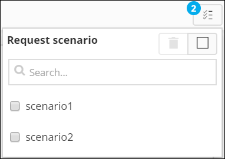 This links a device and pool to the request. All appended requests are displayed in the top-right corner.
 - Make any other changes you want to the optional fields on the screen.
-
When you have finished, click Save draft to save the new request to the Request list or
Submit to make the request.
If you saved the request as a draft, it appears on the Request screen with a status of Draft. If you submitted the request, it appears with a status of Open.