Upgrade an AppViewX License
To upgrade an existing AppViewX license:
-
Click
 and select Settings >
General.
The License screen appears, showing details about the main license and all subscribed licenses.
and select Settings >
General.
The License screen appears, showing details about the main license and all subscribed licenses.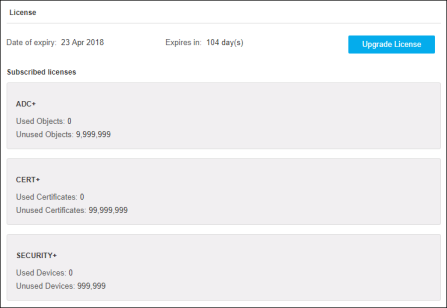
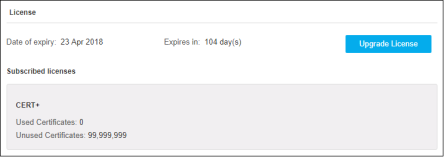
- Click the Upgrade License button.
-
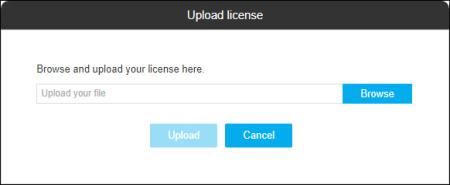
On the Upload License screen that appears, click Browse and then locate
and select the license upgrade file.
-
As soon as you select a file, the Upload button becomes active. Click it to
begin the upload process.
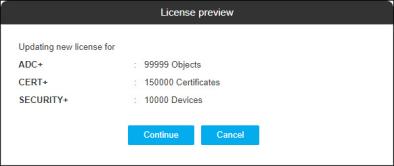
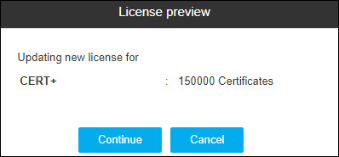
The screen then displays a license preview screen listing modules that you have purchased and the license limits and counts for each.
-
Click Continue.
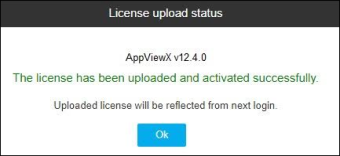
As soon as the license is done being uploaded and activated, the screen displays the message: The license has been uploaded and activated successfully.
-
Click OK to return to the login screen. When you log in again, your newly
upgraded license will be active.
- If the license is uploaded and not activated, the screen displays the message, The license has been uploaded successfully, but the activation has failed. For more information contact AppViewX support.
- If the license upload is failed, the screen displays the message, The license upload has failed, try uploading it again.