Adding Akamai Device
To add Akamai device,
- Log in to the AppViewX application with valid credentials.
-
Go to
 Menu > ADC+ > ASSET MANAGEMENT
- Perform any of the following:
- Click Device Inventory, and then select Add (+) icon to navigate to
the Device details page.
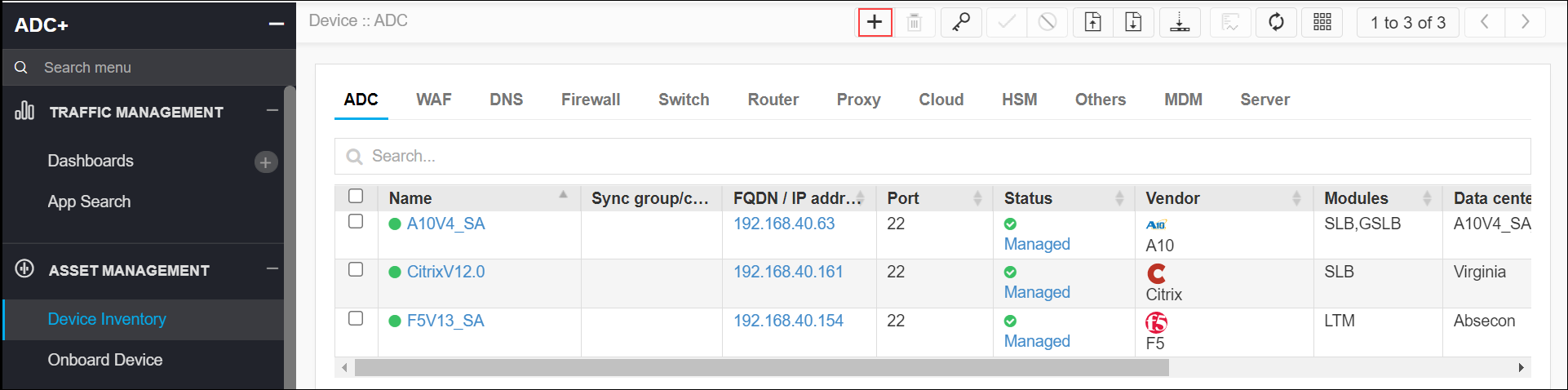
-
Click Onboard Device in the left navigation panel.
- Click Device Inventory, and then select Add (+) icon to navigate to
the Device details page.
-
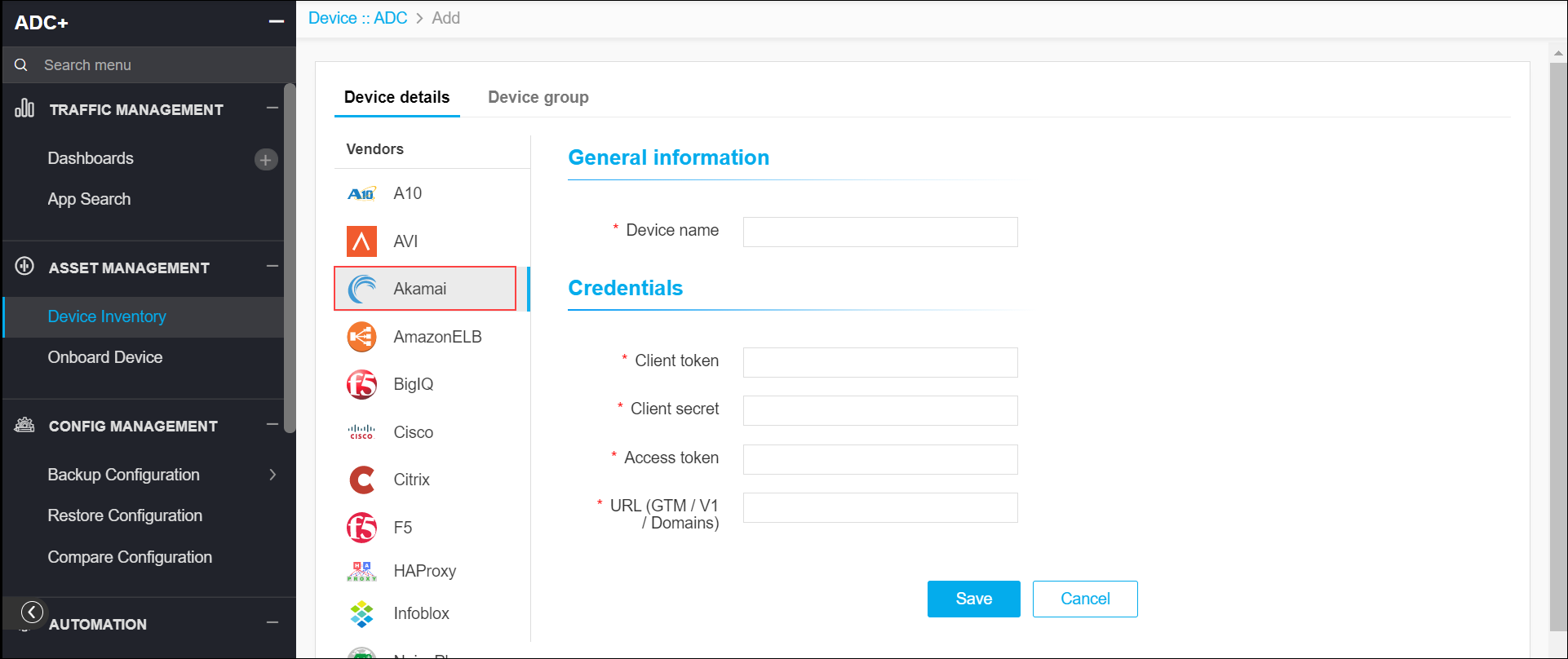
In the Device details page, select Akamai from the left
sidebar.
-
Enter the required details for the device addition.
Name Type Mandatory Description Validation *Device name Text Yes Unique name of the device to be added. Device name can only contain alphanumeric characters, '-' , '_' , '.' , '*' , '|' , '!' and spaces. *Client token Text Yes Client token of the Akamai device. NA *Client secret Text Yes Client secret of the Akamai device. NA *Access token Text Yes Access token of the device. NA *URL Text Yes Valid URL of the Akamai device. NA - Click Save.