Adding F5 Device
To add F5 device,
- Login to the AppViewX application with valid credentials.
- Go to
Menu > ADC+ > ASSET MANAGEMENT.
- Perform any of the following:
-
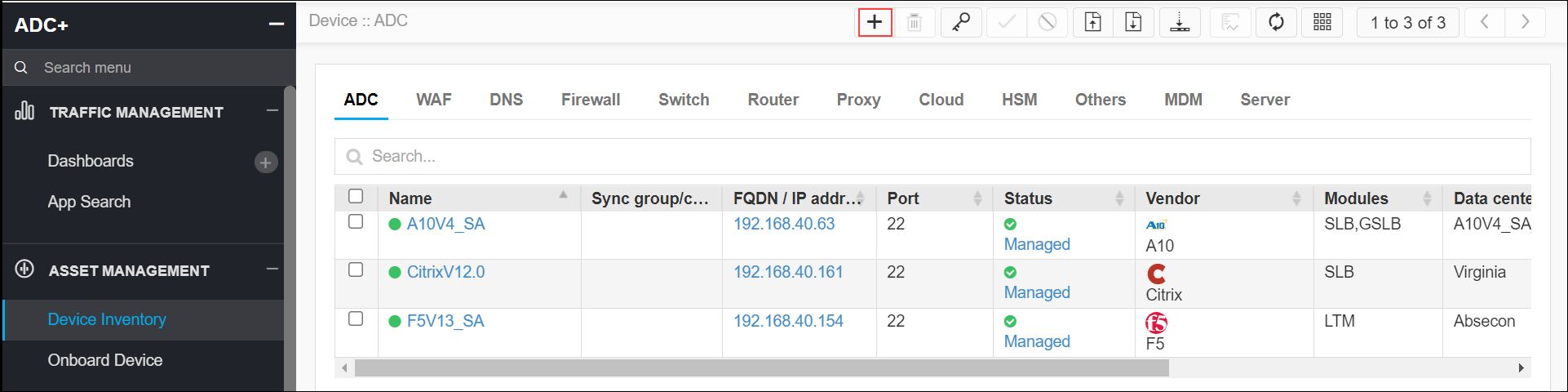
Click Device Inventory, and then select Add (+) icon to navigate to the Device details page.
-
Click Onboard Device in the left navigation panel.
-
-
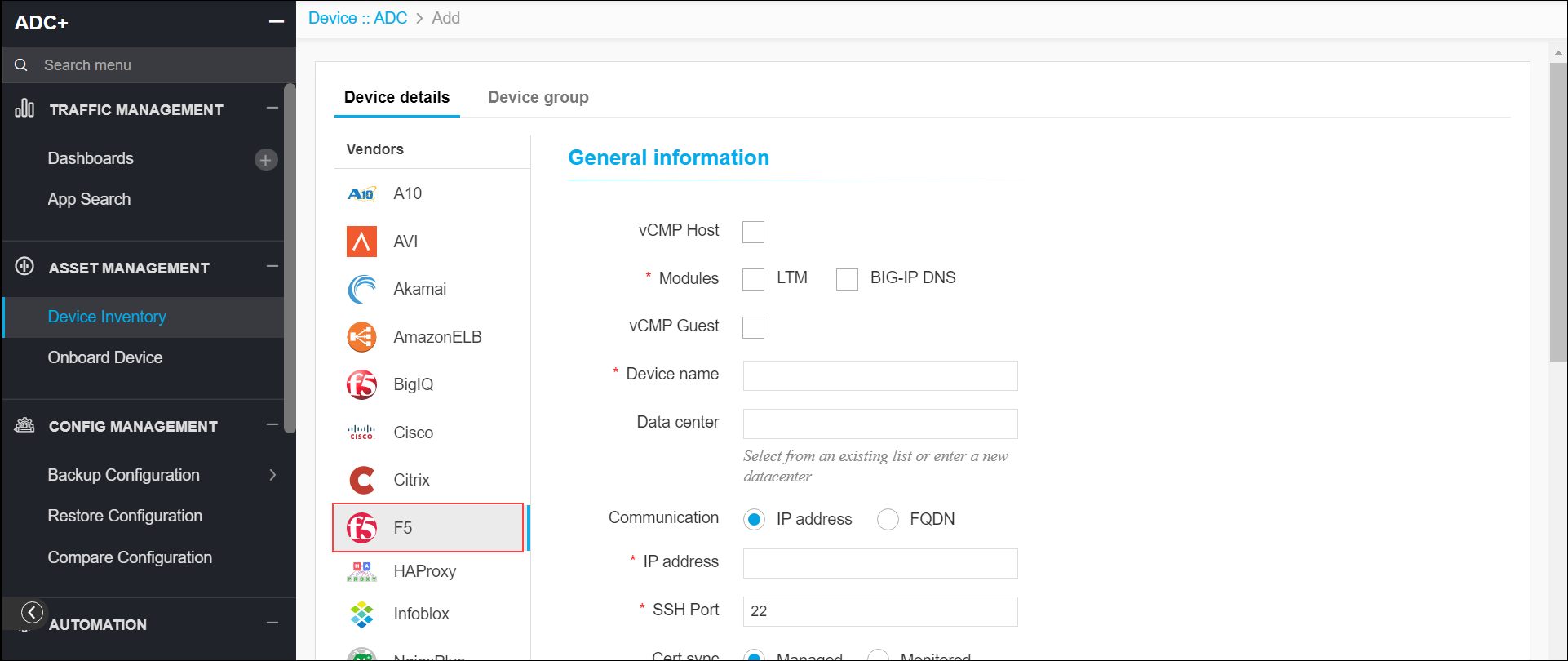
In the Device details page, click on the F5 icon.
-
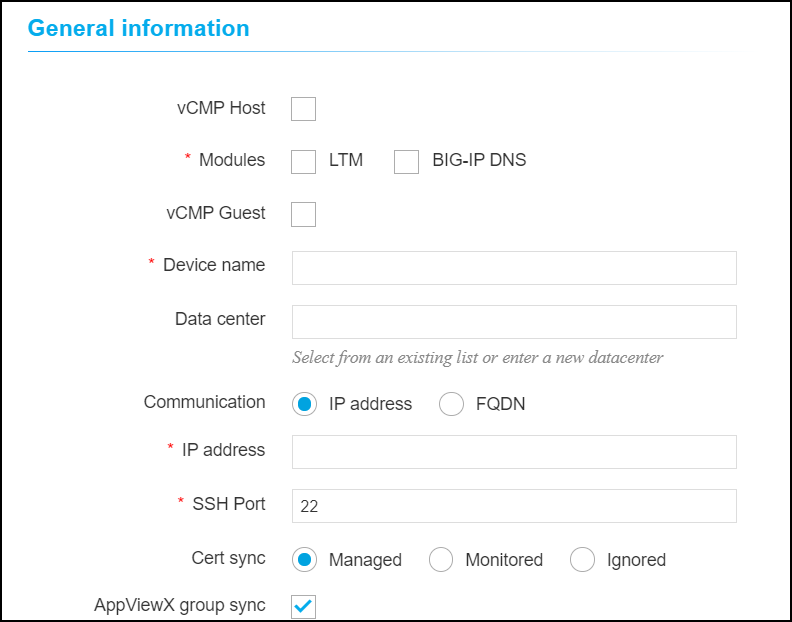
Enter or select the field information in the General information
section.
-
The following table provides the field description for adding ADC device
details in the General information section:
Name Type Mandatory Description Validation VCMP Host Check box No To add a device as a vcmb host, this checkbox should be checked. NA *Module Check box Yes LTM / BIG-IP DNS Module. NA VCMP Guest Check box No To add a device as a vcmp guest, this checkbox should be checked. NA *Device name Text Yes Unique name of the device to be added. Device names can only contain alphanumeric characters, '-' , '_' , '.' , '*' , '|' , '!' and spaces. Data center Text No Data center name where the device is configured. The default value is Absecon. Data center name can only contain alphanumeric characters, '-' , '_' , '.' , '*' , ':' , '|' and spaces. *Communication Radio button Yes Devices can be accessed using an IP address or FQDN. NA *IP Address Text Yes The ipv4 address of the device. The IP address should be a valid IPv4 format. *FQDN Text Yes The FQDN of the device. the FQDN should be in a valid format. *SSH Port Text Yes Communication port of the device. Numbers only. *Cert Sync Radio button Yes Managed:
The certificates of the device can be managed.
Monitored:
The certificates of the device can be monitored.
Ignored:
The certificate sync can be ignored.
NA AppViewX Group Sync Check box No This should be enabled if the user wants to sync the devices within the device group. NA -
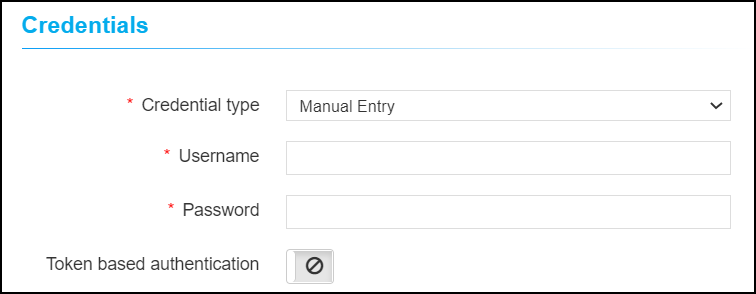
Enter or select the field information in the Credentials section. You
can select Manual Entry or Credentials List.
-
The following table provides the field description for adding ADC device details in the
Credentials section:
Name Type Mandatory Description Validation *Credential type Dropdown Yes Manual entry: The user should enter the username and password.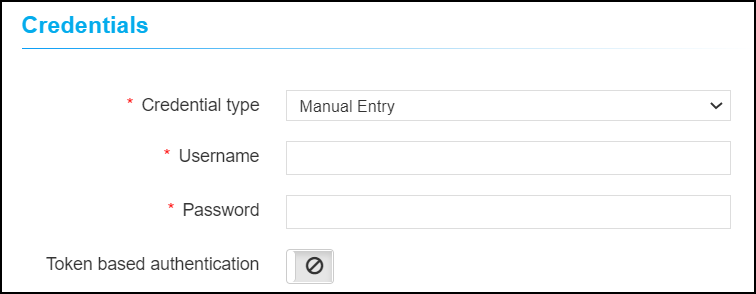 Credential List: The user can select the credential details which are already stored in the credential inventory page. For more details on secure authentication, refer to Platform User Guide.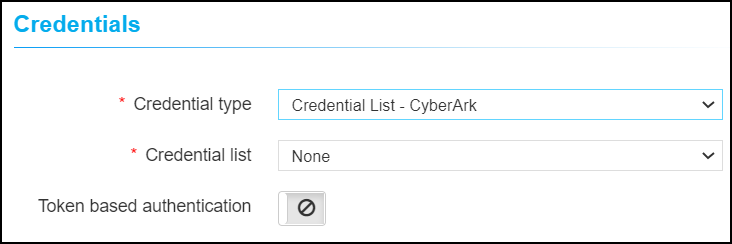
NA *Username Text Yes The user name of the device. NA *Password Text Yes The password of the device. NA Token based authentication Toggle button No To access the device REST API using token. NA -
Enter or select the field information in the Secondary device information
section.

-
The following table provides the field description for adding ADC device details in the
Secondary device information section:
Name Type Mandatory Description Validation Secondary device information Radio button Yes Auto detect:
The user should select this option to auto-detect and add the peer devices in the inventory page.
Manual entry:
The user can use this option to add the peer devices manually.
Ignore:
The user can use this option to ignore the auto-detection of the peer devices.
NA - Click Save.