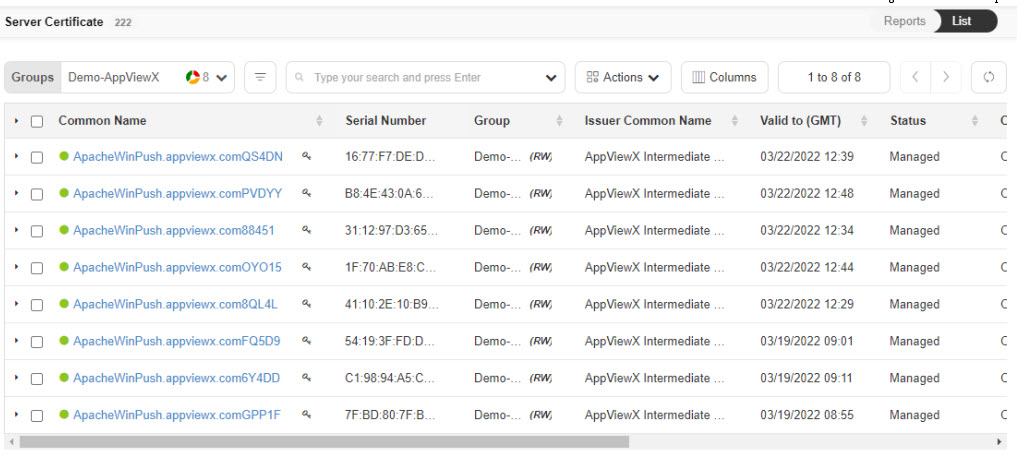
Assign Certificate to a Group
- Log in to AppViewX application with valid credentials.
- Click the menu button located in the upper left corner of the screen.
The left navigation pane appears.
- Click CERT+.
The Server Certificate Inventory appears.
- Click List button on upper right of the server certificate inventory screen.
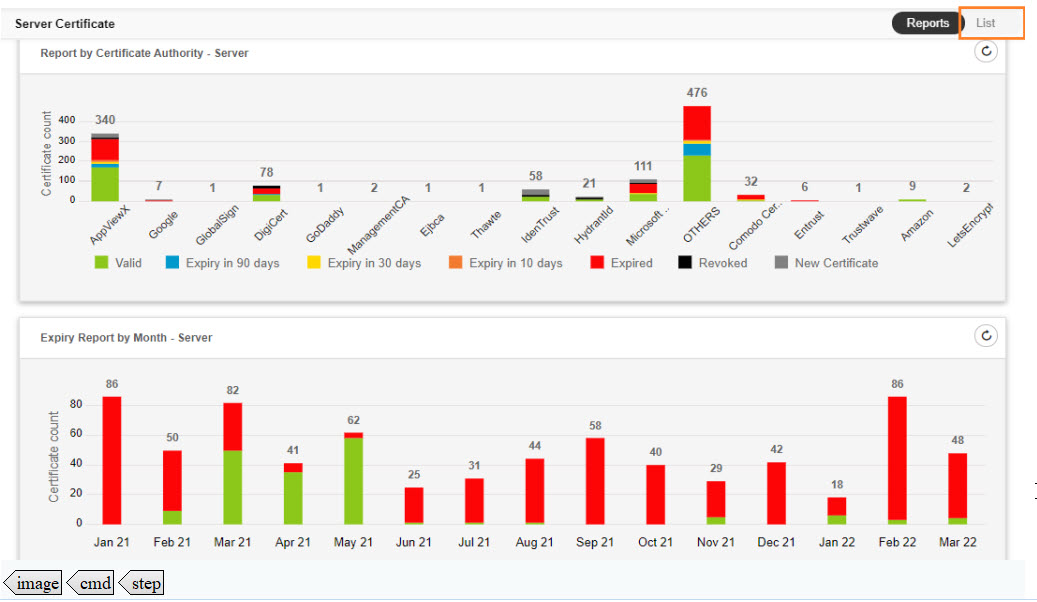
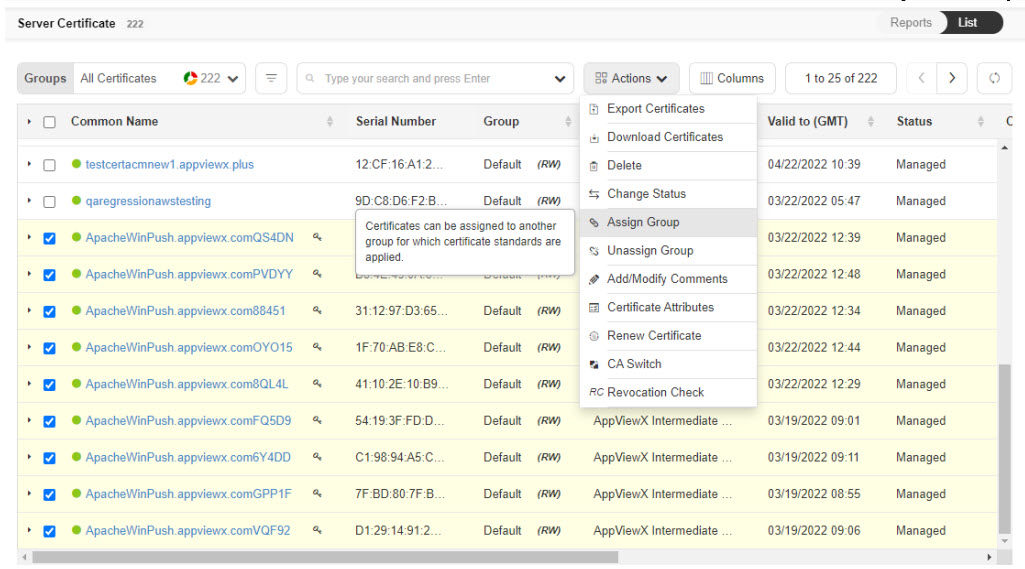
- Select the check box against the certificate(s) you want to assign to a group.
- Click the Actions drop-down and select the Assign Group option from the
drop-down.
- The Assign to Group pop-up appears. Select the Group from the list.
- Click the Assign button to move the certificate(s) to the selected Group.
- Click the Groups drop-down and select your Group from the drop-down.
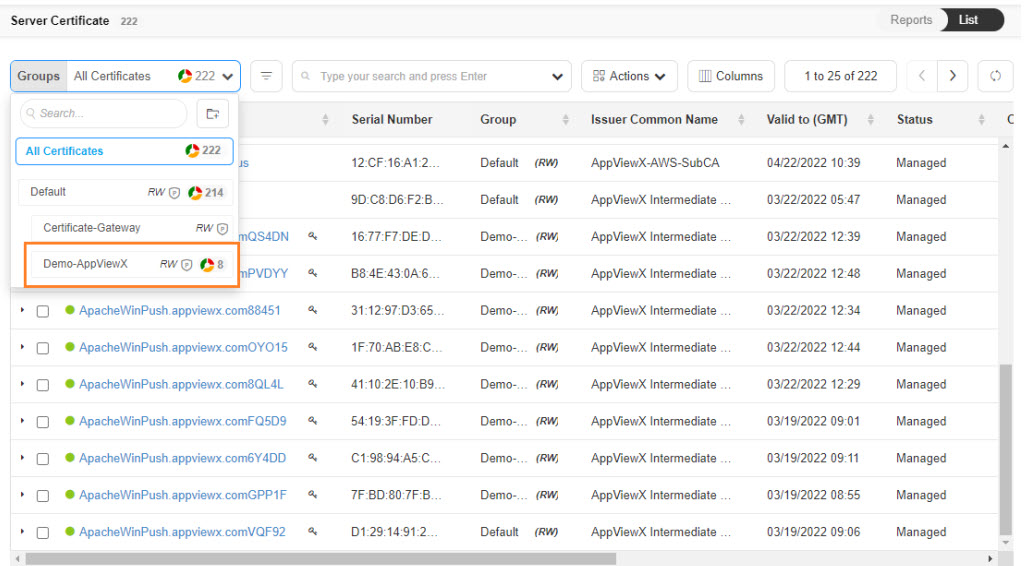
- You can view the certificate(s) assigned to the Group. The table provides certificate(s)
details.