Unassign Certificate from a Group
- Log in to AppViewX application with valid credentials.
- Click the menu button located in the upper left corner of the screen.
The left navigation pane appears.
- Click CERT+ on the left navigation pane.
The Server Certificate Inventory appears.
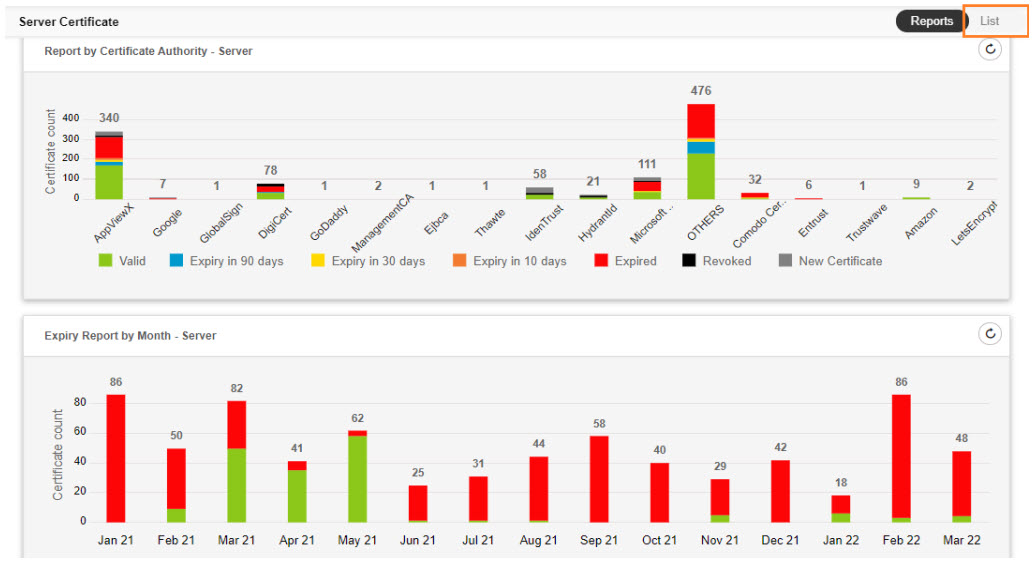
- Click the List button on the upper right of the server certificate inventory
screen.
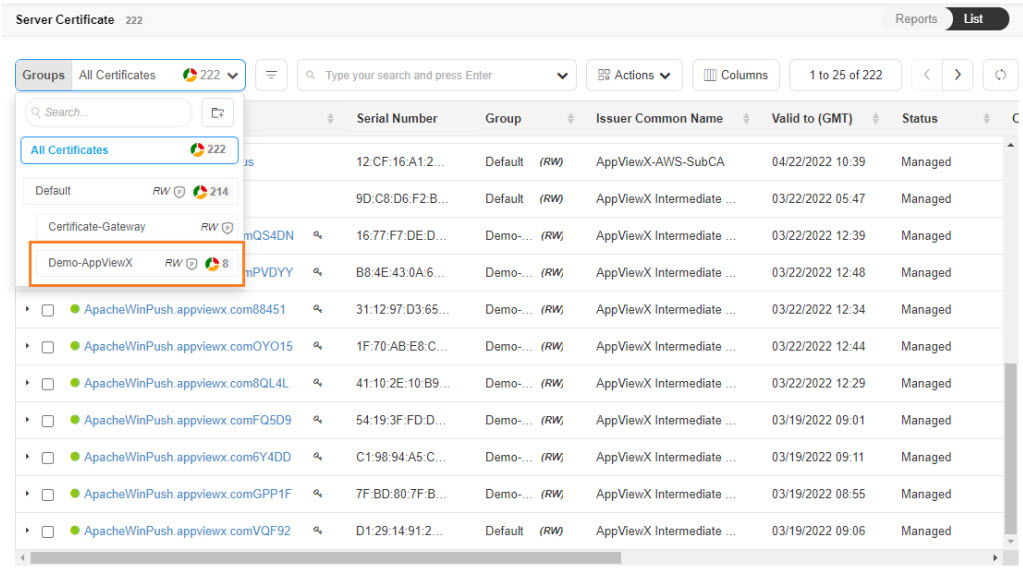
- Click the Groups drop-down and select a Group from the drop-down.
- Select the check box against the certificate you want to unassign from the group.
- Click the Actions drop-down and select the Unassign Group option from the
drop-down.
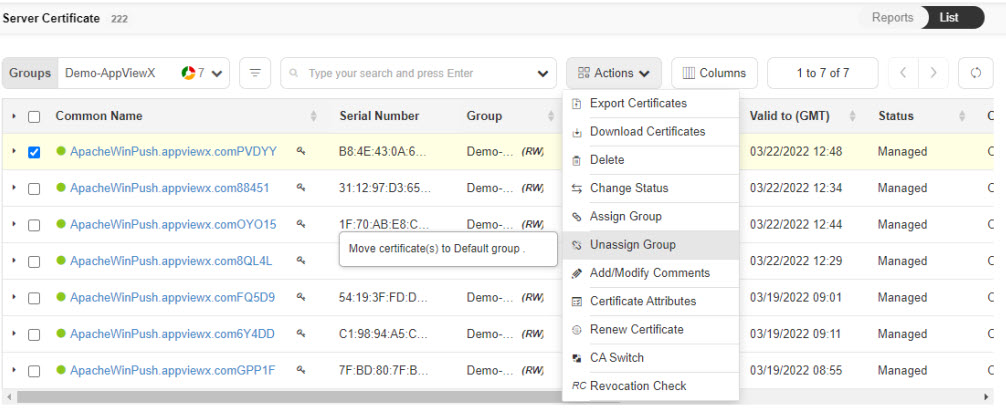
- The certificate is unassigned from your Group and automatically assigned to the Default Group.
A certificate should always assign to a Group to compliance with the Policy. Certificate unassigned from a group will automatically assign to Default Group and compliance against Default Policy.