Configuring Certificate Profiles
To add a new certificate profile:
- Log in to AppViewX application with valid credentials.
-
Click the menu button located in the upper left corner of the screen.
The left navigation pane appears.
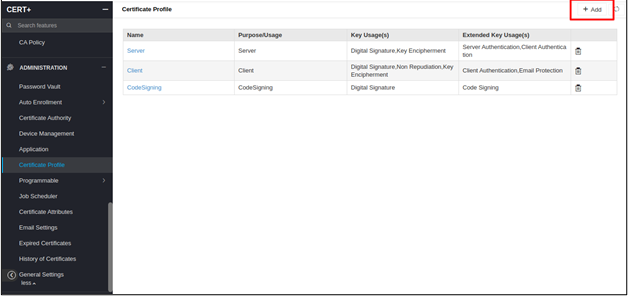
- Click CERT+ > ADMINISTRATION.
- Under Administration, select Certificate Profile.
-
Click + Add.
-
Configure the General Information details as follows:
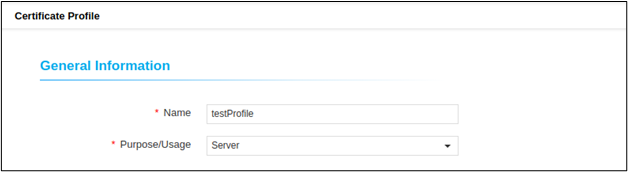
Name Type Mandatory Description Validation Name Text
Yes
Unique name to identify the profile.
Profile name should not start with special characters. Can contain only alphanumeric characters, no special characters except -, _, . are allowed.
Purpose/Usage Multi - Select
Yes
Certificate Type to which the Key Usage extensions are signed with. For example: Server or Client.
NA
-
Configure the Key Usages as given below.
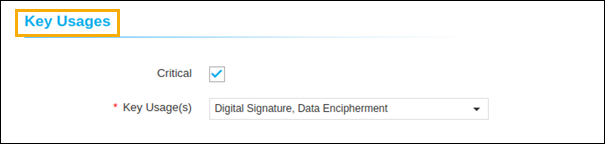
Name Type Mandatory Description Validation Critical Checkbox
No
Enable this field to sign the Key Usage extensions as critical.
NA
Key Usage(s) Multi - Select
Yes
Key Usage extensions along with which the CSR is signed.
NA
-
Configure the Extended Key Usages as given below.
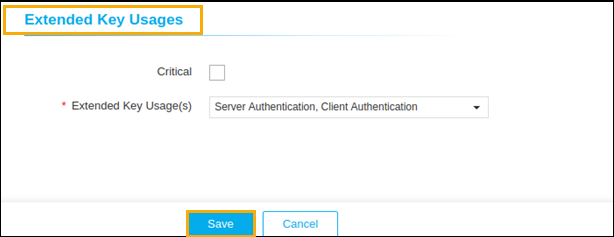
Name Type Mandatory Description Validation Critical Checkbox
No
Enable this field to sign the Extended Key Usage extensions as critical.
NA
Extended Key Usage(s) Multi - Select
Yes
Extended Key Usage extensions along with which the CSR is signed.
NA
-
In the Policy ID section, enter the pollicy id in the field as
given below.
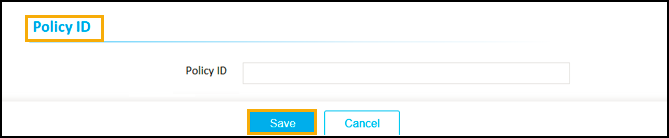
- Click Save.