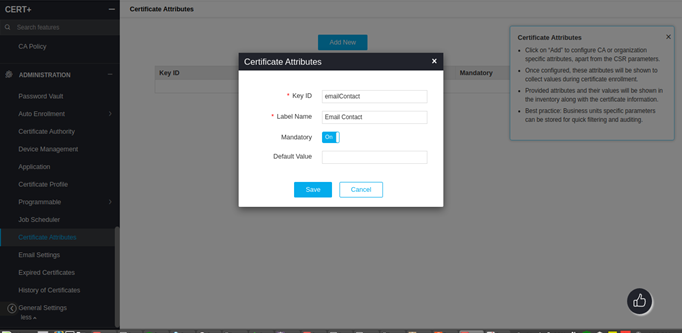
Configuring Attribute Information
Certificate Attributes are a CERT+ way of creating additional placeholder fields which can be used to track a certificate.An administrator can create one or more fields that a requestor enrolling a certificate can fill and use for future tracking.
Before you Begin
Following are the points needed to be known before starting the configuration for Certificate attributes:
- Certificate attributes are CA or organization-specific attributes, apart from the CSR parameters.
- Once configured, these attributes will be shown to collect values during certificate enrollment.
- Business units specific parameters can be stored for quick filtering and auditing.
- Log in to the AppViewX application with valid credentials.
- Click on the menu button.
The left navigation pane appears.
- Click CERT+.
The CERT+ left navigation pane appears.
- Expand ADMINISTRATION, and then select Certificate Attributes.
- Click Add New.
- Configure the Attribute Information details as mentioned below.
Name Description Validation *Key ID
Unique key for the attribute. Key ID must not start with special characters. No special characters except -, _ are allowed. *Label Name Attribute name which will be shown during certificate enrollment. Eg. Email Contact, Owner.
Label name should not start with special characters. No special characters except -, _ and spaces are allowed. Mandatory Enable if this field needs to be mandatory. NA Default Value Set default value to the attribute. NA Note: These attributes support only text fields and are applicable for all CAs. -
Save the attribute.