Export Certificates Logs
When exporting logs in AppViewX, you can export all of the logs of a given type-for example, all Configure files or all Audit files-or you can search for specific logs or filter the default log list using the Date Range and Log Detail fields and then export only the logs that remain.
To export a logging report,
- Log in to the AppViewX application with valid credentials.
- Click on the menu button.
The left navigation pane appears.
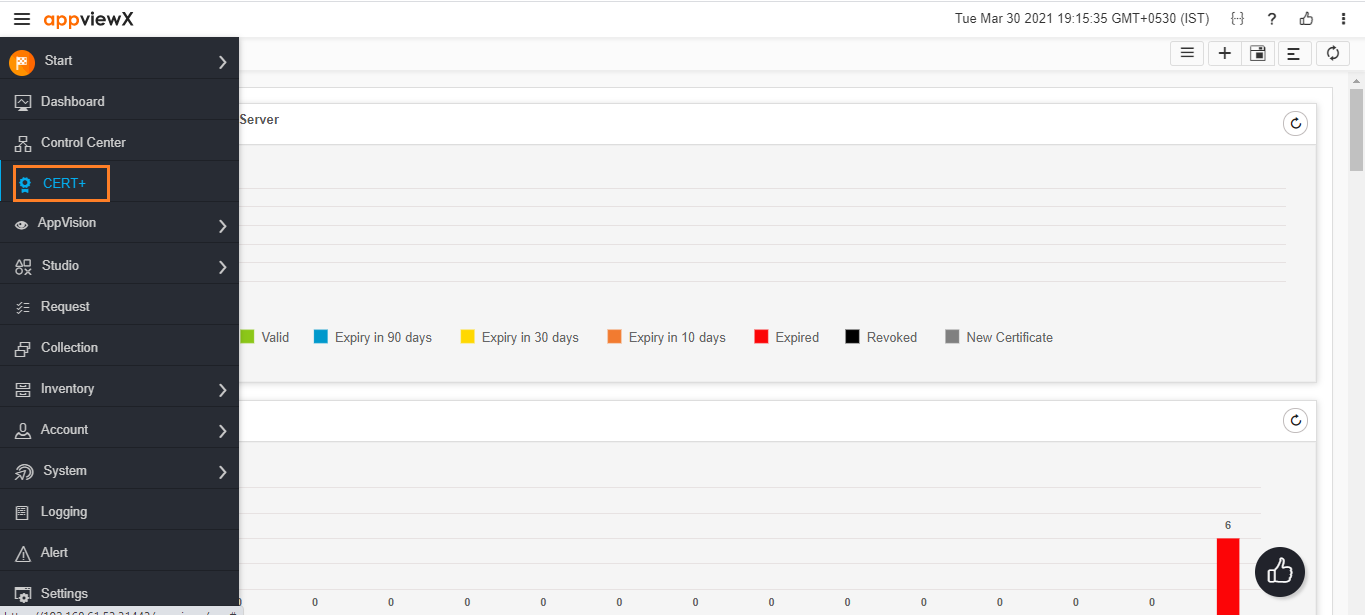
-
Click CERT+.
The CERT+ left navigation pane appears Logging.
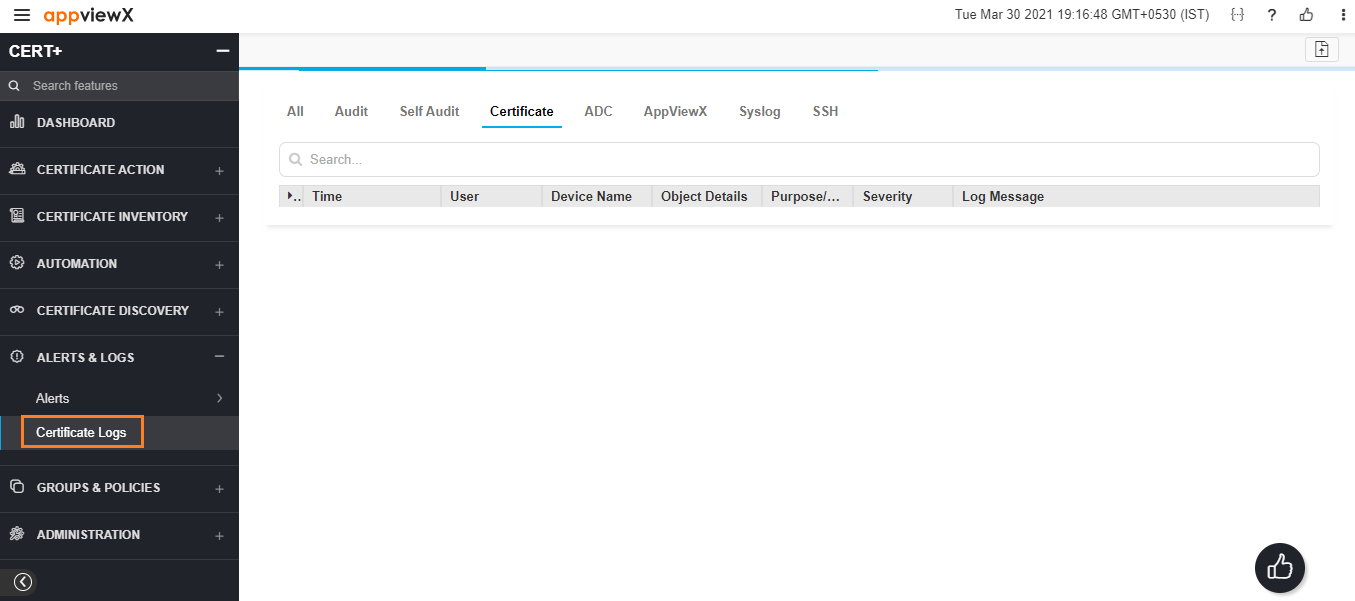
- At the top of the Logging screen, click the tab for the type of logs you want to export: Certificate (in this case).
- (Optional) Run a search for specific logs or filter the default list using the Date Range and/or Log Detail fields in the Search bar.
- Click the export button in the Command bar in the top-right corner of the page.
- The log report is then downloaded as a tar.gz file.