Configuring a Certificate Expiry Alert
Certificate expiry alerts are sent to designated recipients for all certificates that are set to expire on the date specified on the Settings: Certificate expiry alert screen.
To create a certificate expiry alert,
- Log in to AppViewX application with valid credentials.
- Click the menu button located in the upper left corner of the screen.
The left navigation pane appears.
- Click CERT+.
The CERT+ left navigation pane appears.
- Expand ALERTS & LOGS.
- Hover on Alerts, and then select Configure
Alerts.
The Configure Certificate Alerts screen appears.
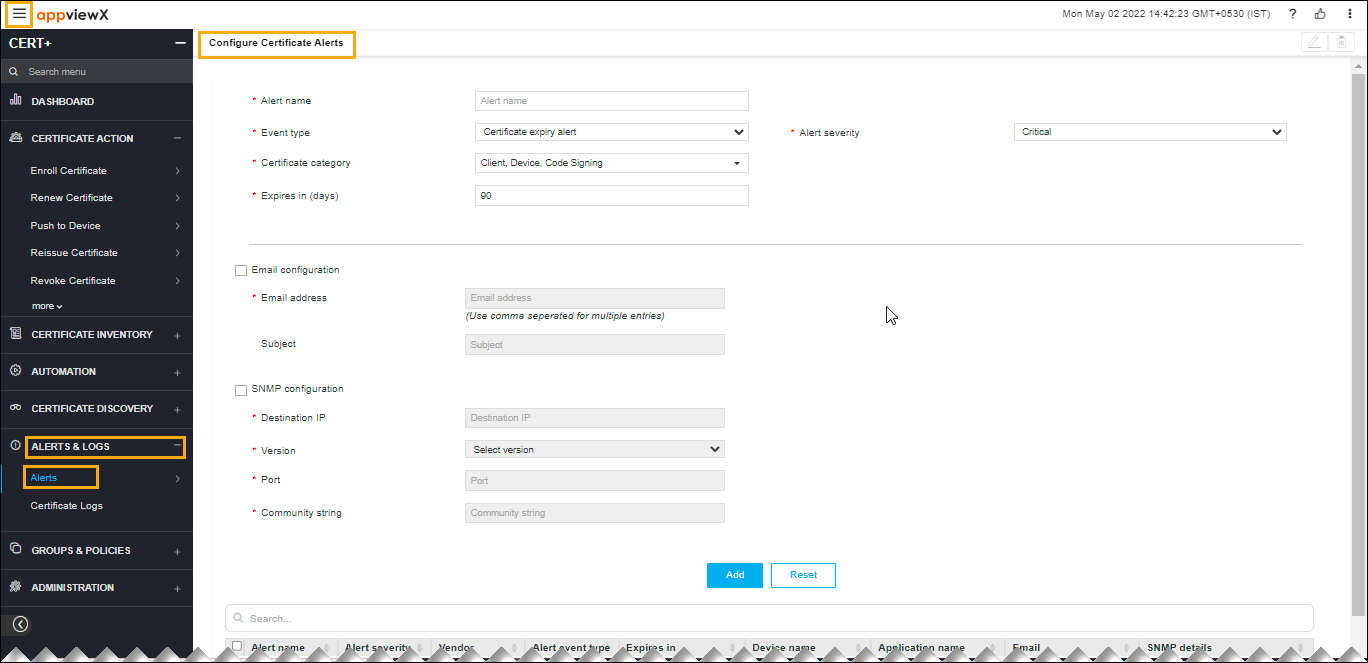
- Enter a name for the certificate alert.
- In the Event Type field, select Certificate Expiry Alert.
- Select Critical as the severity of the alert.
- Select the Certificate Category from the dropdown list.
- In the Expires in (days) field, enter the number of days before a certificate expires. An alert will be sent out.
- To use Email Configuration to send the alert, complete the following steps:
-
Select the Email Configuration checkbox.
- In the Email Address field, enter the email addresses you want to send the alert to. Use commas to separate the addresses.
- In the Subject field, leave the default text or enter the text that briefly describes the alert the user is receiving.
-
-
To use the Simple Network Management Protocol (SNMP) to send the alert, complete the
following steps:
- Enter the Destination IP for the alert.
- Select the version of SNMP you want to use: V1 or V2.
- Enter the port that should be used for the alert.
- Enter the Community String for the alert. The string is similar to a user ID or password and allows users to access the requested information on the device.
- Click Add to create the alert. It then appears at the bottom of the screen and on the Certificate tab within the Alert module.