Overview
Revocation is the process of making a certificate invalid. For example, you might need to revoke a certificate if the certificate is no longer required (or) certificate’s private key is compromised. Make sure that you have permission to revoke a certificate and submit a request to the certificate authority. As soon as the certificate is revoked, it is not considered to be a trusted certificate. Revoked certificates are listed in the Certificate Revocation List (CRL) maintained by each certificate authority.
You can revoke the certificates via the Certificate Inventory section also.
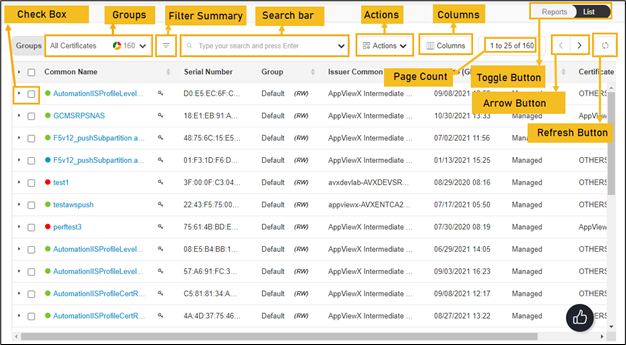
The following table describes the options available on the revoke certificate page:
| Options | Description | ||||||||||||||||||||||||||||||||||||||
|---|---|---|---|---|---|---|---|---|---|---|---|---|---|---|---|---|---|---|---|---|---|---|---|---|---|---|---|---|---|---|---|---|---|---|---|---|---|---|---|
| Check Box | Select the check box of the certificate that needs to be renewed. | ||||||||||||||||||||||||||||||||||||||
| Groups |
Displays the group of certificates that needs to be displayed as selected. 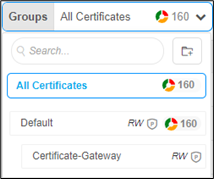
|
||||||||||||||||||||||||||||||||||||||
| Filter Summary |
Displays number of certificates in which state. 
|
||||||||||||||||||||||||||||||||||||||
| Search Bar (Basic/Advanced) |
Searches for the given keyword in the field and results in the feature that matches the search keyword. Basic Search - Searches in the given keyword in the field and results from the feature that matches the search keyword. Advanced Search - The advanced search is used to perform quick searches of the data. If a more specific needs to be composed, the advanced search bar is a readily available option. To activate the advanced search bar, click the Chevron icon in the search field. The advanced search page appears. 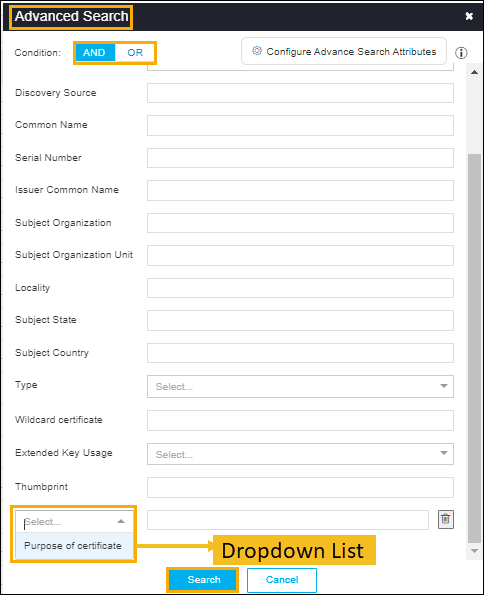
The following table describes the options available in the Advanced Search feature:
|
||||||||||||||||||||||||||||||||||||||
| Actions |
Displays the list of actions. The possible actions are,
|
||||||||||||||||||||||||||||||||||||||
| Columns |
Allows you to select the number of desired columns to show on the certificate page. 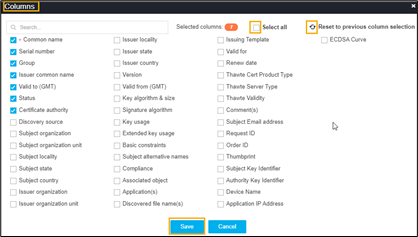
|
||||||||||||||||||||||||||||||||||||||
| Page Count | Displays the number of certificates listed on the page. | ||||||||||||||||||||||||||||||||||||||
| Toggle Button |
Displays the desired dashboard report on the page. The available options are,
|
||||||||||||||||||||||||||||||||||||||
| Arrow Button | Allows you to move next page. | ||||||||||||||||||||||||||||||||||||||
| Refresh Button | Allow you to refresh the current page. |