Renewing Server Certificate
Note: AppViewX v2021.1.0 onwards, AppViewX provisions the renewal functionality for certificates issued via Google CA. This is done by utilizing the certificate's existing CSR or private key details.
If you are renewing the single certificate, you can prefer the renewal from a holistic view as they can verify all the details before initiating renewal. Steps to renew a server certificate:
- Log in to AppViewX application with valid credentials.
-
Click the menu button located in the upper left corner of the screen.
The left navigation pane appears.
-
Click CERT+.
The CERT+ left navigation pane appears.
- Expand CERTIFICATE ACTION.
- Select Renew Certificate, and then Server.
The Server Certificate page appears.
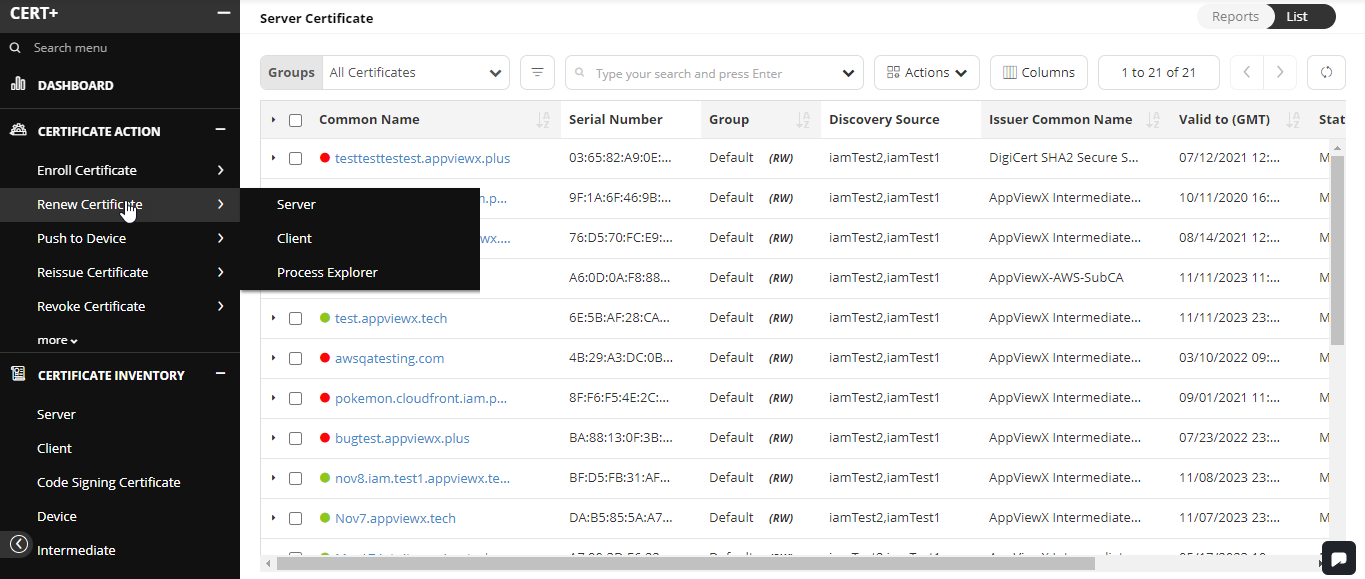
- In the certificate list view, click Common Name of the certificate navigate to a holistic view.
- Hover over the vertical eclipse on the certificate and click Renew.
- Depends on the type of certificate, the renew page might appear. If necessary, in the Renew Automatically field, toggle Off to On.
- Enter the number of days before you initiate the renewal process. based on the settings it will renew automatically in the future.
- Click Renew to trigger now.
- On the Renew pop-up window, enter comments, and click Yes. A request ID, the work order ID is generated automatically, and then work order status is displayed beside the certificate on the holistic view. If an approval required option is enabled in CA Policy, the request goes to Approve and Implementation stages.
-
Click Approve to proceed with the
Renew action.
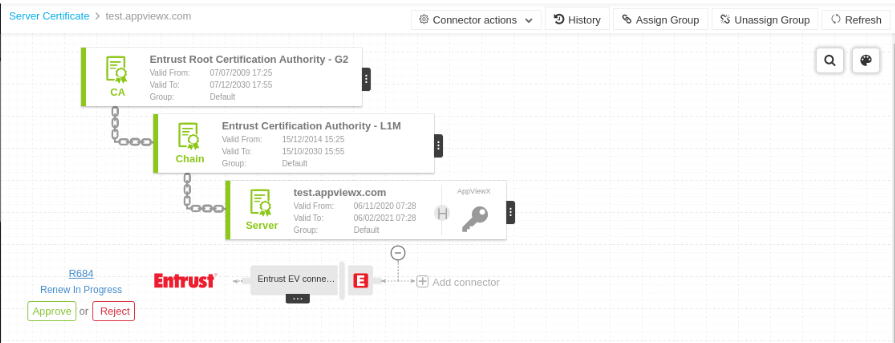 On the Approve page that pops up: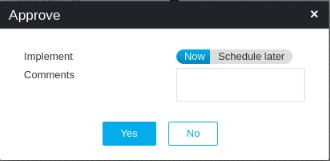
- Click Schedule later if the workflow request has to be approved automatically in the future.
- Enter comments to approve the renewal and then click Yes. The work order status is displayed beside the connector.
-
Click Implement to proceed with renewing action.
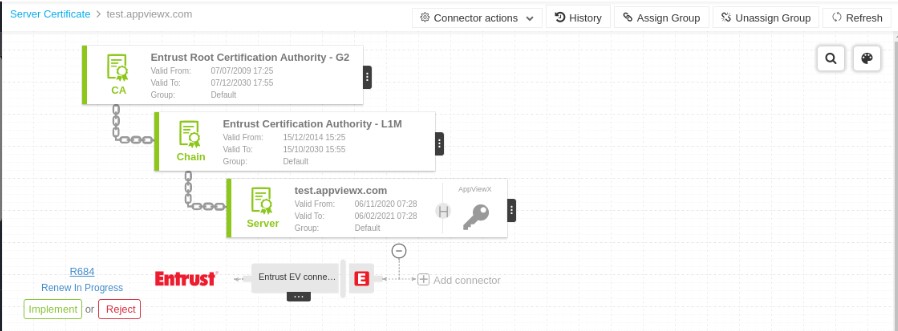 On the Implement page that pops up: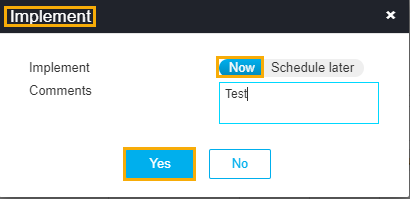
- Click Schedule later if the workflow request has to be approved automatically in the future.
- Enter comments to approve the renewal, then click Yes.
-
Click the Refresh button on the top right until the
renew status updates.
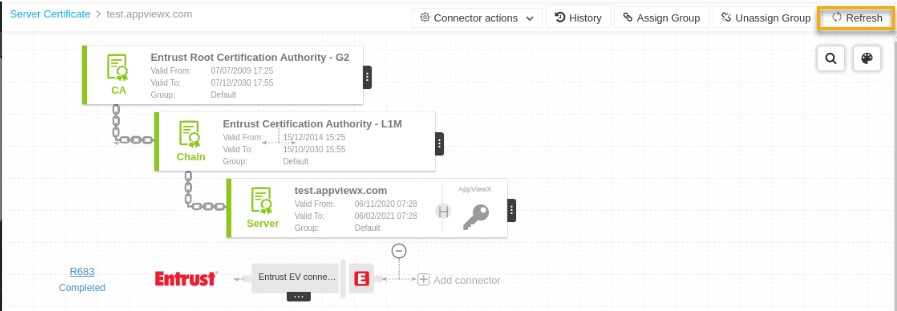
- After the renewal action is completed, the status updates to Completed.