Step 4: Verifying the AppviewX Windows Gateway Installation
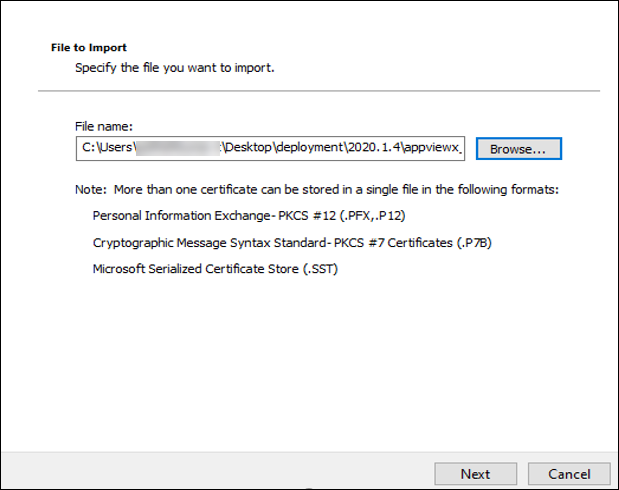
- To verify the Windows AppViewX Gateway installation on Internet Explorer, import the client authentication certificate ClientCertificateGateway.pfx, from the download package (password: appviewx).
-
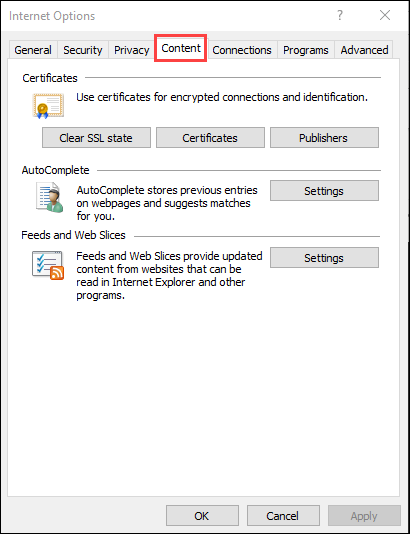
Navigate to Internet Explorer's Settings > Internet Options, and
then click the Content tab.
-
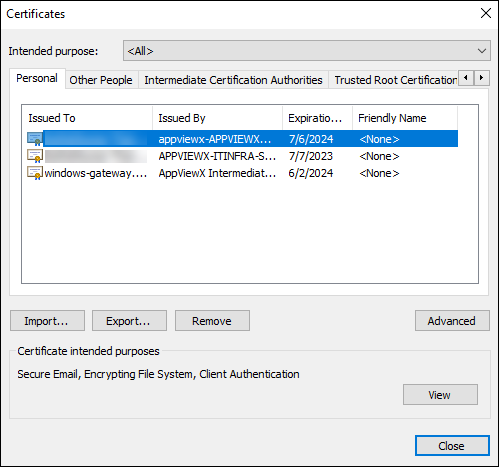
Click the Certificates button.
The Certificates popup window opens.
-
Click the Import button on the Certificates page.
-
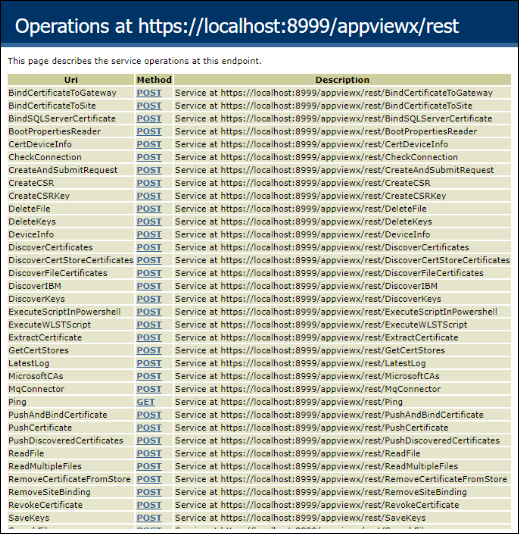
Navigate to the following URL: https://hostname:portnumber/appviewx/rest/help. For example: https://10.10.10.10:8999/appviewx/rest/help
The page displayed confirms the accessibility and installation of the service.
 Note: In the event that a custom client authentication certificate is used, ensure that the CRL mentioned in the certificate is reachable from the AppViewX Windows Gateway hosting server.Note: The steps to import the client certificate will differ depending on the web browser.
 -
To register the AppView Windows Gateway with AppViewX, navigate to the AppViewX
Cert+ (on the SaaS deployment) admin UI/UX, and then Settings >
Certificate.
Note: To add the AppViewX Windows Gateway for
- Mocrosoft Enterprise CA integration, see Microsoft Enterprise CA section under chapter CERT+ Setup > Configuring CA Settings in Cert Admin guide.
- Mocrosoft Standalone CA integration, see Microsoft Standalone CA section under chapter CERT+ Setup > Configuring CA Settings in Cert Admin guide.
- Mocrosoft Device integrations, see Microsoft Devices Integration section under chapter CERT+ Setup in Cert Admin guide.
-
Register the gateway using the following URL format: https://hostname:portnumber/appviewx. For example: https://10.10.10.10:8999/appviewx
Note:
- The AppViewX’s custom client authentication uses CRL and OCSP as
proposed by Microsoft. If you choose to use Microsoft's client
authentication then comment the config file as
below:
<!--<serviceCredentials> <clientCertificate> <authentication certificateValidationMode="Custom" customCertificateValidatorType="AppViewX.CertPlus.Service.CustomValidator, AppViewX.CertPlus.Service" /> </clientCertificate> </serviceCredentials>--> -
AppViewX recommends customers not to change this default authentication configuration provided by AppViewX.
- Refer Appendix A for the Prerequisites for Managing the Windows Server Infrastructure and Appendix B for Troubleshooting the Target Machine.
- The AppViewX’s custom client authentication uses CRL and OCSP as
proposed by Microsoft. If you choose to use Microsoft's client
authentication then comment the config file as
below: