-
Design a new workflow.
-
In the design workspace, from the User Interface section in
the left menu, drag and drop a Form task.
The Gallery window is displayed on the screen.
-
In the Gallery window, to design a new form, click
 .
.
-
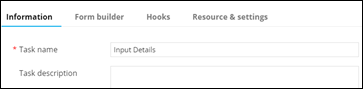
In the Form task window that is displayed, under the Information tab,
enter the Task name.
-
Click Next.
The Form builder tab opens with the Field Properties
window displayed at the bottom right corner of the screen.
-
Add the following form
fields and turn on the Global variable toggle to enable the field IDs
as global variables:
| Label name |
Field type |
Field ID |
| Enter your name |
Text box |
name |
| Enter your email address |
Text box |
email |
| Enter your message |
Multi-line |
message |
-
Click Save.
-
From the Notification section in the left menu, drag and drop and
Email task.
-
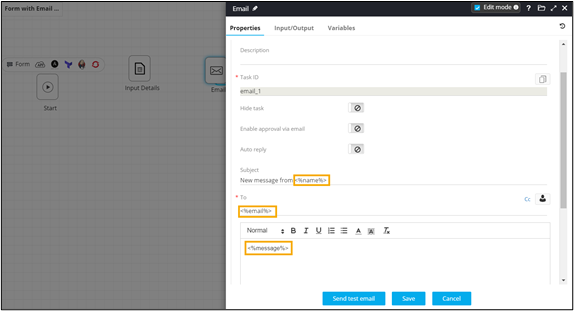
In the Email task window that is displayed, under Properties, in
the General section, refer the global variables defined in the Form task.
-
Click Save.
-
Connect the workflow tasks
and enable the
workflow.
-
Trigger the workflow.
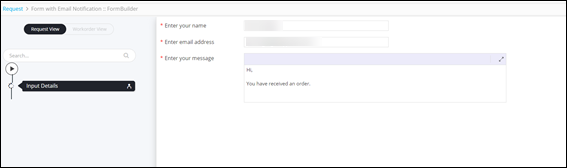
The workflow execution page is displayed with the workflow inputs
requested at the first stage.
-
Enter the details in the input form.
-
Click Submit.
Email notification is successfully sent to the email address provided in
the form..
