Publishing a Service Catalog
To publish a service catalog:
-
From the top right corner of the catalog, click Publish &
Share.
The Publish & Share pop-up window opens.
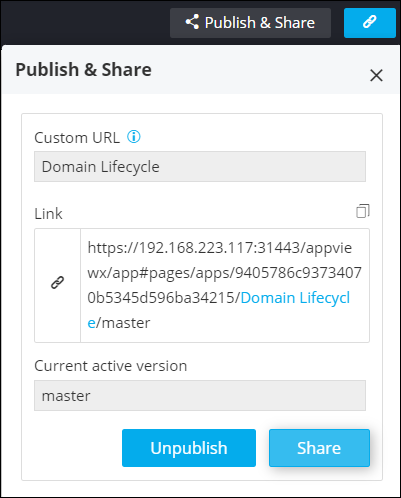 The following table describes the options available in the Publish & Share window:
Option Description Custom URL Allows you to enter a Custom URL for the catalog. Note: Page name is set as the default URL.Link Displays the link for the catalog. Click on the link to open your catalog in a new tab. To copy the link click  .
.Current active version Displays the current active version of the catalog. Note: This is a read-only field. -
To publish your catalog, in the Publish & Share window, click
Publish.
The Published catalog is added to the Published Inventory.Important: Only the current active version of the catalog will be published and added to the Published inventory.