Downloading Server Certificates
Server certificates can be downloaded from the server inventory as well as in the holistic view. In the server inventory, the user can select one or more certificates and download them in <.crt> format with/without private keys and also with/without their respective trust store certificates.
To download a server certificate,
- Log in to AppViewX application with valid credentials.
-
Click the menu button located in the upper left corner of the screen.
The left navigation pane is displayed.
-
Click CERT+.
The CERT+ left navigation pane is displayed.
- Expand CERTIFICATE INVENTORY.
-
Click Server.
The Server Certificate page is displayed.
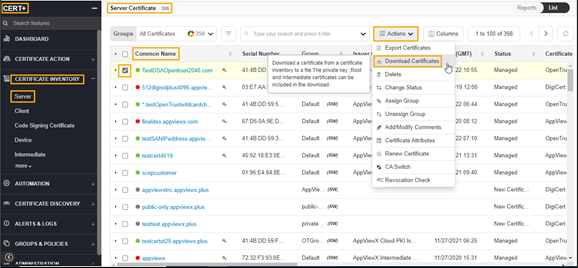
- In the Common Name column certificate list, select the desired certificate(s) that you want to download.
-
Click Actions, and then select Download
Certificates from the list.
The Download Certificates dialog box is displayed.
- In the Download Certificate pop-up window, select Certificates Only or Certificates and Keys.
-
You can also enable/disable the Download Truststore Certificates option along with the end certificates.
Note: If you have permission to view the restricted content mentioned in Step 7, the certificate details are downloaded with <.zip> file. If you do not have the necessary permissions, the system creates and downloads an empty <.zip> file to the destination you specify. -
The system enables the Secret Passphrase field when you select Certificates and Keys. Enter a passphrase to encrypt the contents into a <.zip> file.
-
Click Download.
The certificate is downloaded to your local machine.
- To view details of the certificate, unzip the file and open the security certificate file.
- Click Details.