Regenerating Server Certificate
To regenerate a server certificate:
-
From the CERT+ main menu, under CERTIFICATE INVENTORY, select
Server.
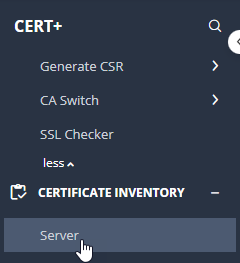 The Server Certificate page is displayed.
 -
To regenerate a certificate,under Common Name, select the required
certificate name.
The certificate topology view for the selected certificate is displayed.
-
From the three-dot menu for the certificate, click
Regenerate.
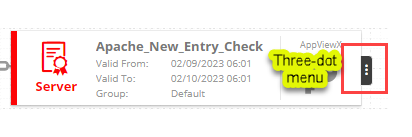
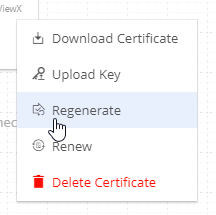 The Server Certificate > Regenerate page is displayed.
 -
On the Server Certificate > Regenerate page, modify the required details
in the General Information, CA Details, CSR Parameters,
Attachments, Generic Fields, Vendor-Specific Details, and
Custom Attributes sections.
Note: For instructions on entering inputs in the above sections, click here.
-
Click Regenerate.
The regenerate process is initiated.
-
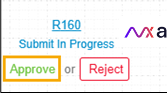
On the certificate topology view, click Approve to
proceed.
- In the Approvedialog box, enter your Comments.
- Click Yes.
-
If the workflow request has to be approved automatically in the future, click
Schedule later.
- Select the Implementation Time from the calendar field.
- Enter the comments in the field.
- Click Yes.
The approval process is initiated. - On the certificate topology view, click the Implement button to proceed.
- In the Implement dialog box, enter your Comments.
- Click Yes.
-
If the workflow request has to be approved automatically in the future, click
Schedule later.
- Select the Implementation Time from the calendar field.
- Enter the comments in the field.
- Click Yes.
After the certificate regeneration is complete, the the status updates to Completed.