Validating DigiCert MPKI Connection
-
Go to
 (Menu) > SIGN+ > ADMINISTRATION > Certificate Authority.
-
From the displayed CA, Select DigiCert.
The DigiCert home page is displayed.
-
Click DigiCert MPKI from the left pane of the page.
The DigiCert MPKI home page is displayed.
-
In the Status column of the grid with the listed accounts, click Check to
validate the CA setting that is created.
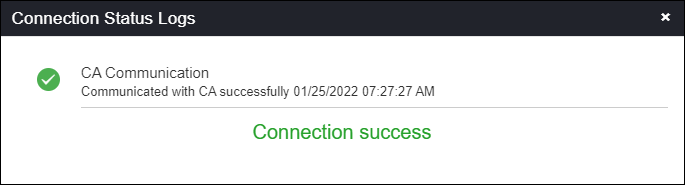
The CA communication will be validated and the Connection Status will be shown as either Success or Failure.