Dashboard
This page gives a quick summary of all the root and the intermediate CAs created via
AppViewX PKIaaS. There are two tabs:
- CA Insight: This tab displays a quick insight into the CAs based on summary, status, expiration, and certificate usage.
- Certificates based on CAs: This tab shows all certificates issued by different CAs, including expired certificates, those expiring in 7 or 14 days, and revoked certificates. It also features widgets that display certificates categorized by templates, CAs, issuance trends, and the CA hierarchy.
CA Insight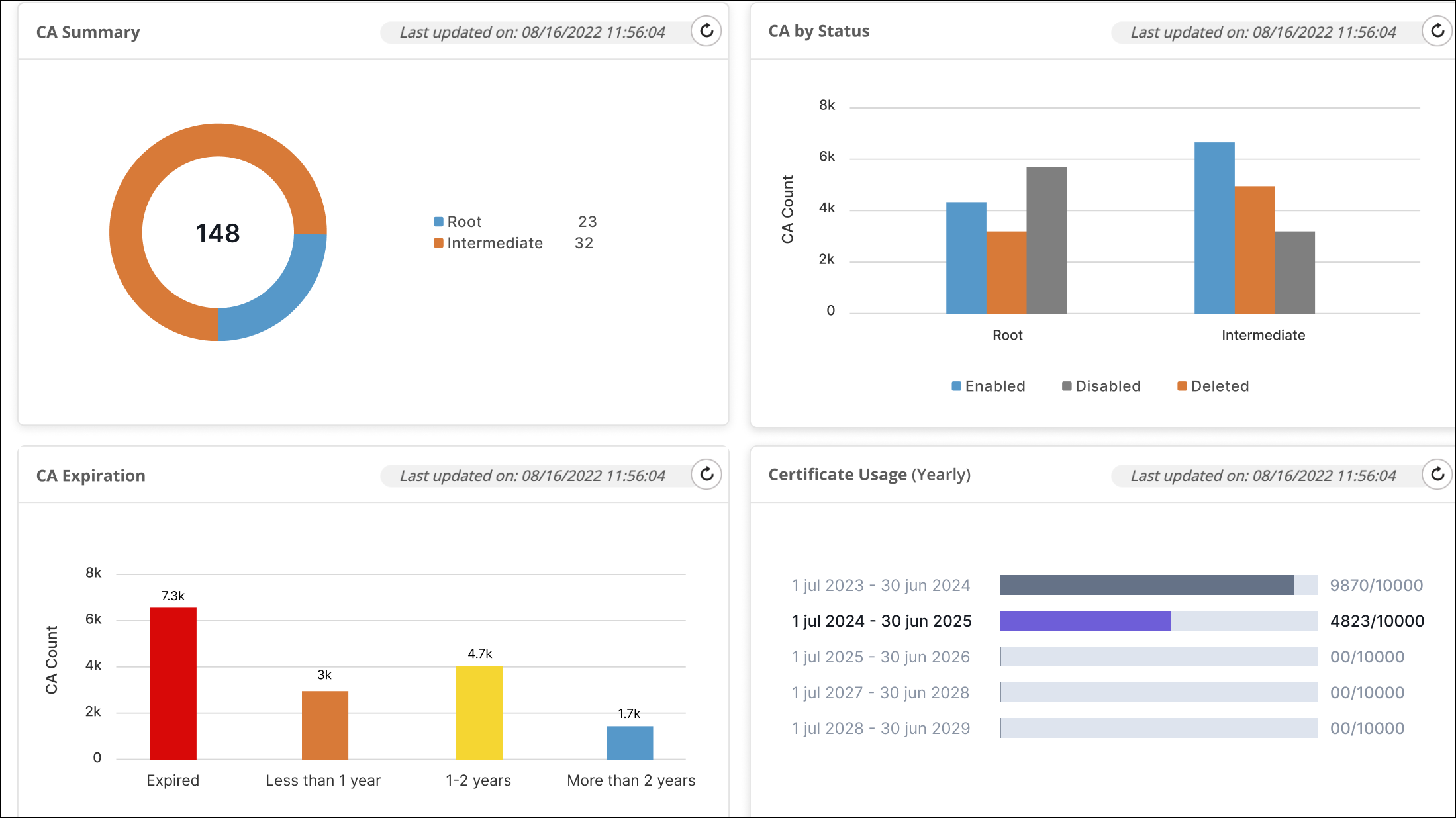 The following widgets are displayed on this page:
The following widgets are displayed on this page:- CA Summary: This widget displays the number of CAs created via AppViewX PKIaaS. This contains the root and intermediate CAs. Click the graph to redirect you to the CA inventory for the selected CAs.
- CA by Status: This widget displays the CA count based on the status in the CA inventory. Click the graph to redirect you to the CA inventory for the selected CAs.
- CA Expiration: This widget displays the CA count based on the expiry date. Click the graph to redirect you to the CA inventory for the selected CAs.
- Certificate Usage (Yearly): This widget displays the yearly certificates count starting from the initialization date showing the certificate issuance count by year for the reset date.
End certificates count by CA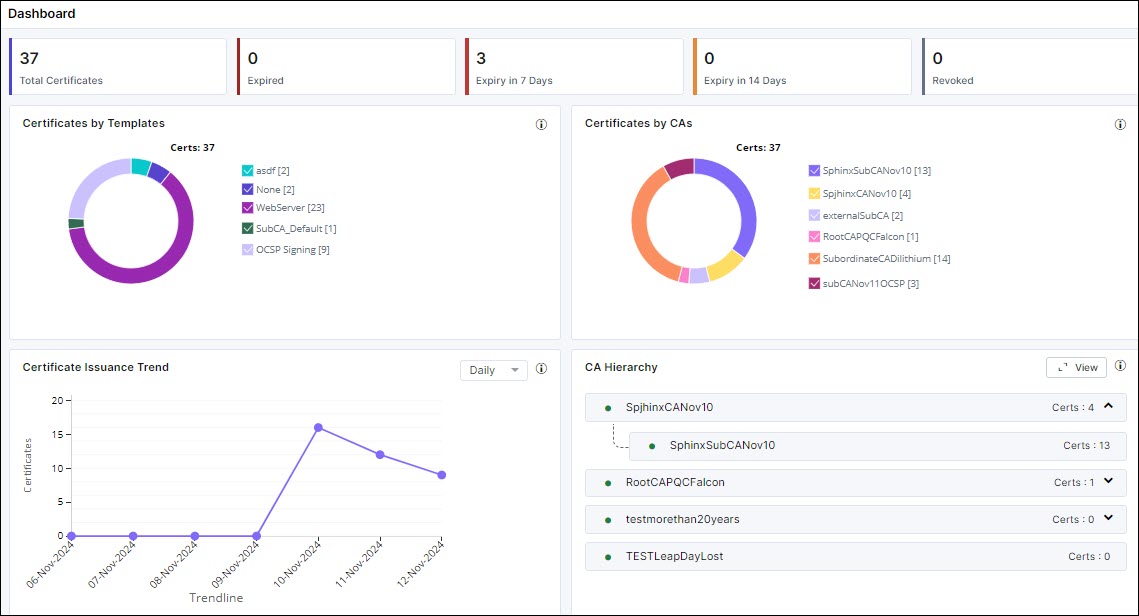
The following widgets are displayed on this page:
- Certificates by Templates: This widget displays all the certificates created via the various templates. By default, all the templates are selected.
- Certificates by CAs: This widget displays all the certificates created via the various CAs. By default, all the CAs are selected.
- Certificate Issuance Trend: This widget displays all the certificates based on their issuance trend such as daily, weekly, monthly, yearly, and custom. By default, daily is selected.
- CA Hierarchy: This widget displays the number of CA hierarchies. Click View to display the CA hierarchies created and the certificates under each of the CAs listed along with their count.
By default, the widgets display the certificates for all CAs. You can filter data by selecting a particular CA from the dropdown list on the top right corner of the page.