Accessing Solutions
- Go to the Workflow page.
-
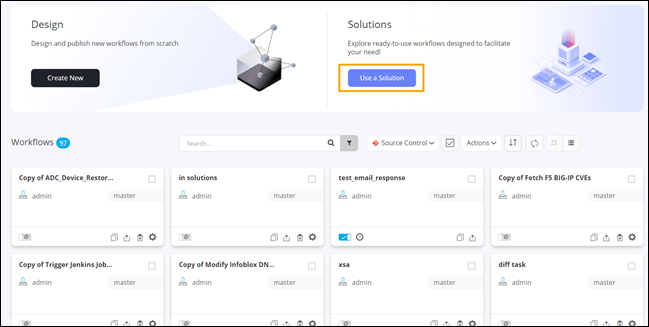
On the Workflow page, click Use a Solution.
The Solutions page is displayed with the Solutions tab open by default.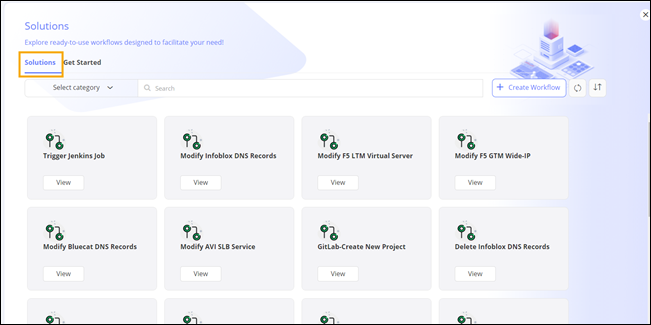
Table 1. Options available on Solutions tab Option Description Solutions The Solutions tab displays the ready-to-use solutions available in the Workflow Studio. Get Started The Get Started tab displays the FAQs available in the Workflow Studio. Select Category Allows you to filter solutions according to the category selected in the dropdown list. Search Allows you to search for a solution by typing the keyword(s). Create Workflow Allows you to create a workflow. 
Refreshes the page. 
Allows you to rearrange the workflows as - Ascending
- Descending
- Recently created.

Allows you to exit the Solutions page and return to the Workflow page (Card view). -
To open a ready-to-use solution in the design space, click View on the
corresponding card.
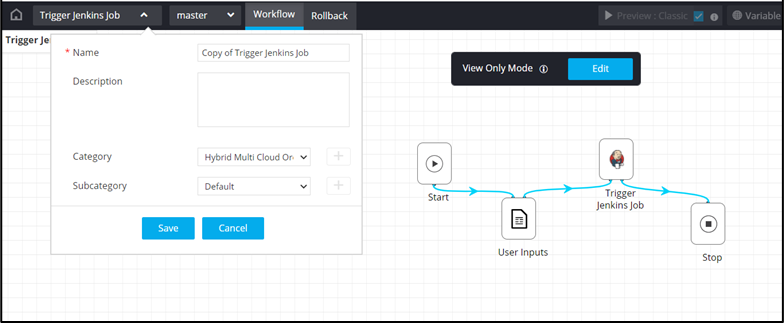
The workflow opens in a View Only Mode in the design workspace.
- To use this solution, click Edit.
-
Enter a new Name for the workflow, if required.
-
Click Save.
The workflow can now be modified as required.Note:You can also access solutions from within a workflow open in the design canvas by clicking
 icon in the top right corner.
 -
To access quick out of the box solutions that can be consumed within workflows,
on the Solutions page, click Get Started tab.
The Get Started tab displays these OOB solutions.