Archive Requests
To trigger an archive workflow request:
-
On the Request ::
Overview page, from the navigation pane on the left, click
Archive Requests.
The Archive Workflow Requests workflow is triggered with the workflow inputs requested at the first stage.
-
In the Input Details section, enter or select the required field
information.
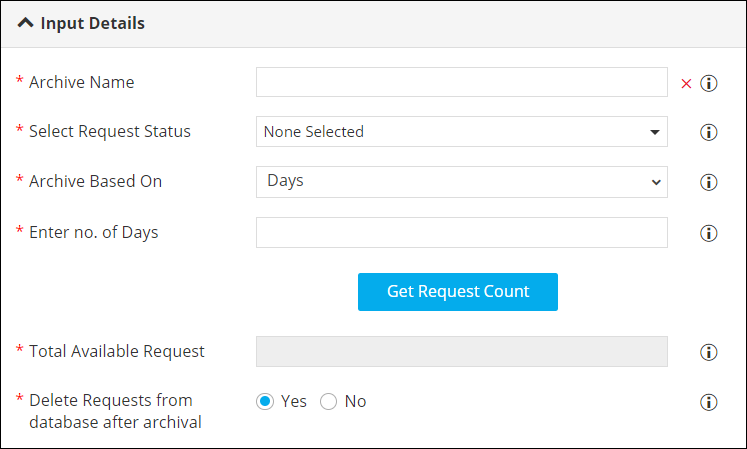
Table 1. Field descriptions for Input Details Field Description *Archive Name Enter the name of the archive. *Select Requests Status Select one or more type(s) of requests to be archived from the options available in the dropdown. *Archive Based On Select the duration for which the requests will be archived as: - Days: This option allows you to enter the number of days for archiving service requests.
- Between Time: This option allows you to select the Start and End date for archiving service requests.
*Enter no. of Days Enter the number of days for which you want to archive the service requests. Note:This field is displayed when you select Days in the Archive Based On field.*Select Start Date Select the date and time from when the service requests are to be archived. Note:This field is displayed when you select Between Time in the Archive Based On field.*Select End Date Select the date and time till which the service requests are to be archived. Note:This field is displayed when you select Between Time in the Archive Based On field.* : Mandatory fields -
Click Get Request Count.
The total number of requests that match the selection are displayed in the Total Available Request field.
- To delete the requests from the database after archival, select Yes.
-
Click Submit.
The service requests will be archived based on the selection.