Infrastructure View
Within the infrastructure view, only the ADC objects matching your search criteria will be presented, without displaying their hierarchy (e.g., parent, child1, child2). The search results will automatically appear in the grid view. To go to the infrastructure view, click on the Infrastructure view button from the grid view.
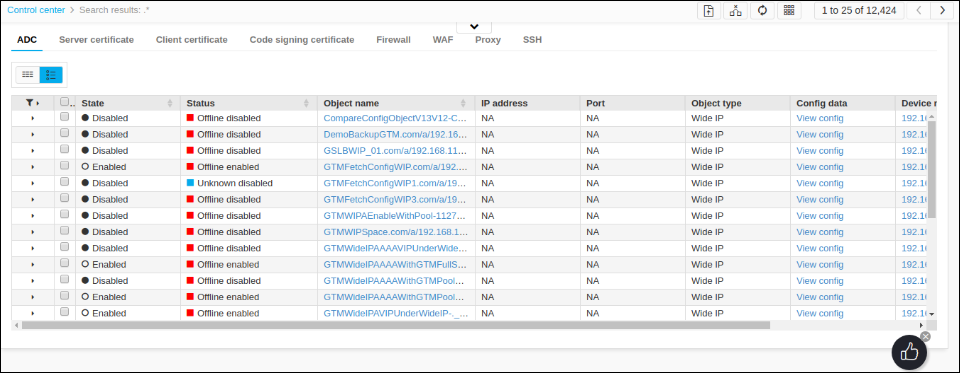
Users can customize the displayed columns as per the requirement in infrastructure view. To customize the displayed columns, follow the below steps:
-
Click on the columns button.
-
Select/unselect the columns by checking/unchecking them as per the requirement.
-
Drag and drop the column names to change the order of the displayed columns.
-
If the user wants to reset the changes click on Reset to the previous column selection.
-
Click Save.
Infrastructure view provides a few more options to the user to fine tune the results.
-
Filters: When the user clicks on the Filter button in the first column, AppViewX displays the filters for all the columns. Users can search/ filter the objects as per their requirements using these filters.
-
Change the display order (Sorting): AppViewX default displays the result in a predefined order. To change the display order of the records, click on the Change order button near the column header. Users can switch to ascending and descending order using this button.