Committing Tasks and Subflows
- Go to the Workflow page.
- Design a workflow or open an existing workflow.
- Right-click on a task to see the options.
-
From the options displayed, click Save to
Folder.
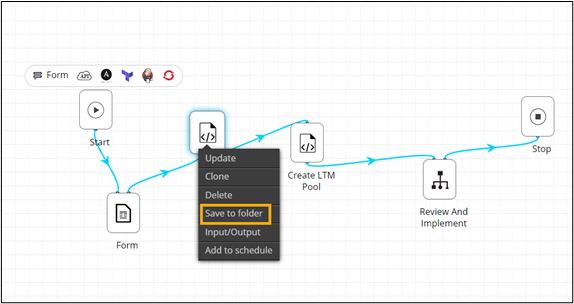
-
In the Save to folder window, save the task to the
Source Control directory.
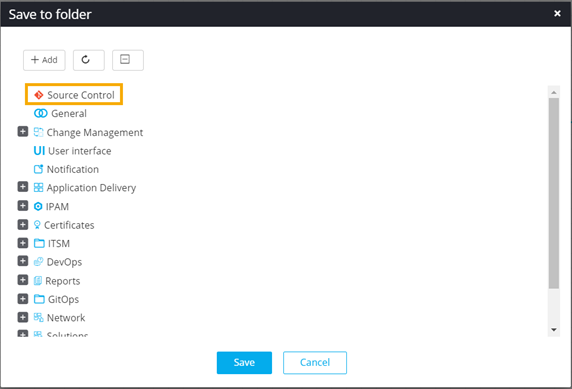
- Click Save.
- Add the tasks and subflows to be committed to the Source Control Directory.
-
Click Commit.
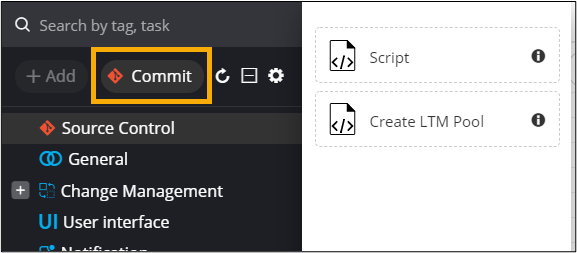 Note: By default, the Commit button is disabled. It is enabled only after selecting the Source Control Directory to save tasks.
 -
In the Task Commit window, enter a commit
Message and click Commit.
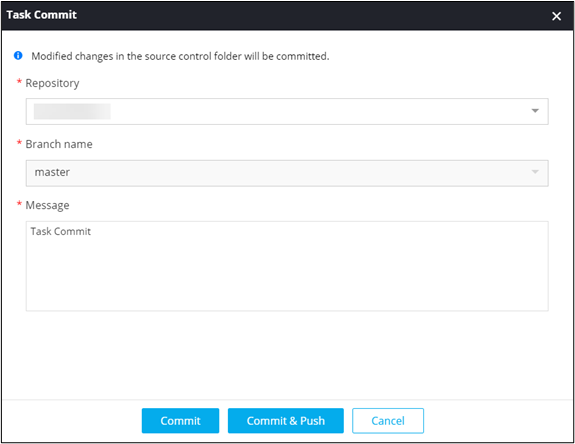 Note: Only the recently added tasks/subflows will be committed.