Configuring Other Vendor
Integrate custom sources that maintain IP address details with AppViewX to sync IP-related information into the database. This IP data can then be correlated with DNS providers, IPAM information, ServiceNow, and other systems.
Prerequisites:
Before you configure other vendor, ensure you created a custom workflow to sync the data from the vendor into DDI+ custom collection.
To configure other vendor:
-
Go to DDI+ > INTEGRATION HUB, and
then click Add new vendor.
The Select vendor page is displayed.
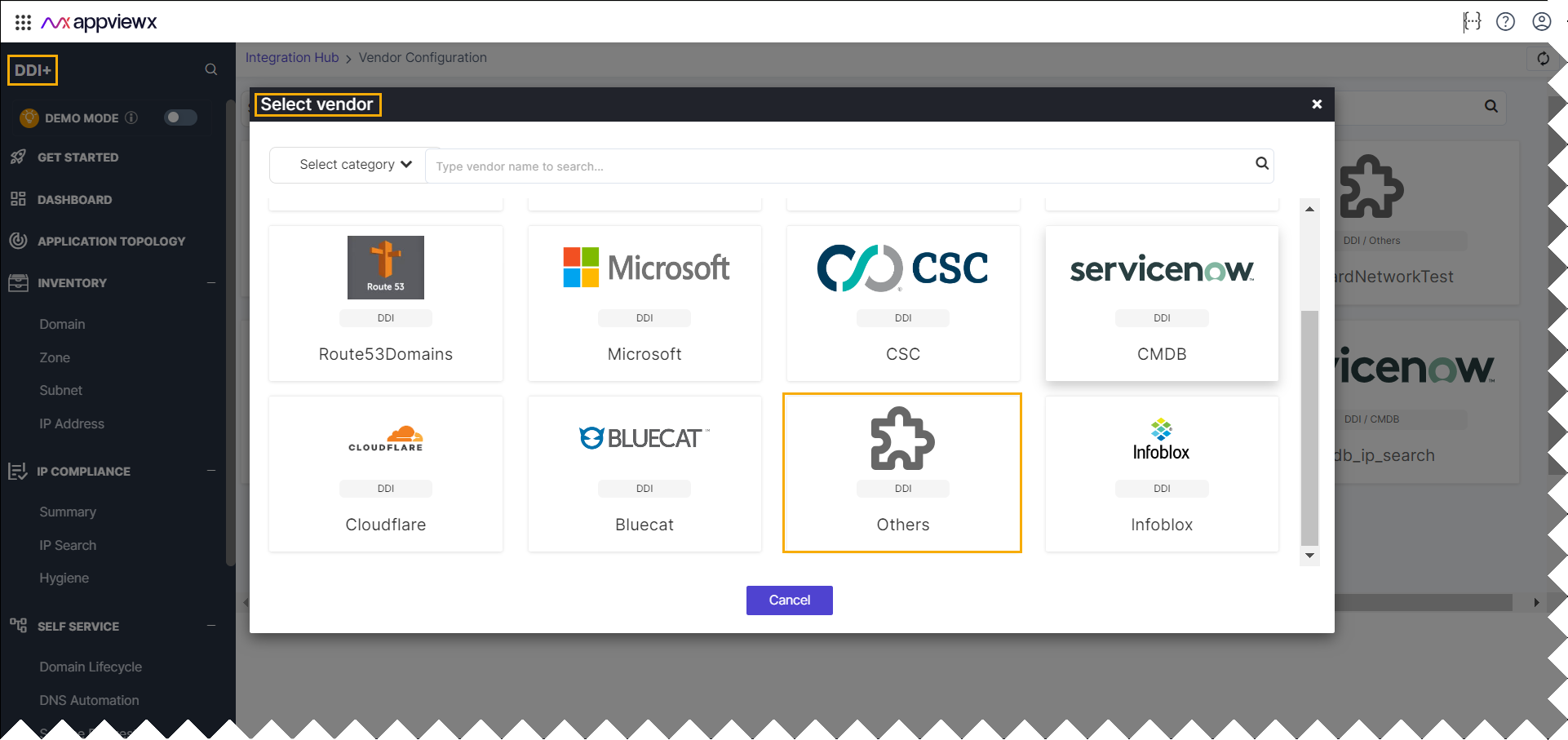
- On the Select Vendor page, click Others.
-
On the Vendor Configuration page, under the
Information section, enter or select the required
field information.
The following table describes the various fields in this section:
Table 1. General - Field and Description Table Field Description *Name Enter a unique name to identify the vendor account which is being configured. Description Enter a description for the purpose of configuring this vendor, if required. Data center Select a data center from the options available in the dropdown list. *Vendor Enter the vendor name. *: Mandatory fields - Click Next.
-
On the Vendor Configuration page, under the Credentials section,
enter or select the required field information.
The following table describes the various fields in this section:
Table 2. Credentials - Field and Description Table Field Description *Auth type Displays the Basic Auth method of authentication selected by default. Select a desired authentication type from the dropdown list. Note: Based on the Auth type selection, you will need to enter the the auth-related fields.*URL Enter API URL for the vendor with the HTTPS/HTTP protocol. *: Mandatory fields - Click Next.
-
On the Vendor Configuration page, under the Configurations tab,
select a custom workflow from the Workflow dropdown
list.
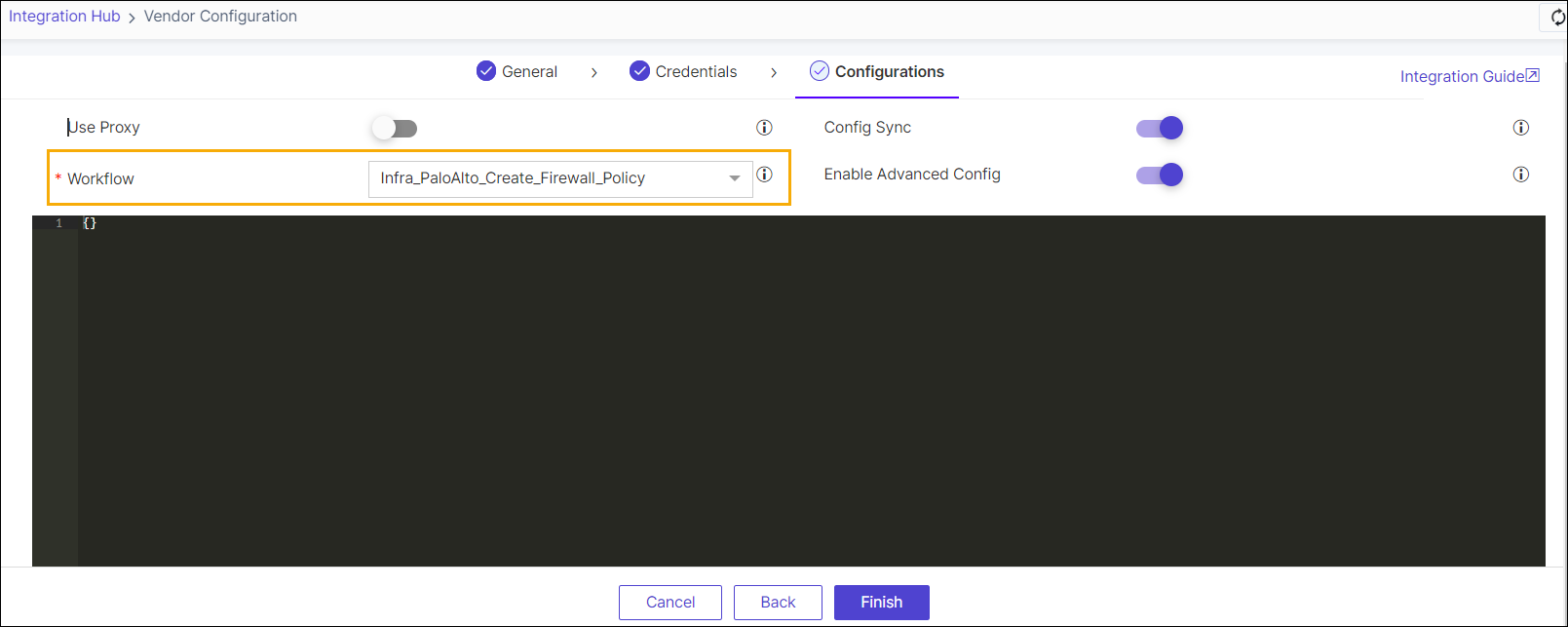 Note: If the Enable Advanced Config toggle is turned on, BlueCat and Infoblox vendor sync integrations for /4 and larger subnets can be excluded by specifying the subnet details in the
"skipSubnets": []array.This workflow initiates the process of adding data into DDI+. -
Click Finish.
It takes a while sync the data into DDI+. You can view the data in IP Search.Note: You need to add an entry for the custom source to the
ddi_settings_collectionwithin theIP_Search_Settingsdocument in the sources. This will enable data synchronization in IP Search.