IP Search
The IP Search page allows users to search for an IP address or FQDN, providing Appcentric
visibility and correlation across IPAM, Load balancers, and Firewalls. Users have the
flexibility to search for both private and public IP addresses or FQDNs.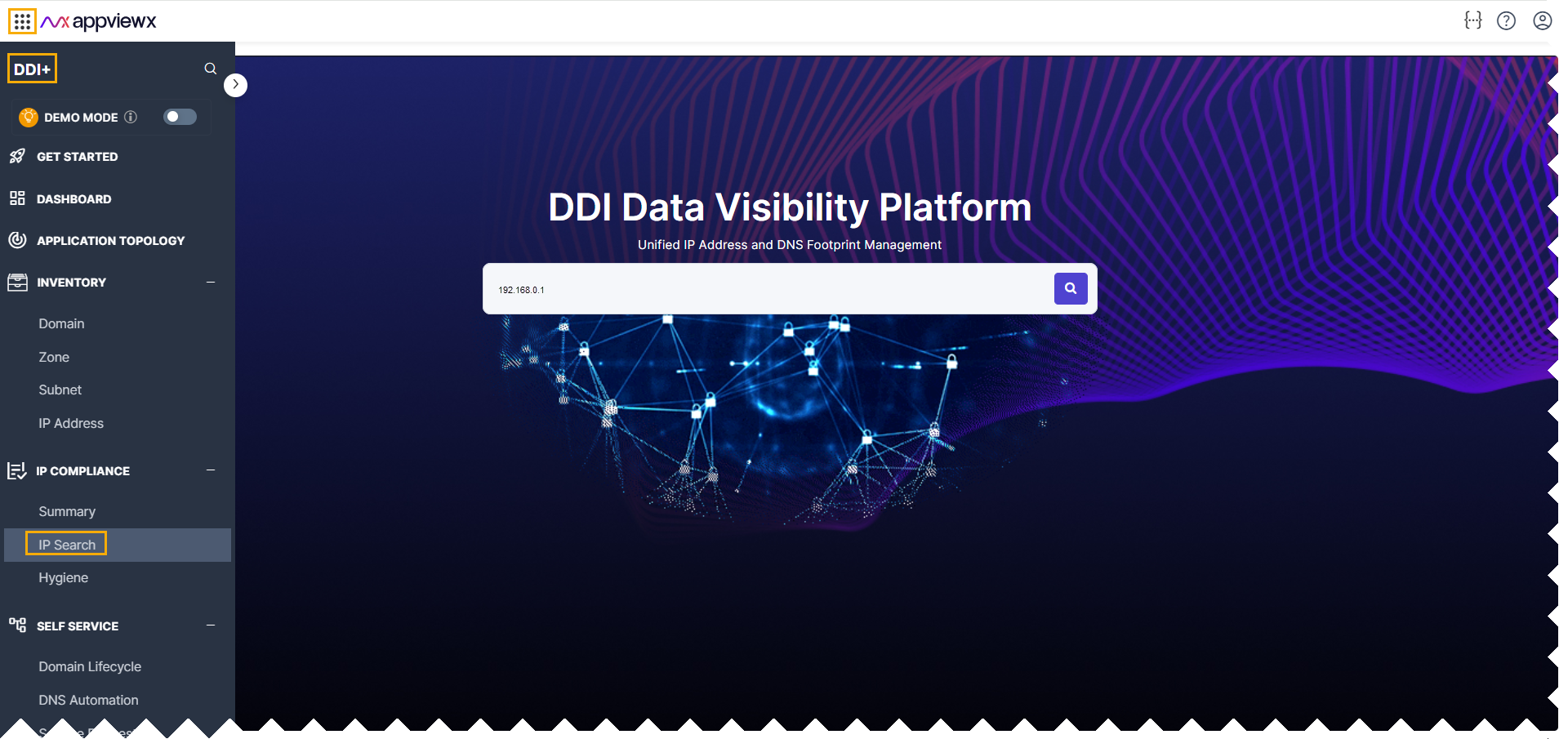
When a public IP is searched, the system presents a grid displaying any Network Address
Translation (NAT) rules associated with the translation to a private IP. Users can
explore these NATTED rules and view correlations with private IP addresses in a
hierarchical format. In the case of a private IP search, users will be directly
presented with the hierarchical view.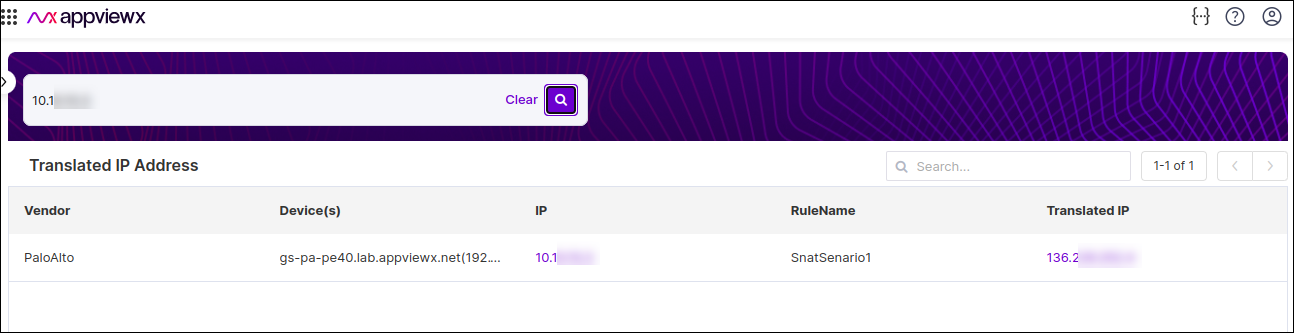
Once the IP users clicks the search icon or view button incase of NAT IP, a correlation
of all IP addresses will be shown in a hierarchical view as below.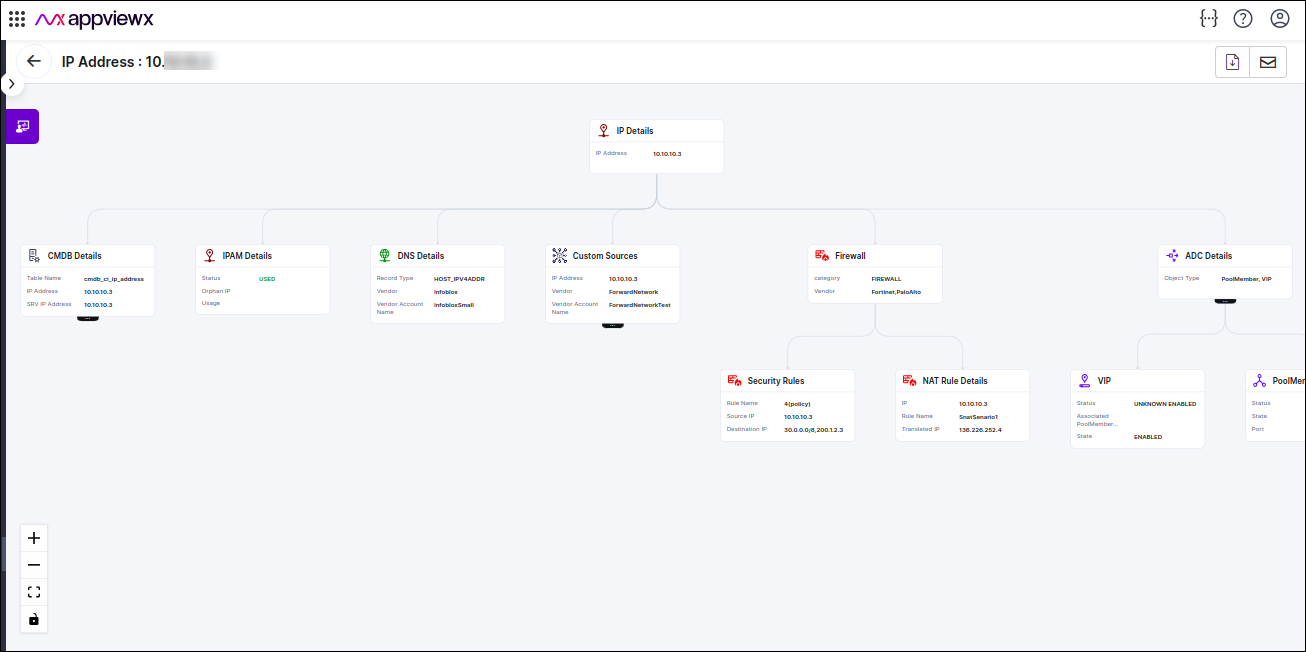
In the hierarchical view, users can:
- Search asynchronously across multiple data endpoints or sources.
- View a summary of the sources.
- If a source contains multiple IP addresses, click the view more option
associated with the node to view the detailed tables for each source.
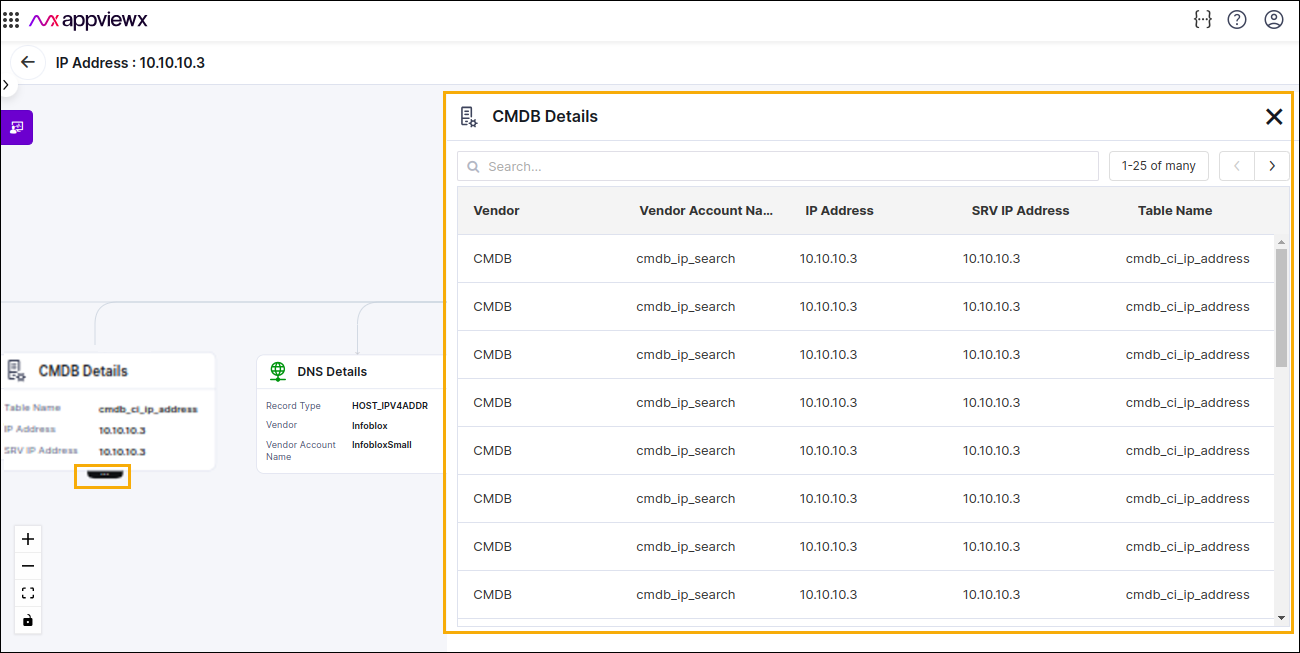
- Download the IP/FQDN details in the Excel format by clicking the download icon located in the upper right corner. The Excel file will be downloaded to the default download folder.
- Send the IP/FQDN details through email as an attachment to the email addresses
or the user groups. To send the IP details through email:
- Within the IP Search page, click the email icon located in the upper
right corner.The Export IP Search Data window opens.
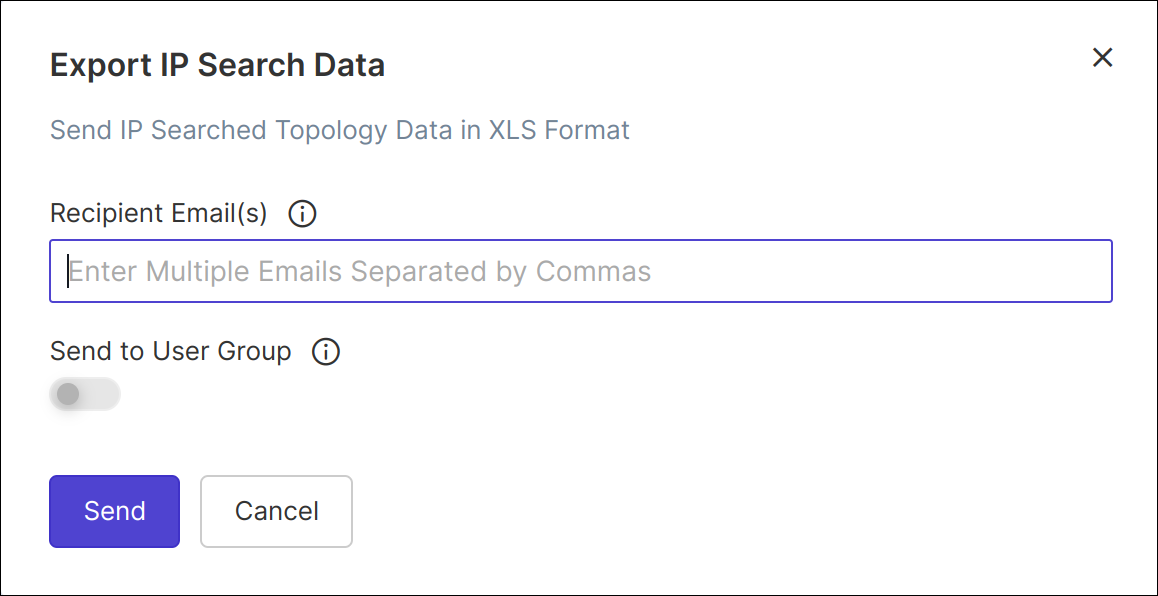
- In the Recipient Email(s) field, enter the email addresses with comma separated.
- If required to send the email to the user group, enable the Send to User Group toggle button, and then select the user group(s) from the User Group dropdown option.
- Click Send.
The email will be sent to the recipients with the IP details attachment.
- Within the IP Search page, click the email icon located in the upper
right corner.
Users can click on each node to view the corresponding details such as IPAM, DNS, CMDB, Load balancer, Firewall details.
IP Details
IP Details node represents the IP address details retrieved from IPAM , encompassing
associated information such as subnets, status, device name, etc. Click on the node to
view more details.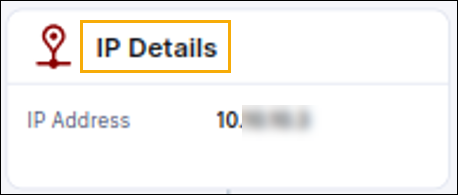
IP Address
This node represents the IP address searched.
DNS Details
The DNS Details node represents associated DNS record details for the respective IP
address. Users can click on the node to access additional details.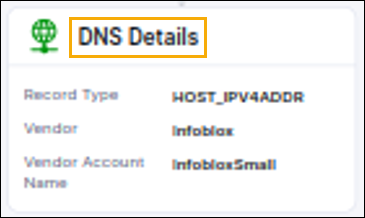
CMDB Assets
CMDB details represent all the IP asset information retrieved from the CMDB. Click on the
node to view more information.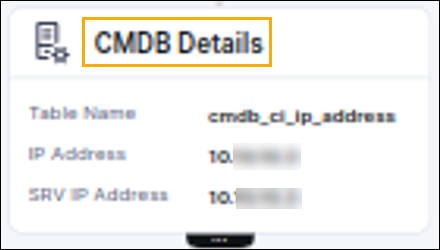
ADC Details
This node denotes the type of ADC objects linked to the searched IP address. For
instance, if the searched IP address functions as WideIP, GTM Pool member, Pool member,
or VIP object, the "Object Type" will display as "WideIP, GTM Pool member, Pool Member,
VIP." The child of this node contains additional details specific to either the VIP or
Pool member.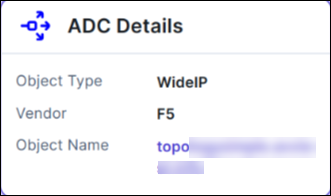
VIP Node
This node signifies details about the VIP associated with the IP, providing additional
information specific to the respective VIP upon clicking. Additionally, this node may
have one child representing all the Pool members associated with the VIP.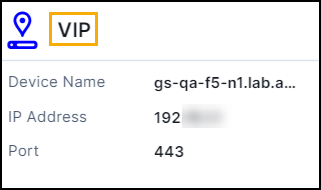
WideIP
This node signifies details about the WideIPs associated with the IP, providing
additional information specific to the respective WideIP upon clicking. Additionally,
this node may have one child representing all the GTM Pool members associated with the
WideIP.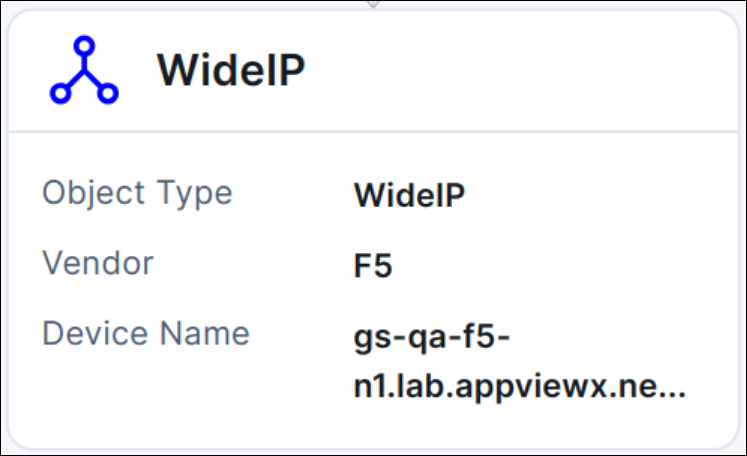 If this associated WideIP is CNAME, then the object name is provided as
URL, which redirects to the FQDN in the IP search.
If this associated WideIP is CNAME, then the object name is provided as
URL, which redirects to the FQDN in the IP search.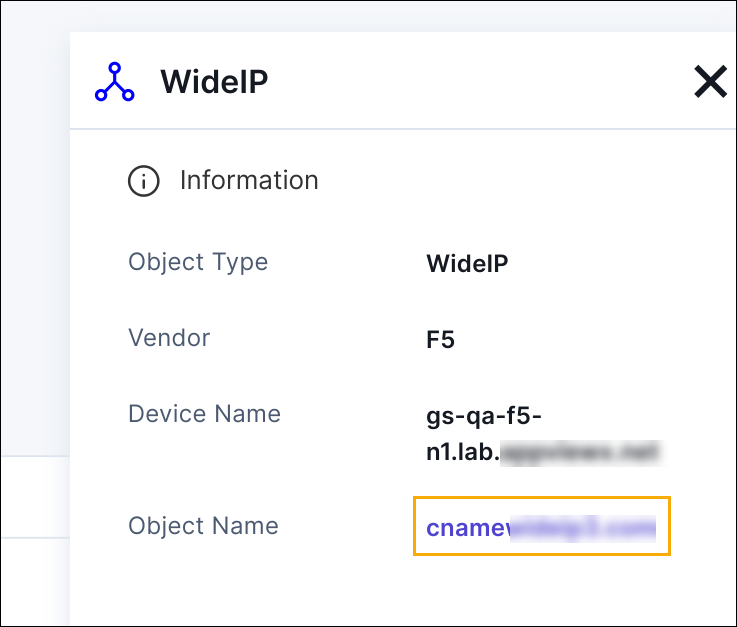
If this associated WideIP is CNAME, then the object name is provided as
URL, which redirects to the FQDN in the IP search.Firewall Details
This node represents the if there is any Firewall NAT rule association with the searched IP address. The child node represents the details of the Firewall NAT rules as shown below.
- Go to DDI+ > IP Compliance, and then
click IP Search.
The IP Search page appears.
- Select the IP Address or Domain/FQDN from the dropdown that you want to search.
- Enter the value <IP Address or Domain name> in the field.
- Click Search.
The search result appears on the page.
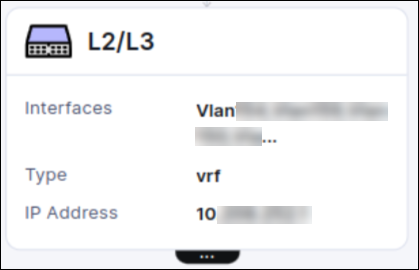
L2/L3
This node signifies details about the ARP or VRF associated with the IP, providing
additional information specific to the respective ARP or VRF upon clicking.
Additionally, this node specifies the details of the interfaces VLANs if configured
within IP.