Summary
The IP compliance summary dashboard provides a overview of IP address landscape and compliance status with CMDB and Load balancing configuration.
The following reports are available under the IP Compliance > Summary tab:
IP Snapshot
The IP Snapshot dashboard provides a summarized view of IP address management (IPAM)
data. It gives insights into IP address allocations, compliance status, and asset
inventory, assisting network and security teams with visibility and
decision-making.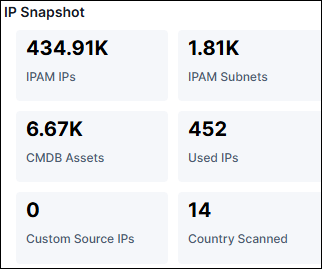 Click on the parameter to open a popup with detailed
information about the IPs.
Click on the parameter to open a popup with detailed
information about the IPs.
Click on the parameter to open a popup with detailed
information about the IPs.| Metric | Description |
|---|---|
| IPAM IPs | Total number of IP addresses managed within the IP Address Management (IPAM) system. |
| IPAM Subnets | The number of subnets registered in the IPAM database. |
| CMDB Assets | Number of assets recorded in the Configuration Management Database (CMDB) that are associated with IPs. |
| Used IPs | IPs actively used across your environment. This includes systems currently online and assigned an IP. |
| Custom Source IPs | Number of IPs sourced from external or custom data feeds not originating from standard IPAM or CMDB. |
| Country Scanned | The number of distinct countries from which IPs have been scanned or detected. |
IP Global View
IP Global View which is used to monitor IP addresses geographically to detect
unusual IP activity in specific regions, and Asset Management to track owned IP
blocks.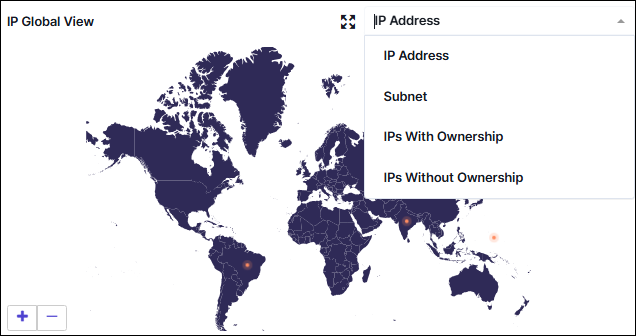
- Global Map View: Displays the entire world, highlighting locations
where IP addresses are in use or monitored.Note: Zoom Controls: + and - allow zooming in and out for more detailed views of specific regions.Note: To expand the screen, select the expand icon.
- Dropdown Menu (Top-Right) it allows to filter and view the data based
on set parameters:
- IP Address: Displays individual IPs on the map.
- Subnet: Groups IPs by subnet and displays aggregated data.
- IPs With Ownership: Displays the list of IPs that are registered or assigned to specific organizations or users.
- IPs Without Ownership: Displays unassigned or publicly accessible IPs.
IP Intelligence - Lookup
The IP Search page allows users to search for an IP address or FQDN, providing
Appcentric visibility and correlation across IPAM, Load balancers, and Firewalls.
Users have the flexibility to search for both private and public IP addresses or
FQDNs. To know more details, click here.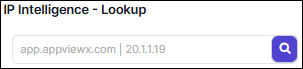
IPAM vs CMDB Compliance
This report highlights IP compliance status between IPAM and CMDB: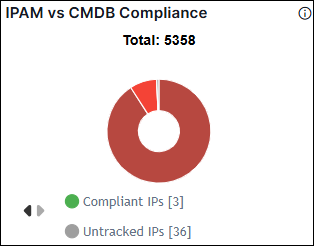 Click compliance chart to view the required IP report list.
Click compliance chart to view the required IP report list.- Compliant IPs: IP is used in both IPAM and CMDB.
- Missing in CMDB: IP Used in IPAM but not present CMDB.
- Missing in IPAM: IP is in CMDB but not used in IPAM.
- Untracked IPs: IP is unused in both IPAM and CMDB but present in other source (e.g., ADC, CMDB, L2/L3 devices, custom sources).
- Detailed IP Address List: View individual compliant, Untracked IPs, Missing in IPAM, and Missing in CMDB along with associated metadata.
- Search bar: Quickly filter specific IP by address, compliance status, or associated source.
- Download icon: Export the list in CSV or Excel format for offline
analysis.
- For large reports (e.g., over 500K rows), the download is
automatically split into multiple files, each containing up to 300K
rows.Note: A zip file is downloaded with the report name and contains multiple files.
- For large reports (e.g., over 500K rows), the download is
automatically split into multiple files, each containing up to 300K
rows.
- Email icon: Directly send the IP compliance report to specified email addresses as attachment.
IP Compliance Status
This report provides an overview of IP compliance against sources: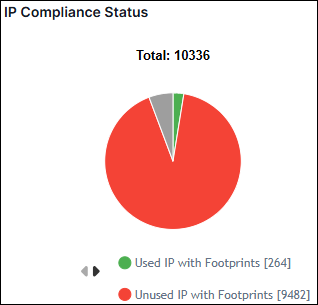
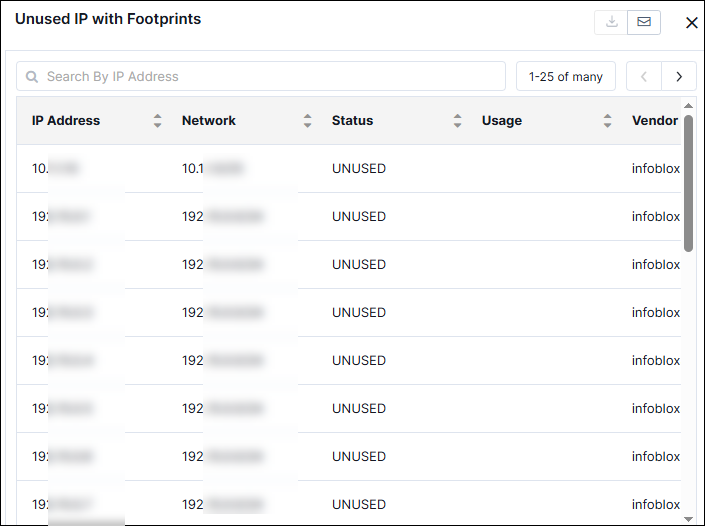
- Used IP with Footprints: IP used in IPAM and is found in at least one source (ADC, CMDB, L2/L3 devices, or custom sources).
- Unused IP with Footprints: IP unused in IPAM but has been discovered in other sources.
- Used IP with No Footprints: IP exists in IPAM but has no footprint in any discovered sources.
- Detailed IP List: View individual Used IP with Footprints, Unused IP with Footprints, and Used IP with No Footprints along with associated metadata.
- Search bar: Quickly filter specific IP by address, compliance status, or associated source.
- Download icon: Export the list in CSV or Excel format for offline
analysis.
- For large reports (e.g., over 500K rows), the download is
automatically split into multiple files, each containing up to 300K
rows.Note: A zip file is downloaded with the report name and contains multiple files.
- For large reports (e.g., over 500K rows), the download is
automatically split into multiple files, each containing up to 300K
rows.
- Email icon: Directly send the IP compliance report to specified email addresses as attachment.
IPAM Compliance by Sources
This report compares IP compliance across different discovery sources (e.g., ADC,
CMDB, L2/L3 devices, custom sources) against IPAM's used data. It categorizes IPs
as: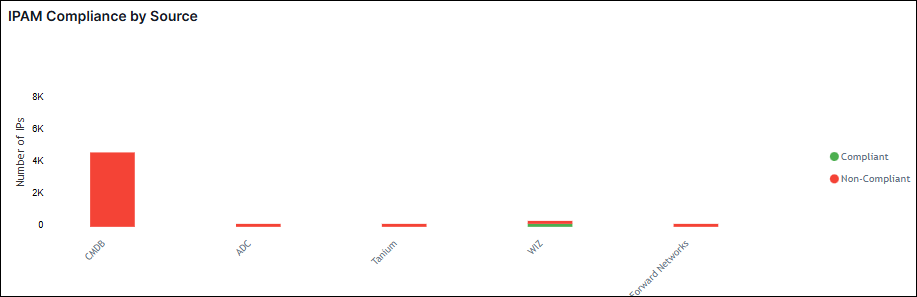
- Compliant: IP used in IPAM and found in the respective source.
- Non-Compliant: IP is not used in IPAM but exists in the respective source.
- Detailed IP List: View individual compliant or non-compliant along with associated metadata.
- Search bar: Quickly filter specific IP by address, compliance status, or associated source.
- Download icon: Export the list in CSV or Excel format for offline
analysis.
- For large reports (e.g., over 500K rows), the download is
automatically split into multiple files, each containing up to 300K
rows.Note: A zip file is downloaded with the report name and contains multiple files.
- For large reports (e.g., over 500K rows), the download is
automatically split into multiple files, each containing up to 300K
rows.
- Email icon: Directly send the IP compliance report to specified email addresses.