Advanced Search
-
Go to
 (Menu) > SIGN+ > Signing > Signing Inventory.
The Signing Inventory page is displayed.
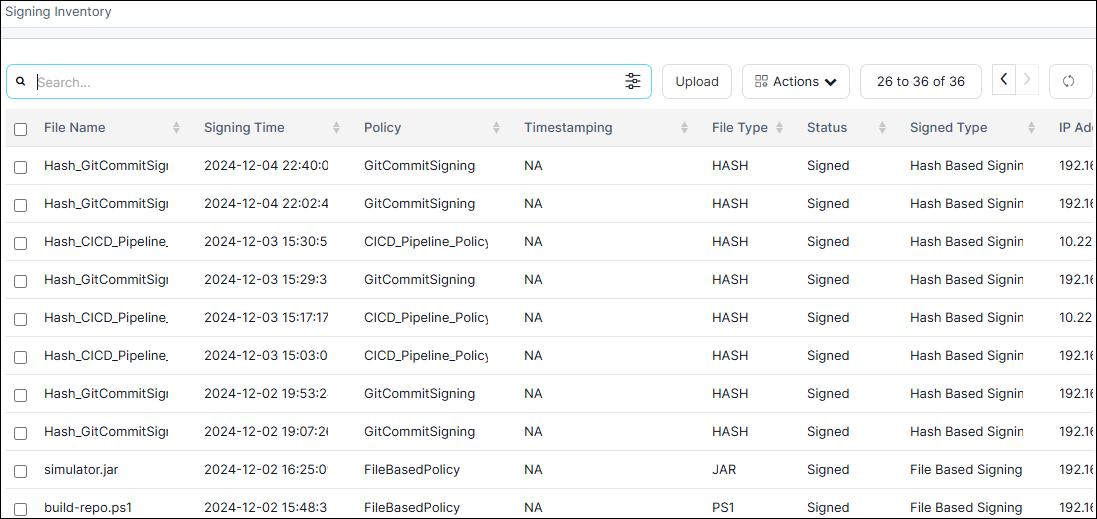
-
Click
 (Filter) icon on the search bar.
The Advanced Search window appears.
(Filter) icon on the search bar.
The Advanced Search window appears. - Enter the necessary details based on your search criteria, such as File Name, File Type, Status, Signing Time Period, Policy, Signing Key, and Signed Type.
-
Click Search.
The requested search results are displayed in the Signing Inventory.
- Export the signed entries from the signing inventory.