Upload Certificate
To upload an existing certificate for code signing, follow these steps:
-
Go to
 (Menu) > SIGN+ > SIGNING > Upload Certificate.
The Upload Certificate page is displayed.
(Menu) > SIGN+ > SIGNING > Upload Certificate.
The Upload Certificate page is displayed.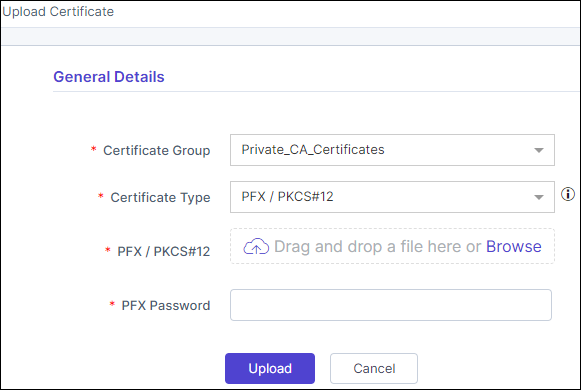
-
Enter the required details, under the General Details
section.
Table 1. Field description for General Details Fields Description * Certificate Group Select the appropriate certificate group from the dropdown menu. * Certificate Type Select the certificate type from the dropdown menu. - PFX / PKCS#12
PFX / PKCS#12 allows you to upload a codesigning certificate packaged in a PFX or PKCS#12 file, which includes both the certificate and the private key, and is commonly used for importing and exporting certificates and keys.
- Certificate and Key
Certificate and Key is for when you have separate files for the codesigning certificate and the private key, requiring you to upload both files individually.
- Access from HSM.
Access from HSM is used when your private key is stored in a Hardware Security Module (HSM), enhancing security by ensuring the private key never leaves the HSM.
* PFX / PKCS#12 Note: This field is displayed only when the Certificate Type is selected as PFX / PKCS#12.Click Browse to select the certificate file PFX / PKCS#12 from your local system.* PFX Password Note: This field is displayed only when the Certificate Type is selected as PFX / PKCS#12.Enter the password associated with the uploaded PFX or PKCS#12 file.* Certificate Note: This field is displayed only when the Certificate Type is selected as Certificate and Key.Click Browse to select the certificate file from your local system.* Key Note: This field is displayed only when the Certificate Type is selected as Certificate and Key.Click Browse to select the key file from your local system. If the key is password-protected, users may be prompted to enter the correct password for successful key upload alongside the certificate. Failure to provide the correct password may result in key upload failure, while the certificate upload will proceed successfully.* HSM Vendor Note: This field is displayed only when the Certificate Type is selected as Access from HSM.Select the vendor of your HSM from the dropdown menu.* Certificate Source Note: This field is displayed only when the Certificate Type is selected as Access from HSM.Select the appropriate Certificate Source.- Upload: Click browse and upload the certificate from your local system.
- Pick from HSM: Choose this option to
select a certificate from the dropdown menu. Note: After selecting this option, you can click
 (Refresh) icon to update the list of
available certificates.
(Refresh) icon to update the list of
available certificates.
* Certificate Note: This field is displayed only when the Certificate Type is selected as Access from HSM.- If you select Upload as the Certificate Source, then click Browse to select the certificate from your local system.
- If you select Pick from HSM as the Certificate Source, then select the certificate from the dropdown menu.
Private Key Label Note: This field is displayed only when the Certificate Source is selected as Upload.Enter the private key label associated with the uploaded certificate. If you are aware of the precise private key label for the certificate you intend to upload, please provide it. Otherwise, failure may occur during the Code Signing Process.*: Mandatory fields - PFX / PKCS#12
-
Click Upload to initiate the certificate upload process.
Upon successful upload, a confirmation message will be displayed, and the certificate will be added to the Signing Inventory.
- Configure the signing policy using the uploaded certificate.
- Code signing after configuring the policy.