Compare Configurations of Custom Environments
AppViewX allows you to compare the custom environment configuration. A custom environment could be specific to a business unit comprising specific devices and objects. You can import the custom environment details (devices and objects) into AppViewX in the form of an Excel file and compare the source and destination environment configuration of F5.
To compare configurations of custom environments:
-
Go to Menu >
ADC+ > CONFIG
MANAGEMENT > Compare Configuration.
The Compare tab opens.
- In the Compare Type field, select the Environment radio button.
-
Click the
 icon beside View
Parameters section to expand it.
The Current Parameters table is displayed.
icon beside View
Parameters section to expand it.
The Current Parameters table is displayed. -
In the table, you can export, import, or delete parameters; download
the sample using the buttons on the top-left corner. You can also right-click
inside the table to delete a row; select, delete or unselect a column.
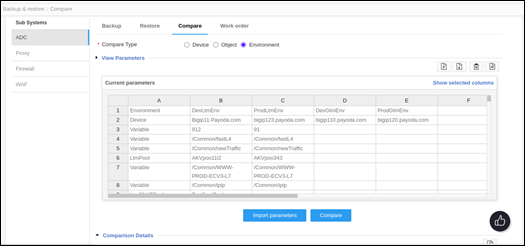
- Click Import Parameters.
- Click Compare to compare the source and destination environments.
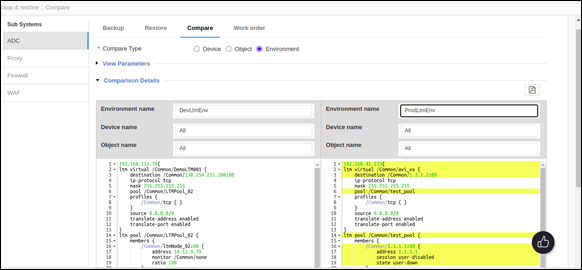
- Select the environment names, device names, and object names to be compared from the
respective dropdown lists in source and destination environments. A line-by-line
comparison will be displayed below each environment with the following color
coding:
-
Green - Denotes the new additions
-
Yellow - Denotes the modifications
-
Red - Denotes the deletions
-
-
If required, you can click the
 (Export
to PDF) button to download the comparison report to your computer.
(Export
to PDF) button to download the comparison report to your computer.