Modify an Application View Widget
The Application view widget contains the objects under the group. By default, the DefaultGroup is available. Either you can add objects to the DefaultGroup or create a new group of objects. The details of the Application view widget can be modified as needed.
To modify an Application view widget:
- Go to Menu > ADC+ > TRAFFIC MANAGEMENT > Dashboards.
- If you have more than one dashboard, in the dashboard list, click the name of the one containing the widget whose contents you want to make changes to.
-
Click the
 (Options) button and select the
  (Settings) icon in the Command bar at the
top of the widget.
The Settings screen appears:
(Settings) icon in the Command bar at the
top of the widget.
The Settings screen appears: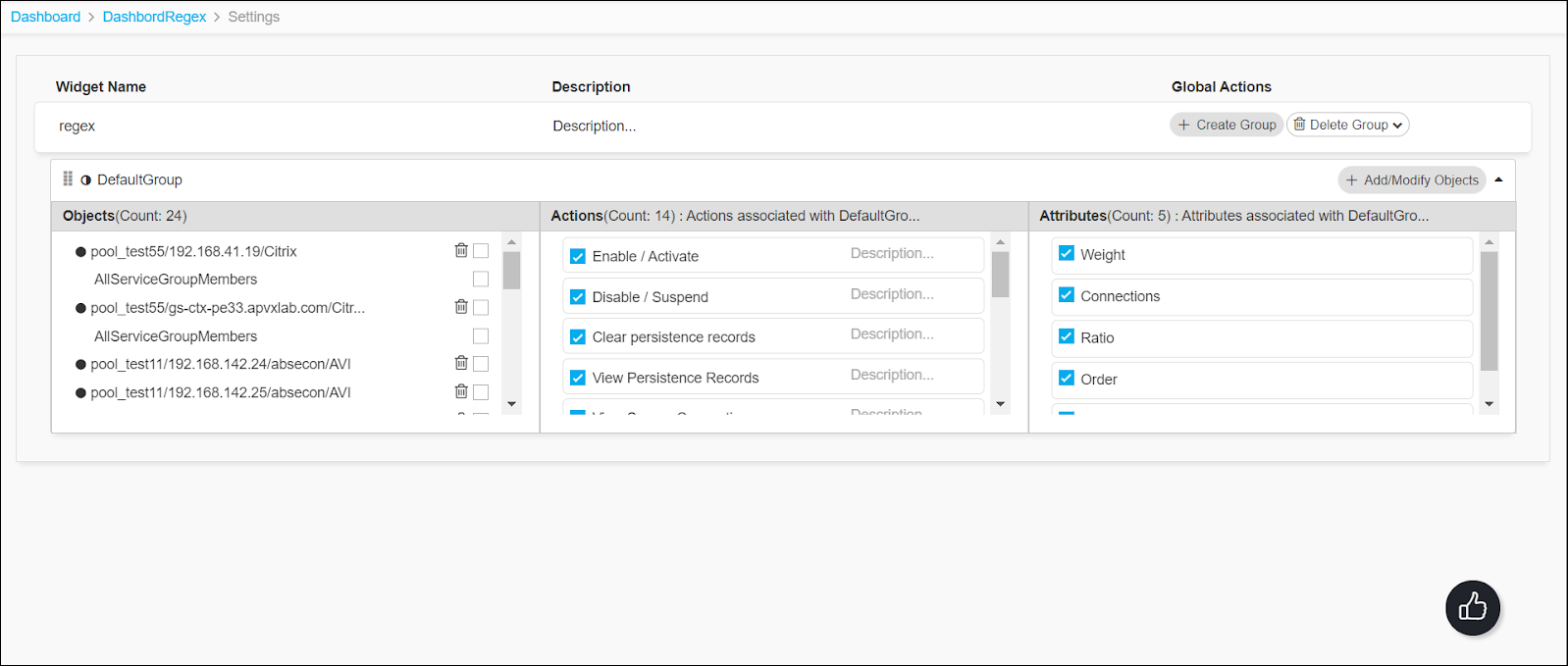
-
You can modify the Application view widget as
follows:
Table 1. Application View Widget - Field and Description Table Field Description Widget Name Update the name of the widget. Description Update the description of the widget. Global Actions There are two Global Actions. Click,
-
 to create a new
Application view widget group.
to create a new
Application view widget group. -
 to select the desired
group from the drop-down list and delete.
to select the desired
group from the drop-down list and delete.
Add/Modify Objects -
Click
 to add and modify an
object.
to add and modify an
object. -
In the Add/Modify Objects popup, provide the object details, such as vendor, Device State, Device Nam, etc., search for objects, and/or filter the objects to get the desired objects.
-
Select or unselect the objects by clicking the objects checkbox.
-
Alternatively, you can add objects to the group by creating regex for the object details to get the desired objects. To add objects using regex,
-
After providing the object details in the Add/Modify Objects popup, add the desired regex in the search field.
-
Click the Add as regex button.
The objects that match the regex are added to the group and the regex is added to the regex list.
Note:
-
You can add any number of regex.
-
To view the regex list, click Add as regex dropdown option.
-
The regex(s) is specific to a widget, dashboard, group, and filters.
-
To view sample regex, click the information
 button.
-
-
When new objects are added and matched with the regex the objects are added to the widget automatically.
-
-
Click Save to add the objects to the group.
Objects section To delete an object, click  against a particular object and
then click Yes in the confirmation modal.
against a particular object and
then click Yes in the confirmation modal.Actions section Enable or disable action(s) for the objects by selecting the checkbox of the respective action. The enabled actions will be updated in the action list.
By default, access to the actions applies to all objects within that group.
Attributes section Enable or disable attribute(s) for the objects by selecting the checkbox of the respective attribute.
By default, access to the attributes applies to all objects within that group.
-
- The modified details will be updated in the Application view widget.