Schedule Log Reports
In addition to providing scheduled logging activities, AppViewX allows you to set up logging tasks for specific ADC object types and have the log results emailed automatically to designated recipients.
To schedule the log reports:
-
Go to Menu > ADC+
> ALERTS & LOGS > Logs.
The Logging screen opens.
-
Click the
 (Settings) button on the top.
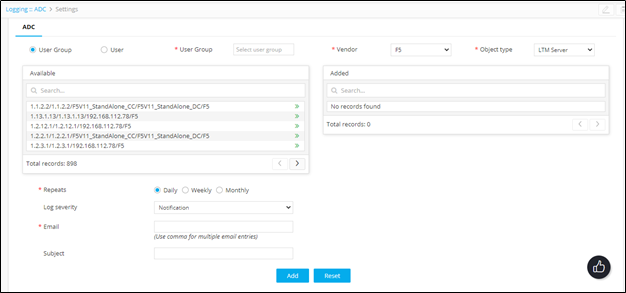
- At the top of the Settings screen, select the User Group or User radio button, and then enter the name of the user or group that the log report relates to.
-
In the Vendor field, select the vendor whose object or objects
you want to generate a log report for.
In the Object Type field, select the object that you want to generate a log report for.
-
In the Available field, click the
 (Assign item) icon beside each object you want to include in the log report.
- In the Repeats field, select how often you want the log report to be
generated: Daily, Weekly, or Monthly.
From the Log severity dropdown list, select one of the following:
-
Critical
-
Fatal
-
Major
-
Minor
-
Notification
-
- This is to let the user know the severity of the log reports that have been sent.
- In the Email field, enter the email addresses of users receiving the log report.
- (Recommended) In the Subject field, enter a short, clear description of the log report so that the email recipients can tell at a glance what the message contains.
-
Click Add to add the log report generation task to the table
at the bottom of the screen.