Right click actions
- Log in to the AppViewX application with valid credentials.
- Select Menu > ADC+ > TRAFFIC MANAGEMENT > App Search.
- Run a search.
Executing From Application View
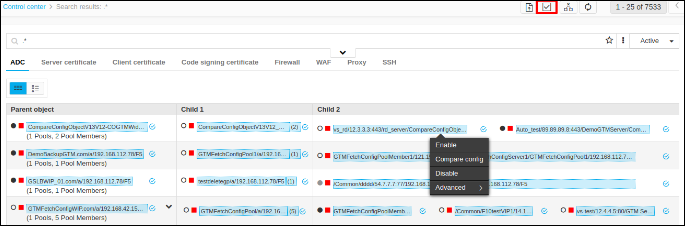
- Users can do right click actions on individual object level in grid view. To do an action on an individual object right click on the object.
- Users can do right click actions on multiple objects level by selecting the objects using the Select button near the object. After selecting the objects do a right click. When the user clicks on a particular action the actions will be applied only for the applicable actions from the selected objects.
-
Users can do right click actions on all the objects in the page. When the
user clicks on the Select All button in the top right corner and then right
click on the objects. When the user clicks on a particular action the
actions will be applied only for the applicable objects from the selected
objects.
Executing From Infrastructure View
-
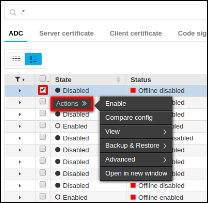
Users can do right click actions on individual object level in grid view.
To do an action on an individual object, select a single object and hover on
Actions.
-
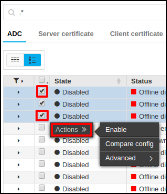
Users can do right click actions on multiple objects level by selecting the
checkboxes of the object. After selecting the objects hover on
Actions. When the user clicks on a particular action the actions
will be applied only for the applicable actions from the selected
objects.
-
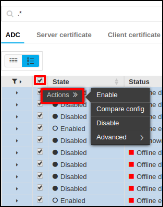
Users can do right click actions on all the objects in the page. Users can
select all the objects by selecting the Select all checkbox (first
checkbox in the grid). When the user clicks on a particular action the
actions will be applied only for the applicable objects from the selected
objects.
Executing From Topology View
From topology view users can do right click actions on individual objects. To do
an action on an individual object right click on the object and click the
required action.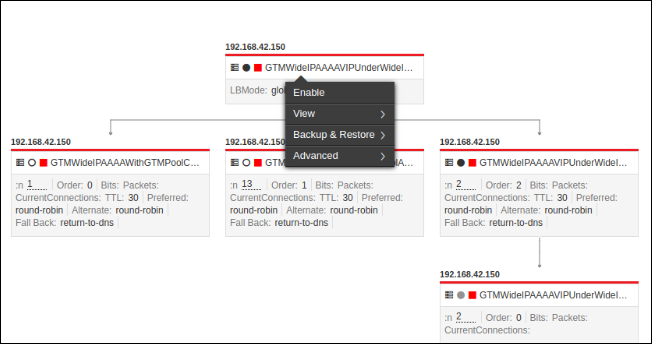
Below are the right click actions supported in AppViewX. Basically they fall
under two categories.
- Write actions : These actions will change the configuration of
the object in the device and the respective changes will get updated in
AppViewX also. Whenever the user triggers the below actions user will
get a Comments box for most of the actions, where the entered
comments will be maintained in auditlog. To perform the action users
should enter a valid comment in that and then click Yes.
- Enable
- Disable
- Force down
- FD clear active connections
- Enable all
- Disable All
- Forcedown all
- Enable persistence
- Disable persistence
- Restore object
- Clear persistence
- Read actions : These are the view actions. This will not modify
any configuration.
- Compare config
- View source connections
- View persistence
- Backup device
- View graph
- View config
- View log
- View Alerts