Upload and Sign
The Upload and Sign page enables users to upload a file for digital signing. On this page, users can choose from a selection of signing policies and the associated certificate keys to sign their uploaded files. Some signing policies may include specific meta-information configurations, ensuring that the signed files adhere to predefined policy requirements.
To Upload and Sign a file using Code Signing Certificate, follow these steps:
- Go to
 (Menu) > SIGN+ > SIGNING > Upload & Sign.
 The Upload and Sign page is displayed.
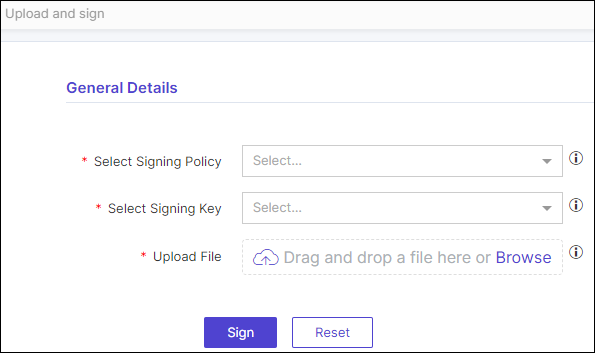
- Enter the required details, under General Details section.
- Select Signing Policy: Select the suitable signing policy
according to your specific needs, considering any configurations applied
during the signing policy's creation.Note: The default policy name is set as the first policy in the dropdown.
- Select Signing Key: Select the signing key that corresponds to
the policy selected in the previous step. Note: The default signing key is set as the signing key of first policy in the dropdown.
- For specific policies, you may need to provide additional information. Kindly enter these details as configured in the selected signing policy.
- Upload File: Only selected file types during policy creation are
allowed for upload.Note: The JSign version v6.0 is currently in use for signing to support a wider range of file types.
- Select Signing Policy: Select the suitable signing policy
according to your specific needs, considering any configurations applied
during the signing policy's creation.
- Click Sign to initiate the signing process.
- After the signing process is complete, the file will appear in the Signing Inventory, where you can proceed to download it.
What to do next:
- Download Code Signed file that have been digitally signed and verified.