Platform Upgrade (Beta)
-
Click
 and select Systems > System
Update.
You will be directed to the following screen:
and select Systems > System
Update.
You will be directed to the following screen: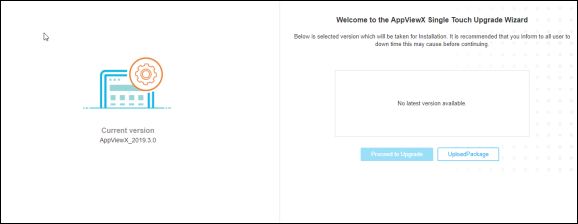
- In the left pane, you can see the current version of the product that you are running.
-
In the right pane, you can see the available list of incremental upgrades for
the AppViewX product.
Note: Please note that you can only upgrade to a higher version of the product. You will not be able to downgrade to a lower version.
- If you are already running the latest version of AppViewX, you will see this message on the right pane: 'No latest version available'.
-
If you are running an older version of AppViewX, then you will see the
following screen on the right pane:
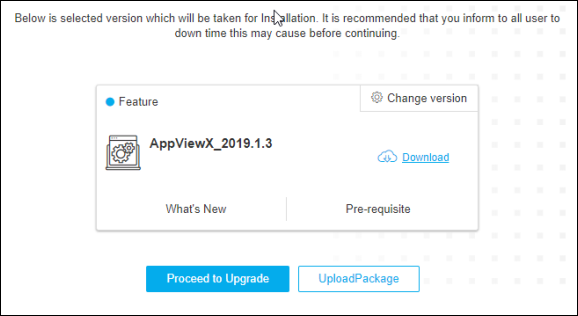
- Here, you will find the latest AppViewX version. If you want to upgrade to an intermediate version (Versions that have been released during the timeline between your current release and the latest release) you can select Change Version and select the respective version that you want to upgrade to.
- To know what are new features available in the particular release click What's New.
- To know about the prerequisites needed to perform the upgrade click Pre-requisite.
-
If you have any Internet limitations for you to proceed to the upgrade
directly, you can also download the update file locally to your machine and then
upgrade to that release. To do so, complete the following steps:
- Click Download
- Once you have downloaded the file locally, click Upload Package.
- Select the file on your local machine and then click Install
- Now the upgrade process will begin. You can track the progress on the window.
- You can view the step-wise details.
- You will see the following screen once the process is complete:
- Once you click Launch you will be redirected to the AppViewX login page.