Delete GTM Application Services
To delete GTM application services,
-
Go to
 Menu > Request > View/Run.
The Workflow Catalog page appears.
Menu > Request > View/Run.
The Workflow Catalog page appears.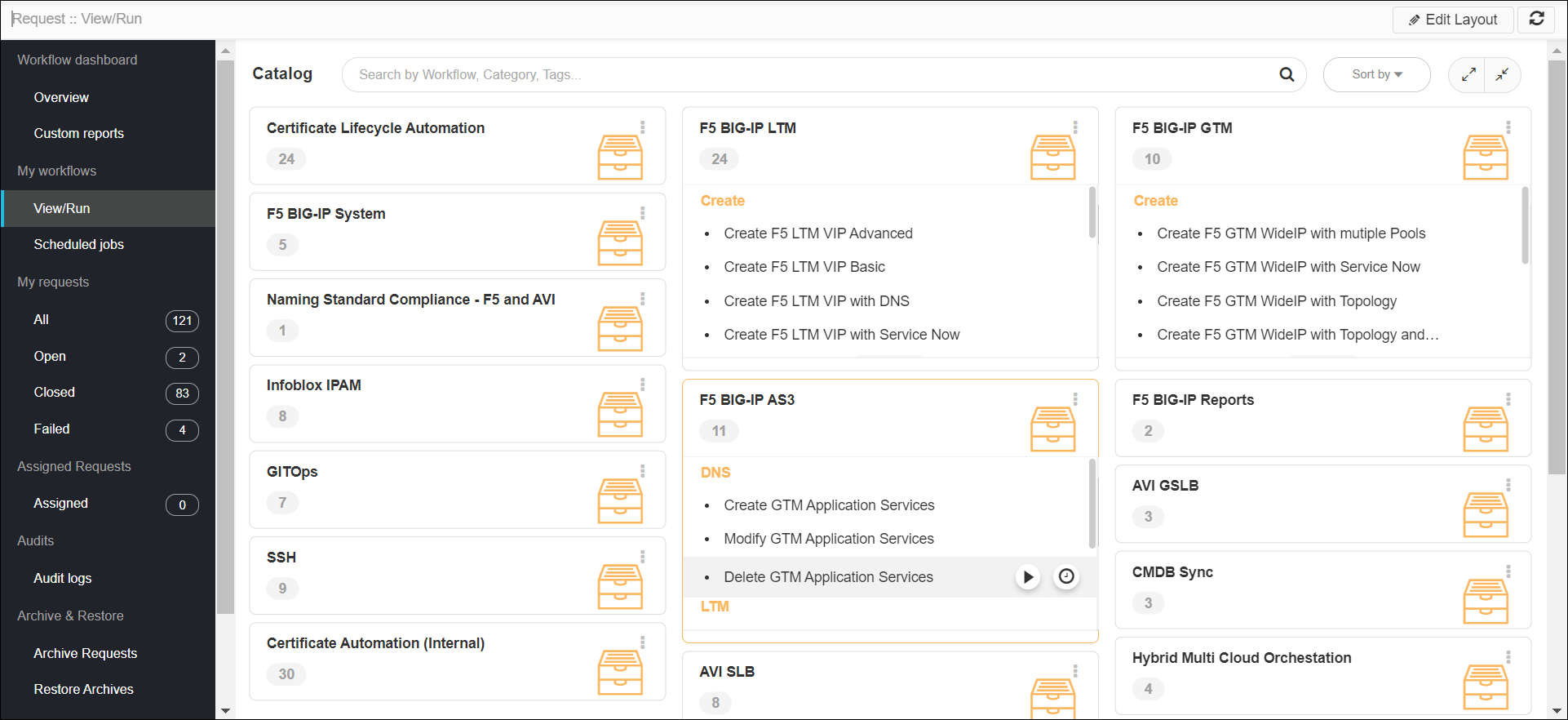
-
In the Workflow Catalog page, hover over the Delete GTM Application
Service workflow.
The Run and Schedule buttons are shown.
-
Click the Run
 button.
The Form Input page opens:
button.
The Form Input page opens: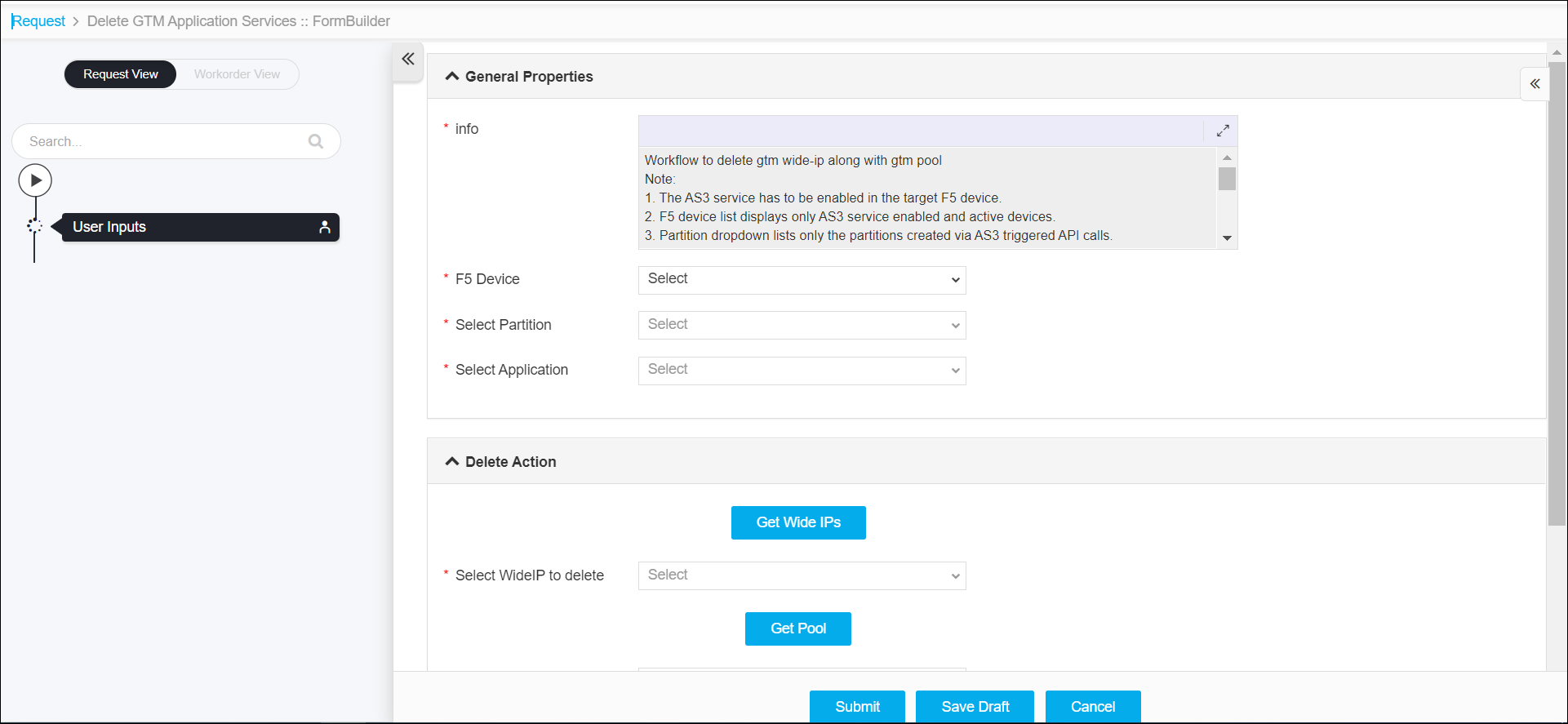
-
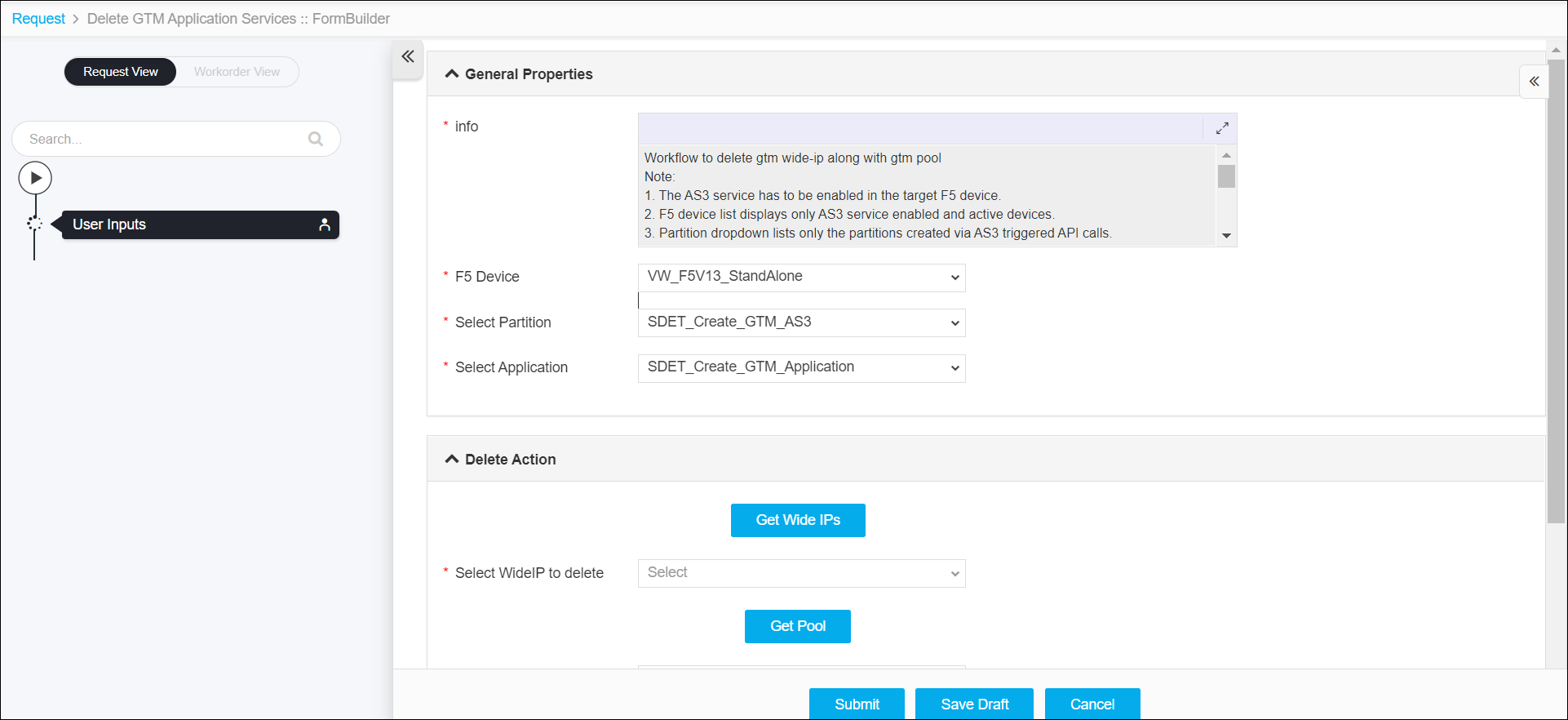
Select the Device Name, and then choose the Partition and Application
details of the device that are to be deleted.
-
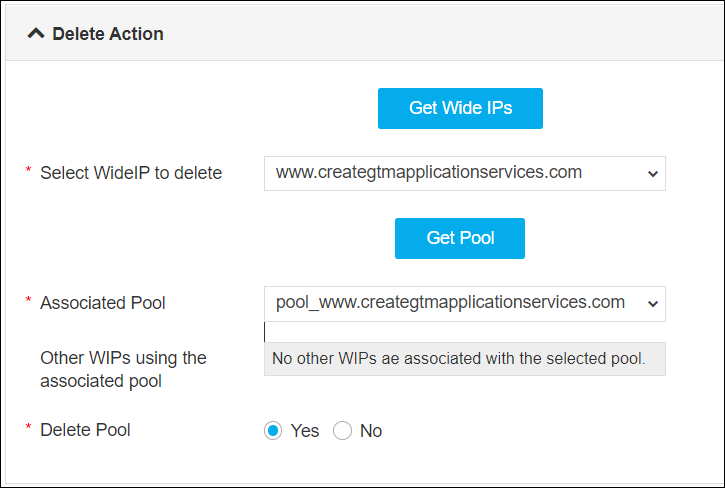
Fetch the following details:
-
Wide IP by clicking the Get Wide IPs button, and then select a Wide IP from the dropdown list.
-
Pool by clicking the Get Pool button, and then select an associated pool from the dropdown list.
Click Yes to delete the associated pool otherwise select No.
-
-
Click the Submit button.
The Confirmation popup opens.Note:
- If you want to save this form to edit it later, click the Save Draft button, and then click Ok in the Confirmation popup window. The form will be saved as Open request under Request > My Request.
- If you want to cancel this form, click the Cancel button.
-
Click Ok to submit the form.
The validation starts automatically.Note:
- If there is any failure at this stage, start a new request by providing the correct data.
- Alternatively, select the failed request and clone it. Update the correct input data in the form input, and submit the workflow again.
-
The workflow is created and the Wide IP along with its pool are deleted.
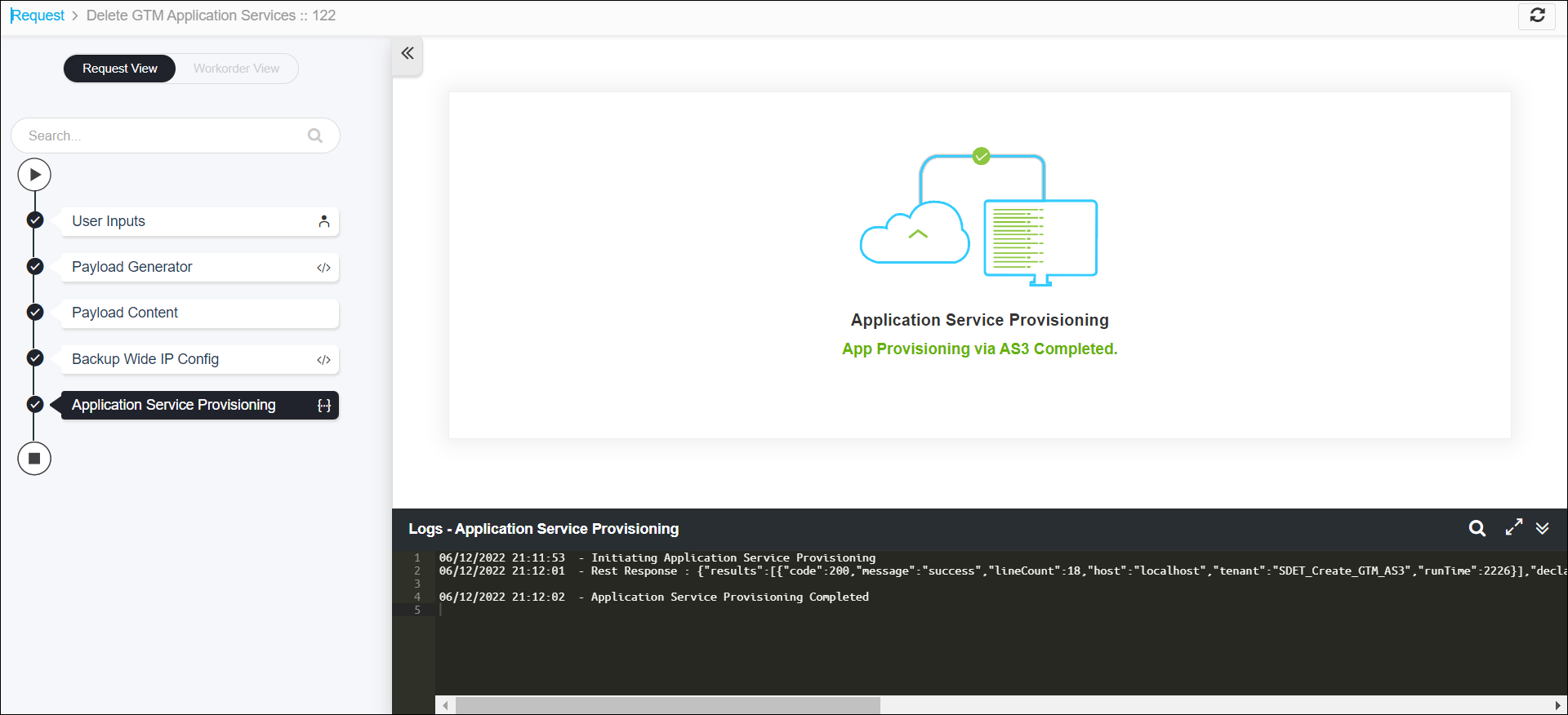
Note: The stages of the request are shown in the left-side of the screen. To view a particular stage of the request, click the respective stage.