Clone a User Group
The Clone a user group option allows you to create an exact copy of an existing user group with a different name. You can modify the roles and resources association while cloning a role.
To create a clone,
- Log in to AppViewX application with valid credentials.
- Click the menu button located in the upper left corner of the screen.
The left navigation pane appears.
- Navigate to Account, and then click User Group from the list.
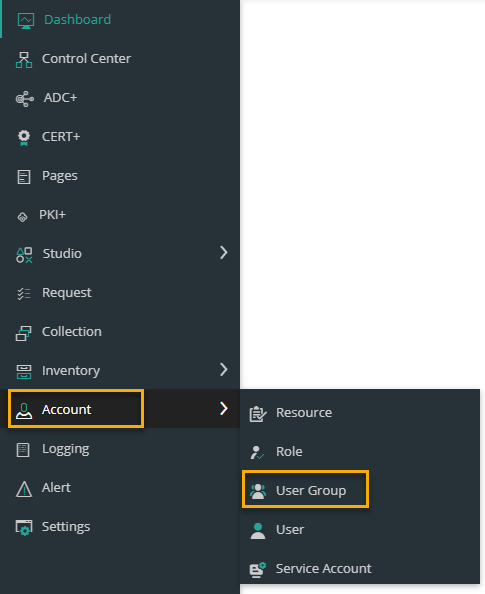 The User Group page appears.
- In the user group inventory, select the check box against the user group you want to clone.
-
Click the
 icon in the command bar to clone the user group.
The selected Cloning page appears.
icon in the command bar to clone the user group.
The selected Cloning page appears.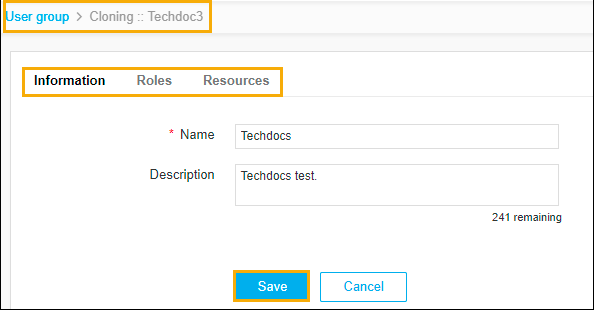 The following table describes the options available on
the Cloning page:
The following table describes the options available on
the Cloning page: Field Description * Name Enter the name of the user group. Description Enter a brief description of the user group and granular-level access associated with the resource.
Note: You can enter a maximum of 255 words in the field.Note: The asterisk (*) symbol indicates a mandatory field. - Click Save.
The user group is cloned and a pop-up message displays as User group cloned successfully.