Enable a User Group
To enable a user,
- Log in to AppViewX application with valid credentials.
The left navigation pane appears.
- Click the menu button located in the upper left corner of the screen.
- Navigate to Account, and then click User Group from the list.
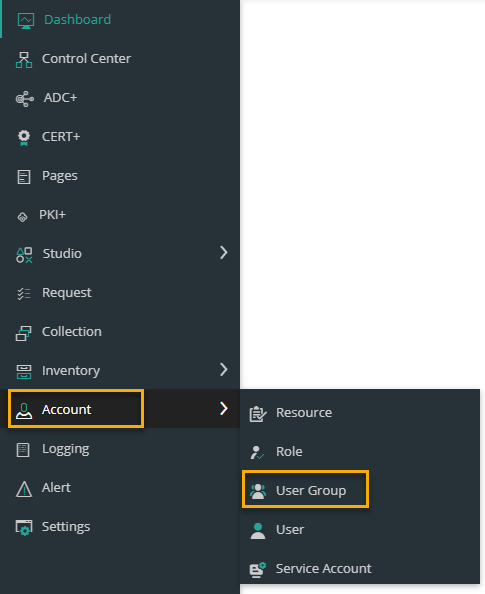 The User Group page appears.
- In the user group inventory, select the check box against the user group you want to enable.
-
Click the
 icon in the command bar to enable the user
group.
icon in the command bar to enable the user
group.
- A confirmation pop-up window, to confirm the operation.
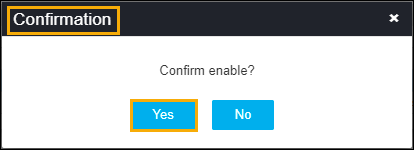
- Click Yes.
The role is enabled and a confirmation message displays as Operation performed successfully.