Add/Modify Comments for Client Certificate
To add/modify the comments for a client certificate,
- Log in to AppViewX application with valid credentials.
- Click the menu button located in the upper left corner of the screen.
The left navigation pane appears.
- Click CERT+.
The CERT+ left navigation pane appears.
- Expand CERTIFICATE INVENTORY.
-
Click Client.
The Client Certificate page appears.
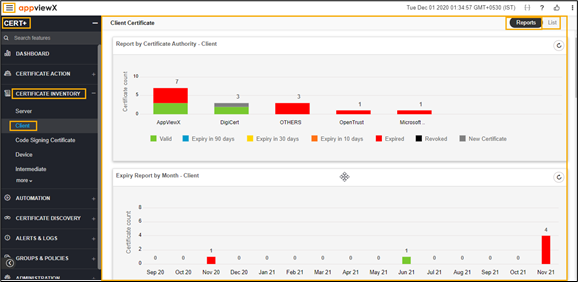
-
Click the List toggle button on the right top corner of the client
certificate page.
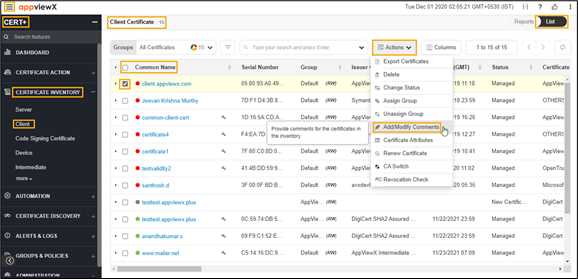
- In the Common Name column certificate list, select the desired certificate that you want to add/modify the certificate.
-
Click Actions, and then select Add/Modify Comments from the
drop-down list.
The Add/Modify Comments pop-up window appears.
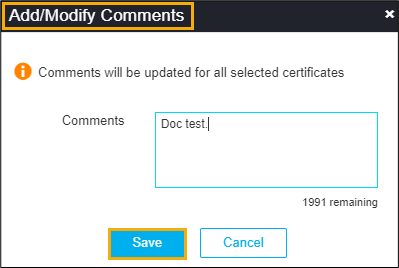
- Enter the description in the comments field.
-
Click Save.
The pop-up message appears as Selected certificate(s) comment(s) uploaded.