Assigning Client Certificate Group
The certificates of any common criteria can be grouped together to perform compliance checks against the policy details, to enable auto-renewal and auto-push operations. The viewing of the certificates can also be done on a group basis.
To assign the client certificate group,
- Log in to AppViewX application with valid credentials.
- Click the menu button located in the upper left corner of the screen.
The left navigation pane appears.
-
Click CERT+.
The CERT+ left navigation pane appears.
- Expand CERTIFICATE INVENTORY.
- Click Client.
The Client Certificate page appears.
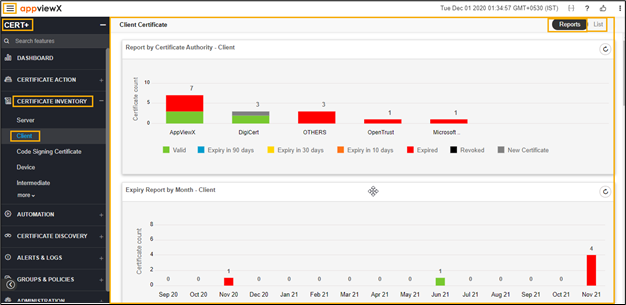
- Click the List toggle button on the right top corner of the client certificate
page.
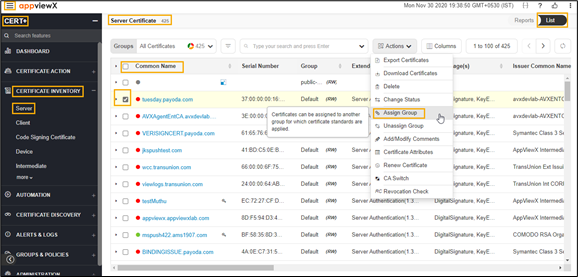
- In the Common Name column certificate list, select the desired certificate(s) that you want to assign the certificate group.
-
Click Actions, and then select Assign Group from the drop-down
list.
The Assign Group pop-up window appears.
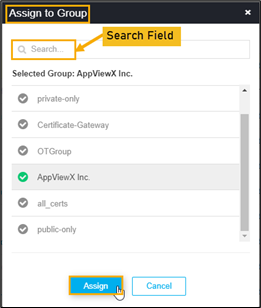
- Enter keywords if you want to search for a specific group from the list.
- Select the desired group from the listed groups.
- Click Assign.
-
The certificate is assigned to a selected group.
The pop-up message appears as <certificate_name> assigned to <group_name>.