Exporting Client Certificate
Export certificate action allows the user to export certificate details in the form of columns and values. The user can export all the certificates in the inventory or select only specific certificates and export. The output of this action can be selected in <.xls> or <.csv> format. This can be used for reporting or creating an inventory.
To export a client certificate,
- Log in to AppViewX application with valid credentials.
- Click the menu button located in the upper left corner of the screen.
The left navigation pane appears.
- Click CERT+.
The CERT+ left navigation pane appears.
- Expand CERTIFICATE INVENTORY.
- Click Client.
The Client Certificate page appears.
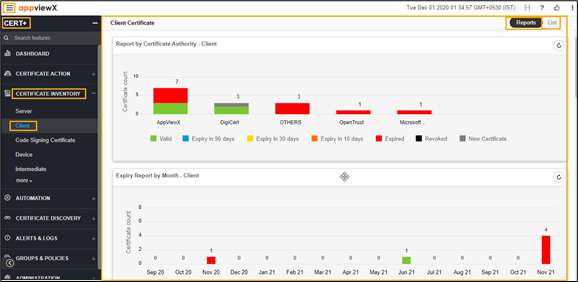
-
Click the List toggle button on the right top corner of the client
certificate page.
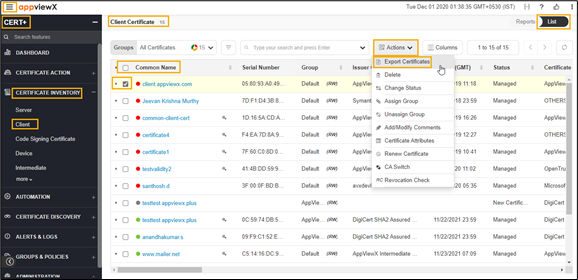
- In the Common Name column certificate list, select the desired certificate(s) that you want to export a certificate.
-
Click Actions, and then select Export Certificates from the
list.
The Export pop-up window appears:
- Select the desired Options and Format in the Export popup window. The selected certificate is exported to your local machine.