Certificate Authority Scan
AppViewX can communicate with CA and scan certificates. To discover certificates from a CA, the CA account must be determined under the AppViewX Inventory settings.
To discover a certificate from CA,
- Log in to AppViewX application with valid credentials.
- Click the menu button located in the upper left corner of the screen.
The left navigation pane appears.
-
Click CERT+.
The CERT+ left navigation pane appears.
- Expand CERTIFICATE DISCOVERY.
-
Click Discovery, and then select Certificate
Authority Scan.
The Add Discovery page appears.
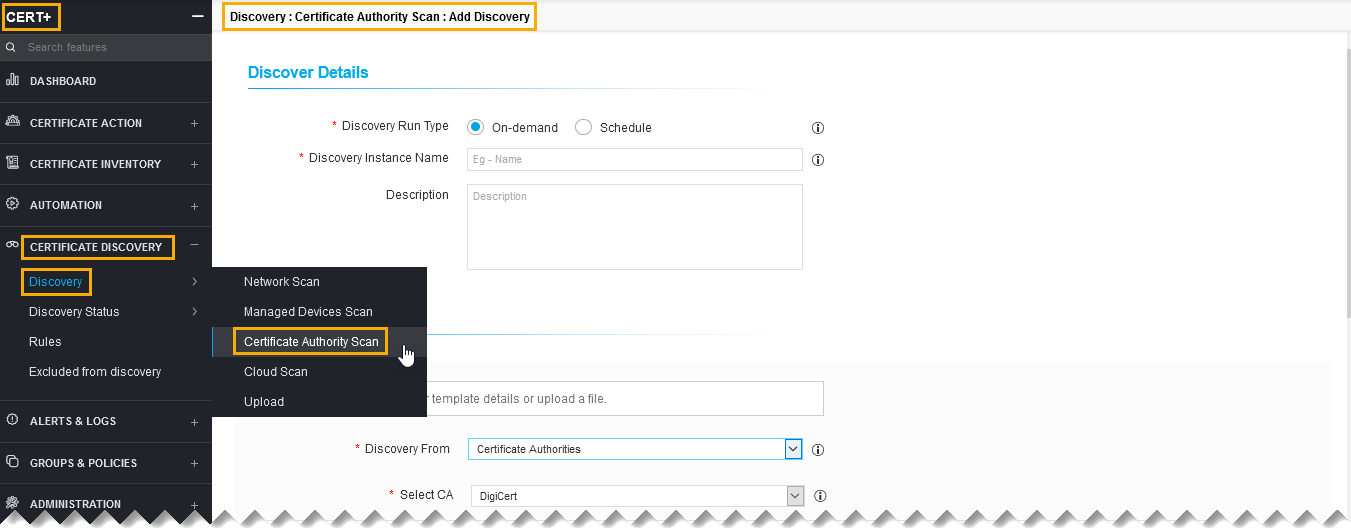
- In the Discover Details section, select/enter the details as follows.
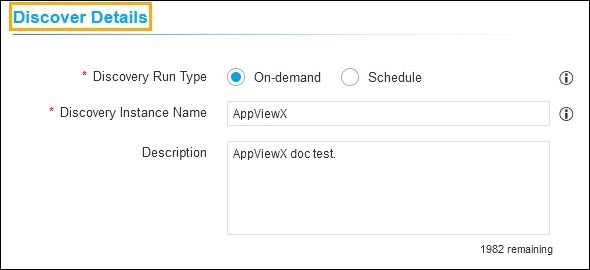
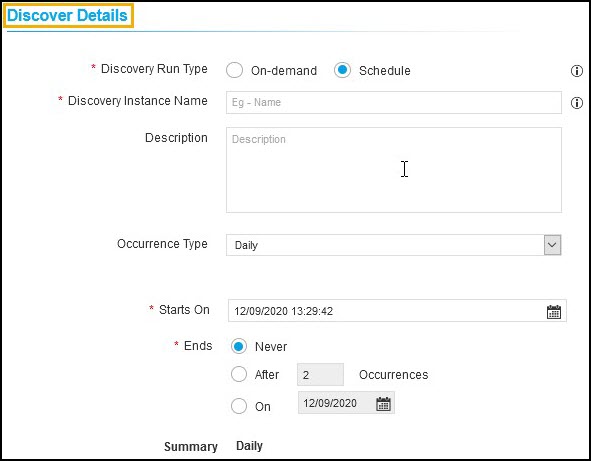 The following table describes the options available in the Discover Details section:
Field Description *Discovery Run Type Click the checkbox to select the desired discovery run type. The possible types are:
- On-demand - The user can trigger a discovery manually whenever he/she wants.
- Schedule - By scheduling the discovery, the user can automate the process for a defined time/ frequency.
If you select Scheduled discovery fill the below details.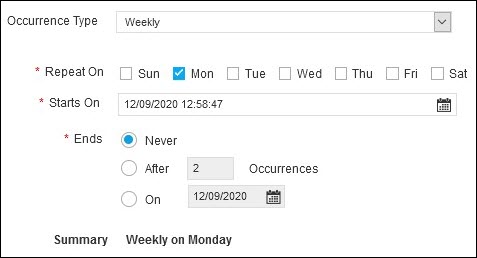
Field Description Occurrence Type Select the type of occurrence from the dropdown list.
The possible occurrences are:
- Daily
- Weekly
- Monthly
- Yearly.
*Repeat On Select a day in the week to schedule the weekly discovery.
Note:-
Repeat on is visible only when the Occurence type is selected as Weekly.
-
If Occurence type is weekly, select a day in the week to schedule the weekly discovery.
*Starts On Select the date to start the scheduled discovery. *Ends Select the desired last discovery.
- Never - Continues to discover the certificate.
- After - Stops the discovery process after a number of occurrences entered in the field.
- On - Stops the discovery process for the selected period from the calendar.
Note: AppViewX will trigger the discovery certificates process for that instance.Discovery Instance Name Enter the name of the discovery instance. Description Enter the required details in this field.
Note: You can enter a maximum of 2000 words in the field.Note: The asterisk (*) symbol indicates a mandatory field. - In the Discover By section, select/enter the details as follows.
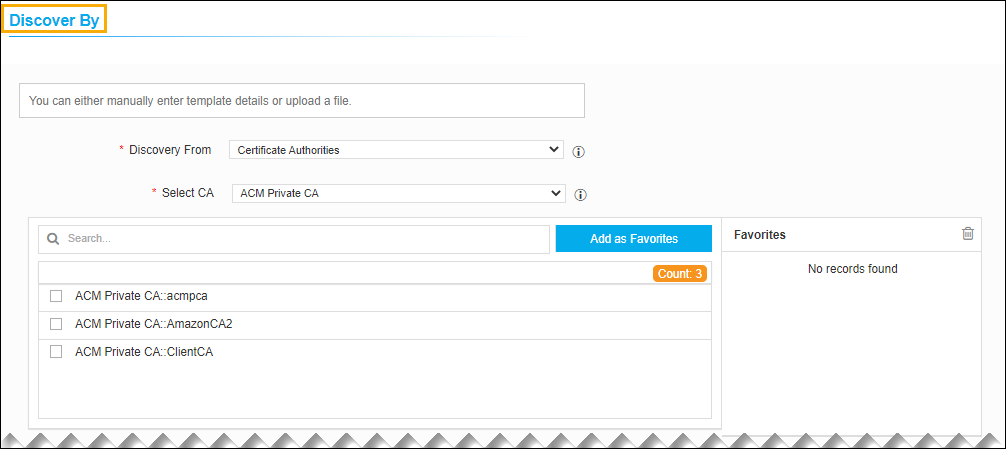 The following table describes the options available in the Discover By section:
Field Description *Discovery From Select the source from the dropdown list to discover a certificate.
*Select CA Select the CA from the dropdown list.
CA Window List of all the managed CAs will be shown in the CA window. Select CAs to discover certificates from.
-
Add as Favorites - You search the desired CA and add as favorites.
-
All - You can see all the CAs from the list.
-
Select - You can see all the selected CAs from the list.
-
Unselect - You can see all the unselected CAs from the list.
-
Delete - You can delete the favorite CAs from the list.
Note: The asterisk (*) symbol indicates a mandatory field. -
-
Starting version 2021.1.0, on selecting the ACM Private CA, the regions
configurated corresponding to the selected account are listed in the Region
field.

-
In the Discovery Rules section, select the
Associate Rule from the dropdown list.
Note: Set of filters created as a rule in the Rules menu. The selection of rules will apply respective filters on discovered certificates.
-
In the After Discover section, select/enter the details
as follows.
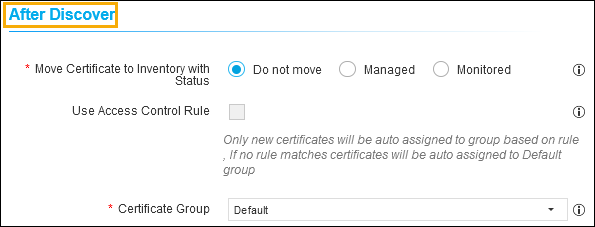 The following table describes the options available in the After Discover section:
Field Description *Move Certificate to Inventory with Status Click the check box to select the desired move certificate to inventory with status. The possible options are:
- Do not move - Newly discovered certificates and associated objects will not be moved to inventory.
- Managed - Newly discovered certificates and associated objects will be moved to inventory with status Managed.
- Monitored - Newly discovered certificates and associated objects will be moved to inventory with status Monitored.
Note: If the discovered certificates already exist in the inventory, the certificate status will not be changed.Use Access Control Rule Select the check box.
Note: If this checkbox is enabled, the certificate group will be associated automatically by the rule in access control.*Certificate Group Select the certificate group from the dropdown list. Discovered certificates will be associated with this provided group.
Note: If the discovered certificates already exist in the inventory, its certificate group will not be changed.Note: The asterisk (*) symbol indicates a mandatory field. -
Click Discover or Schedule to
perform an On-Demand or Schedule certificate discovery respectively.
Note: For EJBCA, the revoked certificates are not discovered. On discovery, the end certificates are discovered based on the days configured in the CA settings, the expired certificates are always discovered. The expiry days calculate from 0 - given value, for example, 0 -1500. On discovery, all the root and intermediate certificates that expire before 100 years will be discovered along with the end certificates by default. The discovered certificate count cannot be validated against the certificates present in the CA.
- Click Reset to reset the form and re-loads the page.