Changing Client Certificate Status
The certificate status can be set as monitored/managed during or after the certificate discovery process and also from the certificate inventory directly. When the certificates are set as Monitored, only viewing of the certificate details in terms of reports and inventory provided with alerting mechanisms can be done. When the certificates are set as Managed, the certificates-related actions along with push/bind operation can be performed along with viewing of the certificates in the reports and inventory.
To change the Client certificate status,
- Log in to AppViewX application with valid credentials.
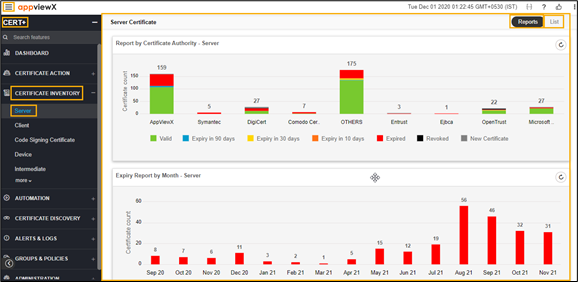
- Click the menu button located in the upper left corner of the screen.
The left navigation pane appears.
- Click CERT+.
The CERT+ left navigation pane appears.
- Expand CERTIFICATE INVENTORY.
- Click Client.
The Client Certificate page appears.
-
Click the List toggle button on the right top corner of the client
certificate page.
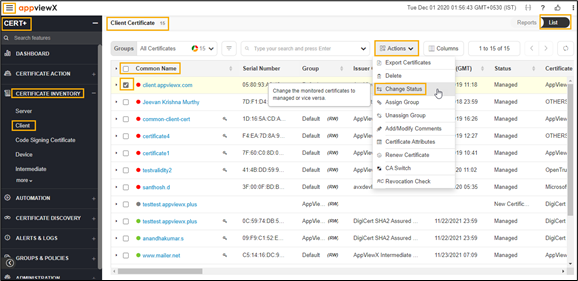
- In the Common Name column certificate list, select the desired certificate that you want to change the certificate status.
- Click Actions, and then select Change Status from the drop-down list.
The Change Status pop-up window appears.
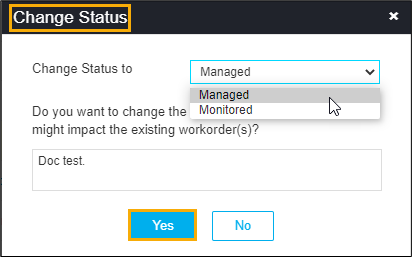
- Select the desired status from the Change Status to drop-down list.
- Enter the reason for changing the status in the description field.
- Click Yes.
- The certificate status is changed to Managed or Monitored as selected from the drop-down list.
The pop-up message appears as Updated.