Bulk Server Certificate Revoke Action
Note: For the DevOps users, the issuing CA may disable the revoke
action. In this case, a pop-up message, informing the user of this, is displayed.
For enterprise users, the revoke action is enabled.
To revoke a server certificate:
- Log in to AppViewX application with valid credentials.
-
Click the menu button located in the upper left corner of the screen.
The left navigation pane appears.
-
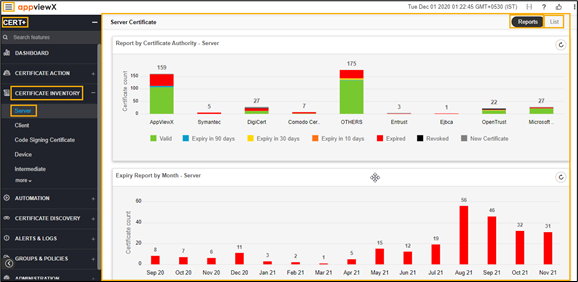
Click CERT+.
The CERT+ left navigation pane appears.
- Expand CERTIFICATE INVENTORY.
-
Click Server.
The Server Certificate page appears.
-
Click the List toggle button on the right top corner of the server
certificate page.
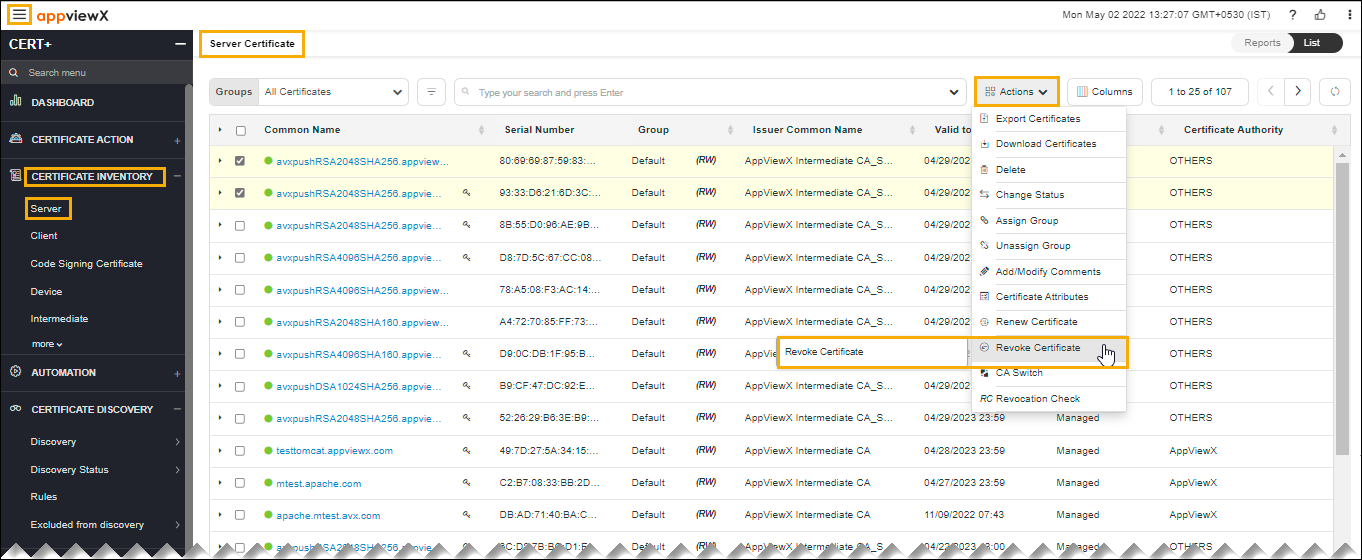
- Select the required certificate check box.
-
Click Actions, and then select Revoke Certificate from the
list.
The certificate revoke window page appears.
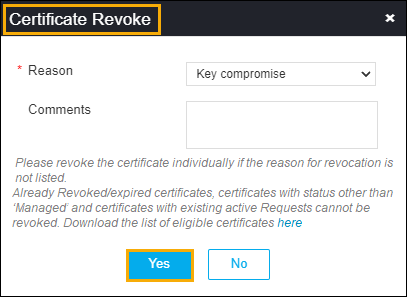
The following table describes the options available on the revoke certificate page:
Field Description Reason The required option from the dropdown list.
The possible options are,
- Key Compromise
- Affiliation Changed
- Superseded
- Cessation of Operation.
Comments Type the required comments.
- Click Yes.