Excluding Unmanaged Certificate
To exclude the unmanaged certificates,
- Log in to AppViewX application with valid credentials.
- Click the menu button located in the upper left corner of the screen.
The left navigation pane appears.
- Click CERT+.
The CERT+ left navigation pane appears.
- Expand CERTIFICATE DISCOVERY.
- Click Discovery Status, and then select On-Demand.
The On-Demand page appears.
.png)
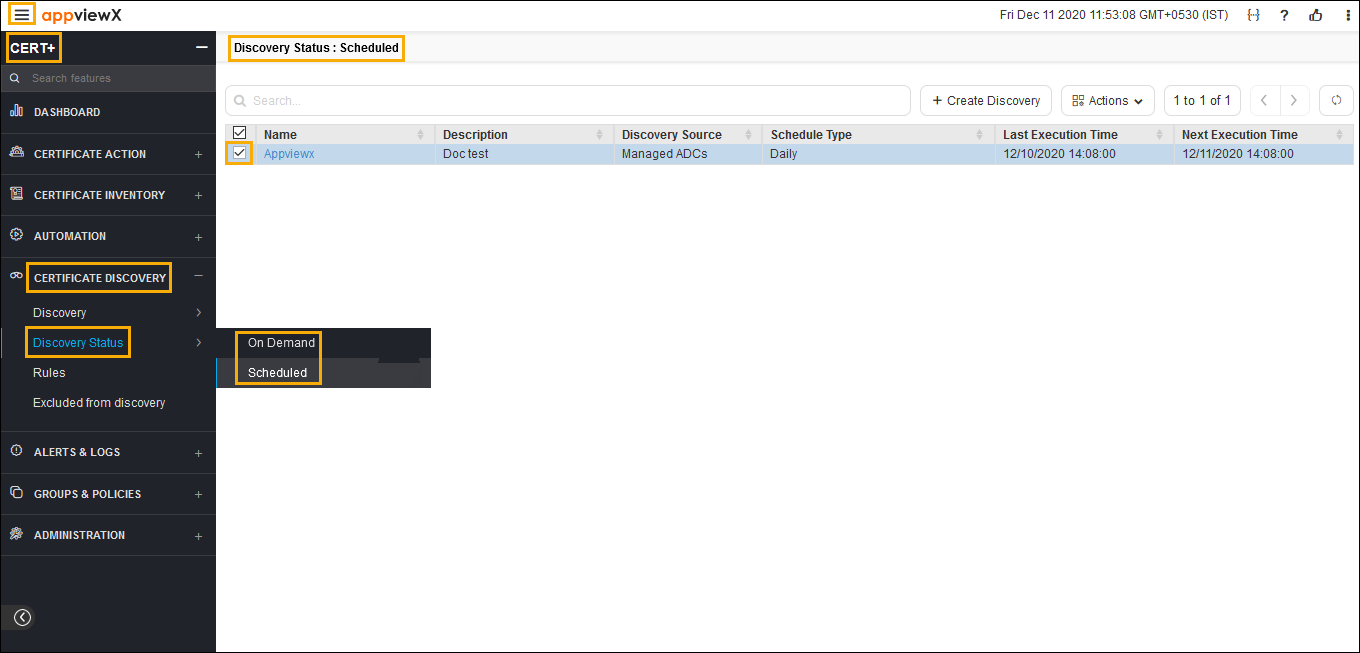
- In the certificate list view, click on the name of the certificate.
-
Click Certificates on left of the pane.
The Certificates list page appears.
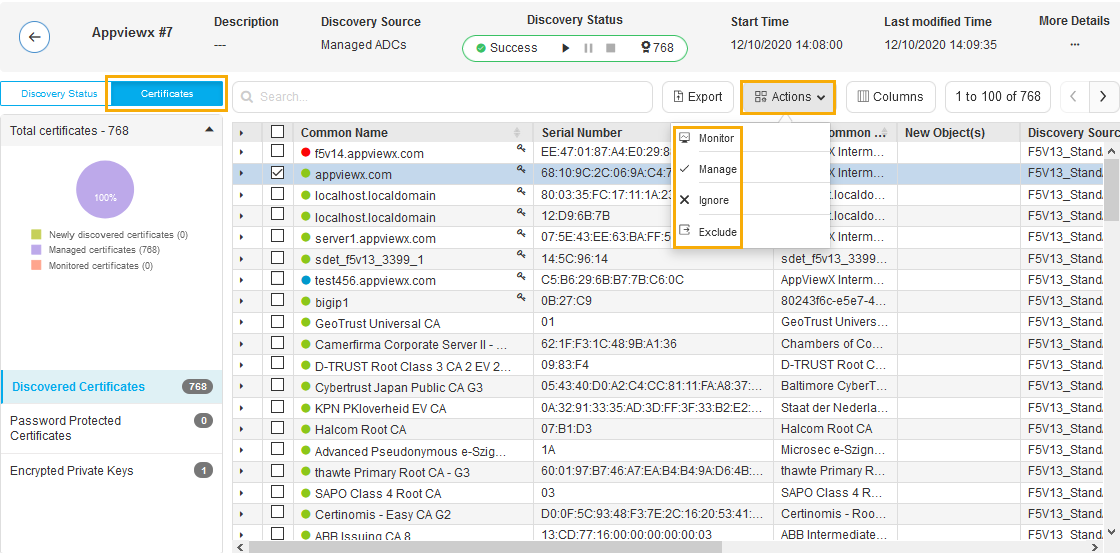
- In the certificate common name list, select the certificate that you want to exclude.
- Click Actions, and then select Exclude.
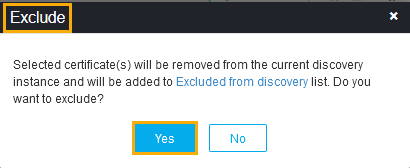
The Exclude pop up window appears.
-
Note: Excluded certificates will be removed from the current discovery instance and will be added to the Excluded from discovery inventory.Click Yes.
The pop-up message appears as Selected certificate(s) are removed from the current discovery instance and added to “Excluded from Discovery” list.