Exporting Discovered Certificates
To export discovered certificates,
- Log in to AppViewX application with valid credentials.
- Click the menu button located in the upper left corner of the screen.
The left navigation pane appears.
-
Click CERT+.
The CERT+ left navigation pane appears.
- Expand CERTIFICATE DISCOVERY.
- Click Discovery Status, and then select
On-Demand.
The On-demand page appears.
.png)
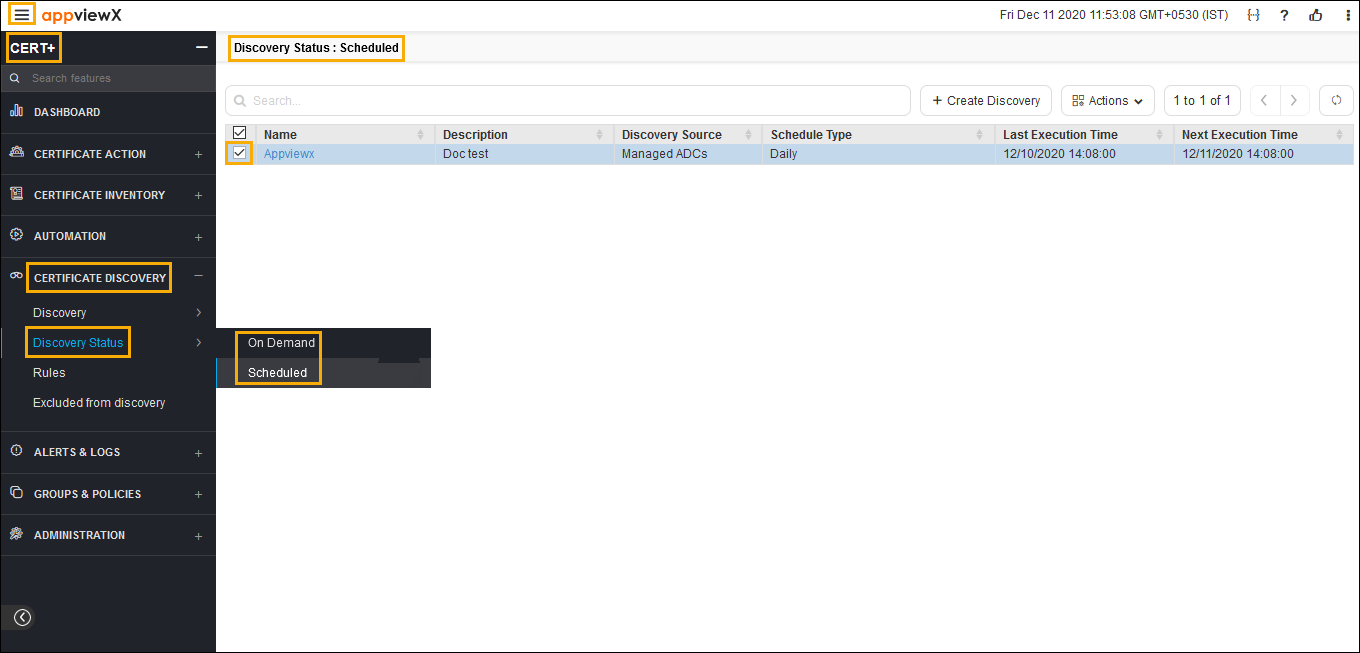
- In the certificate list view, click on the name of the certificate.
- Click Certificates on left of the pane.
The Certificates list page appears.
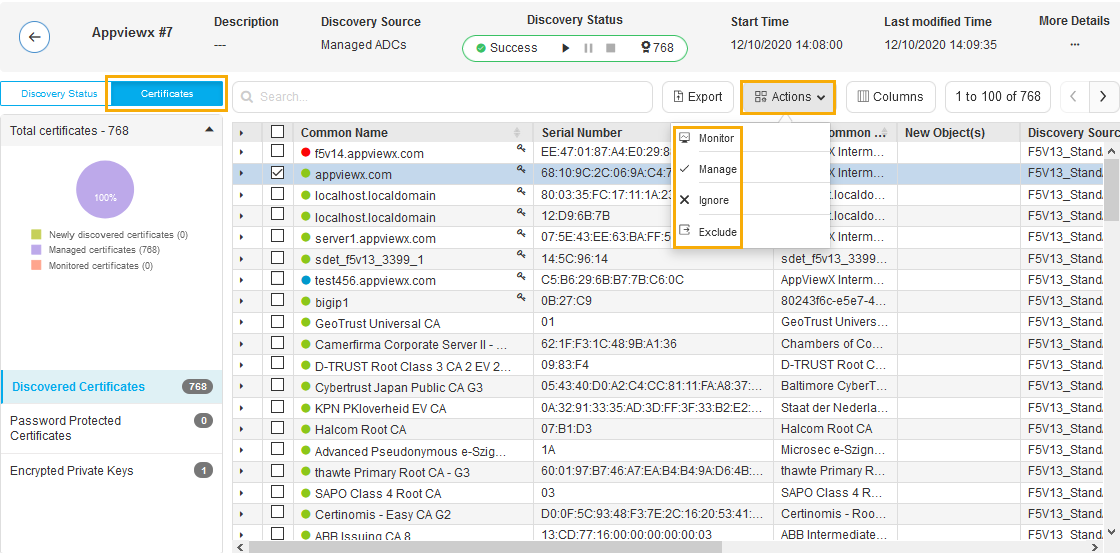
- In the certificate common name list, select the certificate that you want to Export.
- Click Export.
The Export popup window appears.
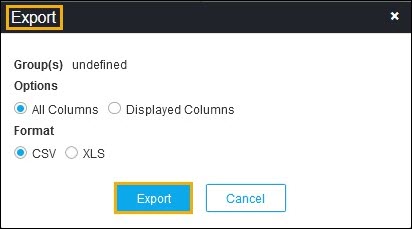
- Select the desired Options and Format in the Export popup window.
- Click Export.
The selected certificates are exported to your local machine.